Luxury smart refrigerator protected by digital cybersecurity shields in a high-end modern kitchen environment.

Stop Smart Fridge Hackers: 5 Simple Tips

A surprising fact: over 25% of smart-home devices have known vulnerabilities, and your fridge is no exception. When you plug a refrigerator into the internet, you give attackers another door into your network—and they often look for the easiest door. You rely on convenience: remote temperature checks, grocery lists, and voice control. However, these features mean the fridge runs complex software, stores data, and connects to other devices, making it a potential tool for eavesdropping, lateral movement across your network, or even recruitment into a botnet.

This article gives you five practical, prioritized actions you can take today to harden your device and reduce exposure. Each tip is focused on real-world controls that help you detect misuse quickly and make your smart fridge a much less attractive target. These steps work whether your fridge is brand new or has been in your kitchen for several years. Follow them to turn your kitchen’s centerpiece from a security liability into a properly defended asset.

Why Your Smart Fridge Is a Target — and What You Can Do

A surprising fact: over 25% of smart-home devices have known vulnerabilities, and your fridge is no exception. When you plug a refrigerator into the internet, you give attackers another door into your network — and they often look for the easiest door.

You rely on convenience: remote temperature checks, grocery lists, and voice control. Those features mean the fridge runs complex software, stores data, and connects to other devices. That makes it useful for eavesdropping, lateral movement, or as part of a botnet.

This article gives you five practical, prioritized actions you can take today. Each tip is focused on real-world controls that harden the device, reduce exposure, and help you detect misuse quickly. Follow them to make your smart fridge a much less attractive target. These steps work whether your fridge is new or several years old now.

1

Lock Down Access: Change Defaults and Enforce Strong Authentication
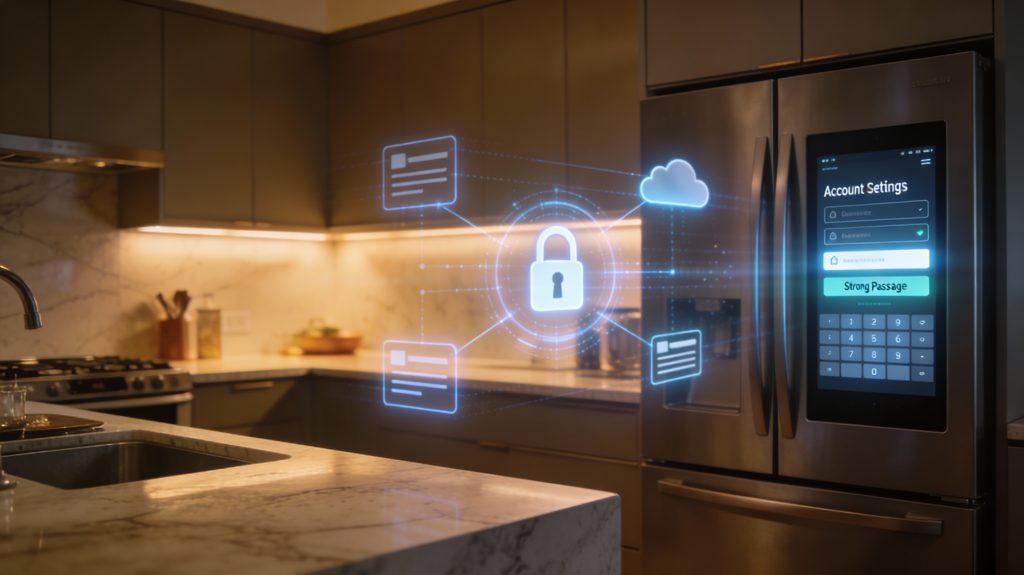
luxury smart fridge illustrating strong authentication, password management, and MFA setup
lock it down: protect your smart fridge with strong access control

Why defaults are dangerous

Attackers still scan for default usernames and passwords — the Mirai botnet famously exploited common IoT defaults to build a massive attack army. Your smart fridge is an easy target if it ships with “admin/admin” or ties into a family account you use everywhere. You can stop most opportunistic attacks by taking three immediate actions: change defaults, use strong unique passphrases, and enable multi-factor authentication (MFA) where available.

Step-by-step: access the admin interface and change credentials

  1. Find the admin interface:
    • On-screen: open Settings on your fridge (e.g., Samsung Family Hub, LG InstaView).
    • App: open the manufacturer’s companion app (Samsung SmartThings, LG ThinQ, Whirlpool app).
    • Local web UI: some models expose a local IP (check your router’s device list).
  2. Log in with the current credentials (often on a sticker or in the manual).
  3. Immediately change the default username and password under Account / Security / Admin settings.
  4. If the device forces cloud accounts, change the password in that account portal too (e.g., Samsung account, Google account if linked).

Create and store strong passphrases

Choose long passphrases (12–16+ characters) made of unrelated words or a mix of upper/lowercase, numbers, and symbols.
Use a password manager to generate and store them automatically. Reliable options: Bitwarden (open-source), 1Password (family sharing features), or KeePassXC (local-only).
Never reuse the fridge password on other devices or services — unique credentials break credential-stuffing attacks.

Use multi-factor and secure recovery

Enable MFA for the device account or companion cloud account when offered (authenticator apps like Authy or Google Authenticator are preferable to SMS).
Secure account recovery: use a dedicated, secure email for device accounts and avoid easily guessed security questions. Store backup codes in a locked physical location (safe, drawer).

Verify encrypted authentication channels

Ensure the companion app or web interface uses HTTPS (look for the padlock in a browser or review the app’s privacy/security info).
Check the manufacturer’s security documentation to confirm TLS 1.2/1.3 support.
If you’re advanced, inspect network traffic from the fridge to confirm credentials aren’t sent in cleartext.

Taking these steps removes the low-hanging fruit attackers rely on. Next, you’ll patch the software that powers your fridge so attackers can’t exploit known vulnerabilities even if they try other tricks.

2

Keep Firmware and Apps Current: Patch to Close Vulnerabilities
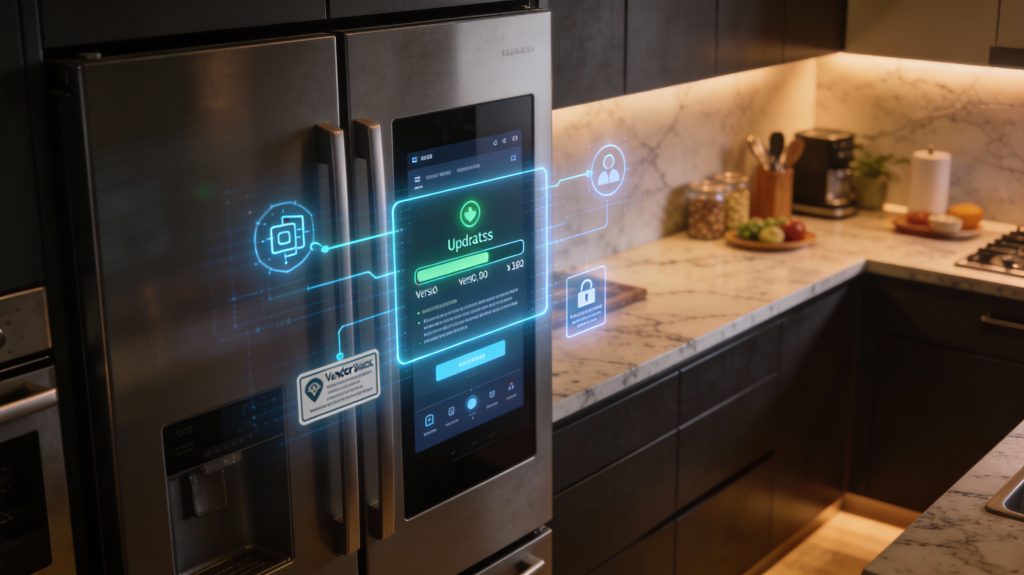
luxury smart fridge with firmware and app updates showing secure patching workflow
keep it current: patch your smart fridge for maximum security

Unpatched firmware and companion apps are frequent sources of security holes. Attackers probe known vulnerabilities first, so establishing a simple, repeatable update workflow dramatically reduces your risk.

How to check and apply firmware updates

Find the firmware/version info:
  • On the fridge: Settings → About (common on Samsung Family Hub, LG InstaView, Whirlpool smart panels).
  • In the companion app: look for Device Info, About, or Firmware Version.
Update steps:
  • If an update is listed, read the release notes (if provided) and apply via the fridge UI or manufacturer app.
  • If an update requires USB or service visit, follow vendor instructions; don’t download firmware from third‑party sites.
Quick tip: take a photo of the About screen before and after updating so you have a version record.

Trust but verify: automatic updates and authenticity

Enable automatic updates only if you trust the vendor; automatic patches close windows of exposure quickly.
Verify update authenticity:
  • Prefer vendor-signed updates. Look for signature/checksum info in release notes or on the vendor support page.
  • For app updates, use official stores (Apple App Store, Google Play). Check the developer name and last update date.
If you’re technically comfortable, monitor the device’s network activity after an update to ensure it isn’t phoning home to unexpected domains.

Back up and read security advisories

Backups:
  • Export settings if the manufacturer provides an option. If not, photograph or record key settings (Wi‑Fi SSID, linked accounts, schedules).
  • For major OS-style updates, plan to restore network/automation links after patching.
Interpreting advisories:
  • Vendors will sometimes publish security notices or CVE entries. Look for severity rating (CVSS) and whether an update “fixes remote code execution” or “fixes information disclosure.”
  • Subscribe to vendor support emails or follow their security advisory feed so you receive alerts when a critical patch arrives.

When the vendor stops supporting your fridge

If the vendor declares end-of-life:

Isolate the device (VLAN, firewall rule) and block unnecessary outbound connections.
Apply virtual mitigation: block protocols/ports known to be exploited, use DNS filtering to prevent malicious domains.
Consider replacing the unit if it stores sensitive data or integrates deeply with home automation.
As an interim measure, remove cloud account links and limit app permissions on your phone.

Keeping firmware and apps current is a practical habit that cuts risk quickly. Next, you’ll learn how to reinforce that protection by isolating your fridge from the rest of your network.

3

Segment and Harden Your Network: Isolate the Fridge from Critical Systems
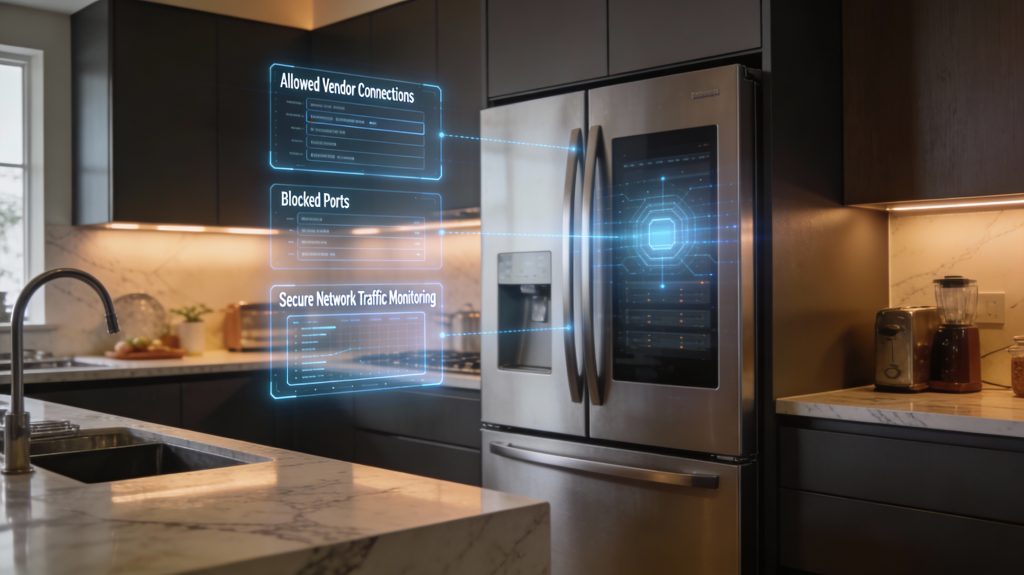
luxury smart fridge isolated on a segmented IoT network with visual firewall overlays
segment and harden: isolate your smart fridge from critical systems

Network segmentation reduces the blast radius when a device is compromised. Below are practical steps to create a separate guest/IoT VLAN for your fridge, restrict traffic, and verify the isolation.

Create a separate IoT VLAN or guest SSID

Start by giving your fridge its own subnet so infections can’t easily reach phones, work laptops, or NAS drives.

On consumer routers (Asus, Netgear, TP‑Link): enable Guest Network or “VLAN” features and assign a unique IP range (for example 192.168.50.0/24).
On prosumer gear (Ubiquiti UniFi Dream Machine, EdgeRouter) or managed APs (UniFi APs, TP‑Link EAP): create a tagged VLAN and a dedicated SSID mapped to that VLAN.
If you don’t have VLAN-capable hardware, use a second physical access point (an inexpensive TP‑Link or UniFi AP) dedicated to IoT.

Restrict inbound and outbound traffic with firewall rules

Close everything by default, then explicitly allow what’s needed.

Allow inbound to the IoT VLAN: typically none (block all incoming from WAN).
Allow outbound only to:
  • Vendor update servers and cloud endpoints (check vendor docs for domains/IPs; examples include samsung.com, lgcloudservice.com, whirlpool.net).
  • Standard ports for updates and telemetry: TCP 80, 443; avoid opening SSH (22), Telnet (23), or other management ports.
Block common exploit vectors: peer‑to‑peer, remote admin ports, SMB (445), UPnP from the IoT VLAN.

Quick router rule examples:

Deny: IoT → Home LAN (any)
Allow: IoT → VendorIPs on TCP 443,80
Deny: IoT → Any on TCP 23,445

Use DNS filtering and endpoint whitelists

Implement DNS-based protection to stop devices from resolving malicious domains.

Consumer options: NextDNS, OpenDNS (Cisco Umbrella), AdGuard Home.
Appliance options: Firewalla, Ubiquiti Gateway, pfSense with pfBlockerNG.
Tip: whitelist known vendor domains if you need strict control; monitor blocked queries for false positives.

Verify segmentation with simple scans

Confirm isolation with low-effort tools:

Fing or Angry IP Scanner on your phone: confirm fridge IP is in IoT subnet and devices from your main LAN can’t see its open ports.
nmap quick checks from a laptop on the main network:
  • nmap -sn 192.168.50.0/24 (discover hosts)
  • nmap -p 80,443 192.168.50.X (confirm only allowed services reachable)
Check your router’s ARP and client list to ensure no cross-VLAN routing.

Managed firewall or dedicated IoT AP — when to upgrade

If you run small servers or work from home, consider Firewalla (Blue/Red), a Ubiquiti Dream Machine Pro, or a pfSense/OPNsense box on a Protectli device for granular rules, logging, and VPN isolation. These give enterprise-style controls at home-friendly prices.

Segmentation is one of the highest-impact steps you can take; next, you’ll learn how to shrink the fridge’s attack surface further by disabling unneeded services and tightening app permissions.

4

Minimize Attack Surface: Disable Unneeded Services and Review App Permissions
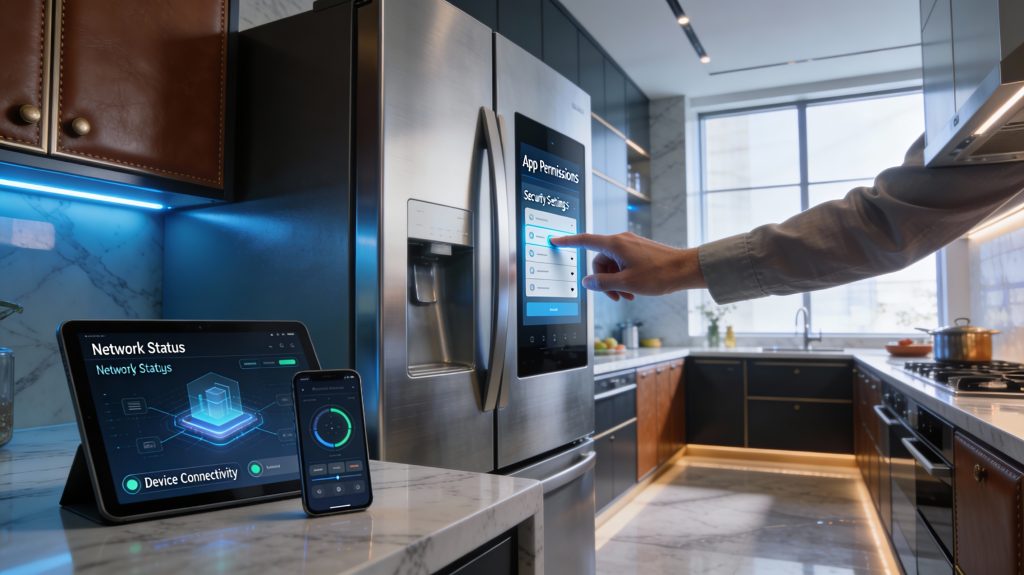
A hyper-luxury smart kitchen with a high-end smart fridge, touchscreen showing app permissions, tablet and phone displaying network security, marble countertops, designer cabinetry, ambient LED lighting, and soft natural light.
Minimize attack surfaces in style — luxury smart kitchen security with seamless control over smart fridge permissions and network monitoring.

Every enabled service or installed app is another door an attacker can try. Below are practical, prioritized steps to shrink that surface—what to turn off, what to uninstall, and how to check your phone and network permissions so your fridge only does what you actually need.

Quick, prioritized checklist (do these first)

Disable Remote Access/Cloud Control unless you actively use it.
Turn off UPnP and automatic port mapping.
Disable file sharing/SMB and any built‑in FTP/webserver features.
Turn off Bluetooth and Wi‑Fi Direct if unused.
Disable always‑listening voice assistants (set to push‑to‑talk).
Remove unused third‑party apps from the fridge’s app store.
Limit companion‑app permissions on your phone (mic, location, background data).

How to audit and disable features

Go through the fridge touchscreen menus and the companion app methodically:

Settings → Connectivity (Wi‑Fi, Bluetooth, Remote Access): toggle off extras you don’t use.
Settings → Network → UPnP / Port Forwarding: turn UPnP off.
Apps or Smart Hub → Installed Apps: uninstall third‑party apps (Samsung Family Hub, LG ThinQ plug‑ins, Whirlpool Connect modules).
Privacy/Telemetry: look for “Usage data,” “Crash reports,” or “Diagnostics” and set to off or opt‑out.

Example: On a Samsung Family Hub you’ll remove apps via Apps → My Apps → Uninstall; on LG ThinQ, open Settings → About Phone/Device → Diagnostics to opt out.

Lock down companion apps on phones

On Android/iOS:

Revoke mic, camera, location, and background refresh unless needed for a specific feature.
Disable push notifications if they expose sensitive info.
On Android, disable “Autostart” and limit background data for the app.

Minimize telemetry and data sharing

Opt out of diagnostics and personalized ads in the fridge settings and companion app.
If the vendor forces telemetry, restrict that device’s internet access using your router (allow only vendor update domains).

Remove unused third‑party apps safely

Uninstall through the fridge UI rather than factory reset.
If the app won’t uninstall, disable it and block its outbound connections with your router’s firewall.

Simple functionality test after changes

Create a short test checklist and run it after you disable features:

Check temperature controls, ice/water dispenser, and alerts.
Confirm door sensors and internal cameras (if present) still work.
Use the companion app to perform one remote task you need.
Verify voice commands or Bluetooth pairing only work if you intend them to.

Reboot the fridge, wait 10–15 minutes, then re‑run the checklist and monitor for a day for unexpected errors or missing notifications. Next, you’ll follow up by putting monitoring and response controls in place so you detect problems quickly.

5

Monitor, Audit, and Prepare: Detect Intrusions and Respond Quickly
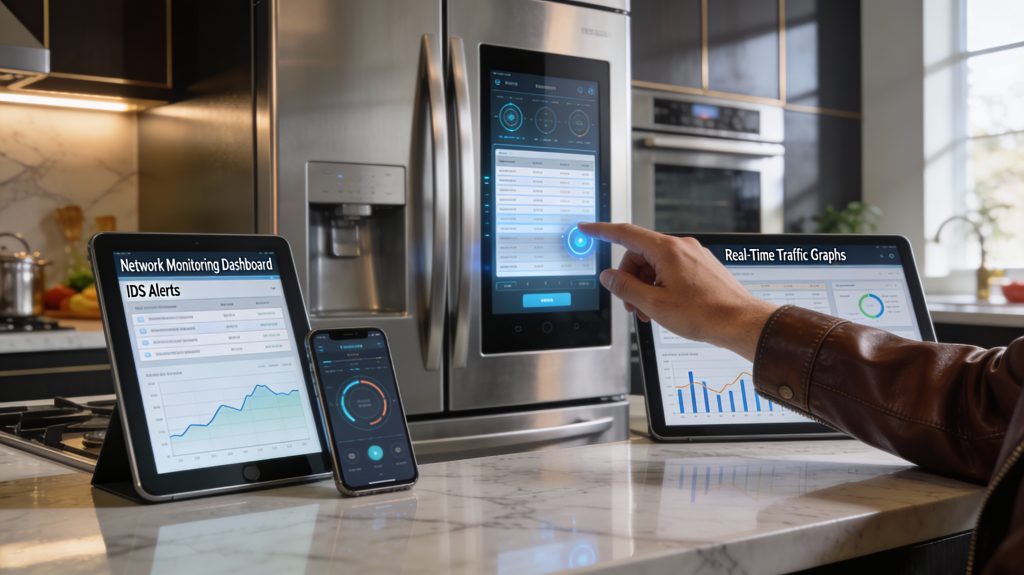
Luxury smart kitchen with a premium fridge showing diagnostic logs and intrusion alerts on its touchscreen, surrounded by tablet and laptop dashboards displaying network monitoring, marble countertops, designer cabinetry, and ambient LED lighting.
Monitor, audit, and respond in style — luxury smart fridge cybersecurity in action.

Ongoing monitoring and a tested response plan turn prevention into resilience. Below are concrete steps you can take today to spot suspicious activity, contain incidents fast, and recover with minimal disruption.

Enable and review device logs

Most smart fridges keep basic logs (connection attempts, firmware updates, app access). Enable them and check regularly.

Look in the fridge settings or companion app for “Logs,” “Diagnostics,” or “System History” and turn logging on.
Forward logs to a local syslog server (Synology NAS, Raspberry Pi running rsyslog) or to your router if supported.
Review logs weekly for repeated failed logins, unfamiliar IP addresses, or unexpected firmware events.

Example: on some Samsung Family Hub models you can enable diagnostics in Settings → Support → Diagnostics and export logs via USB or network.

Network monitoring anyone can run

You don’t need enterprise gear to spot anomalies. Simple tools and a short baseline give big visibility.

Install Fing (mobile), GlassWire (Windows/Android), or Fingbox to map devices and flag unusual outbound connections.
Use your router’s client list and traffic graphs (eero Secure, Ubiquiti UniFi, ASUS Merlin) to spot spikes or long connections to unknown hosts.
For deeper inspection, capture traffic with Wireshark or enable IDS rules on a Pi-hole + Suricata setup to detect suspicious protocols.

A quick rule: investigate any fridge that connects to IPs outside the vendor’s domains, or that shows sustained high-volume uploads.

Incident response checklist — act fast

Keep this printable checklist near your router.

Isolate: disconnect the fridge from Wi‑Fi (unplug or block its MAC/IP at the router).
Capture: export device logs and router traffic captures immediately.
Contain: change local passwords and revoke companion-app tokens.
Recover: perform a factory reset and reinstall the latest firmware (follow vendor instructions).
Escalate: contact the vendor’s security support and, if sensitive data may be exposed, a security professional.

If you can’t preserve logs before a reset, note timestamps and router captures — they still help investigators.

Periodic audits, inventories, and backups

Make audits routine to shorten detection time.

Maintain an inventory spreadsheet: model, serial, firmware, install date, network segment.
Retain the last known-good firmware image and configuration backups (router and companion app settings).
Schedule quarterly audits: check firmware, review logs, and verify the inventory.

Stay informed and practice

Subscribe to vendor security alerts, CISA advisories, or the vendor’s RSS/mail list. Run a tabletop drill once a year so you can execute the checklist smoothly.

Next, apply these practices consistently as you move to make security routine in the Conclusion section.

Make Security Routine: Maintain, Monitor, and Improve

You can’t secure your smart fridge once and forget it. Enforce strong authentication, patch promptly, isolate the device on a segmented network, disable unnecessary features, and keep monitoring and response processes active—these steps cut risk and limit impact. Make a quarterly checklist you actually follow: review accounts and permissions, verify firmware and app updates, validate network segmentation, and test detection and recovery procedures.

Treat security as maintenance, not a project. Adjust controls as threats and your devices change. Commit to routine checks today to keep your home network resilient and your data protected. Start now and review results quarterly consistently.

Leave a Comment

Your email address will not be published. Required fields are marked *