
The convenience of a smart kitchen is undeniable, offering the ability to preheat your oven from the grocery store or receive a notification the moment your soufflé is ready. However, these “set it and forget it” luxuries quickly turn into a source of frustration when your appliance constantly loses its connection. A smart oven that keeps disconnecting from Wi-Fi is more than just a minor technical glitch; it disrupts remote monitoring, halts essential firmware updates, and can even leave you with a half-cooked meal and a lot of digital headaches.
While it’s tempting to blame the appliance itself, intermittent connectivity is often a symptom of complex interactions between your home network, physical environment, and device settings. Whether it’s the interference from a running microwave, a router struggling to manage too many devices, or a simple mismatch in Wi-Fi frequency bands, diagnosing the root cause requires a methodical approach. This guide breaks down the common culprits—from signal strength and firmware bugs to security configurations—and provides a prioritized checklist to help you restore a stable connection and get back to seamless cooking.
Why your smart oven’s Wi‑Fi connection matters
You depend on your smart oven for remote monitoring, recipe downloads, updates, and voice control. When it keeps dropping Wi‑Fi, those conveniences turn into interruptions that can ruin a meal or leave firmware half‑installed. Intermittent connectivity is more than an annoyance; it can reveal problems with your network, the oven’s firmware, or configuration.
This article walks you through common causes, network factors like signal strength and band selection, device and firmware issues, environmental interference, router and security settings, and a step‑by‑step troubleshooting checklist. Follow a methodical approach and you can diagnose and fix the issue with confidence. Start with the checklist.
Common causes of repeated Wi‑Fi disconnects
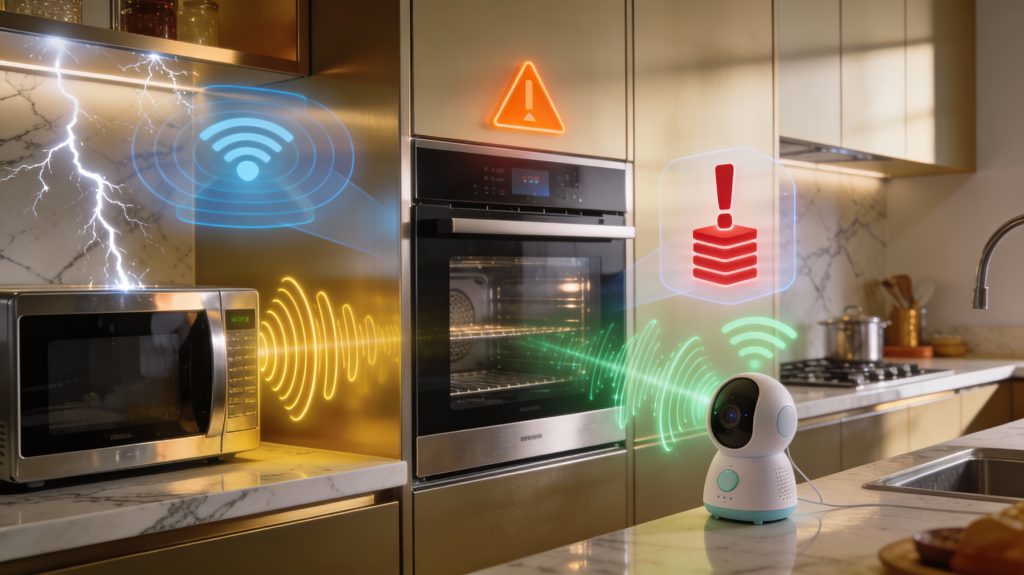
Start by mapping what you observe to likely root causes. Below are the major failure categories you’ll encounter, why each one breaks connectivity, and quick checks you can perform immediately.
Weak or unstable signal
Your oven may sit where the router’s signal is thin or blocked. Thick walls, metal cabinetry, or a microwave running nearby can drop RSSI below usable levels.
Network configuration problems
Mismatched bands, hidden SSIDs, or DHCP conflicts cause repeated disconnects or reconnect loops—especially with appliances that only support 2.4 GHz (many models like older GE Profile, Whirlpool, and Samsung smart ovens).
Firmware, app, or device bugs
Appliance firmware or the companion app can have memory leaks, crash loops, or failed cloud authentication that drop Wi‑Fi periodically.
Router performance and client limits
Cheap or overloaded routers can’t handle many smart devices, leading the oven to be dropped when your network is busy (streaming, game downloads).
Environmental interference
Microwaves, baby monitors, cordless phones, and Bluetooth devices all share 2.4 GHz and can cause periodic losses—often at predictable times (e.g., when you use the microwave).
Security and authentication failures
WPA3-only networks, captive portals, or credential mismatches can cause reconnect loops or outright failures.
Symptom checklist: frequent short drops → signal or router load; drops at specific times → interference or scheduled tasks; continuous reconnect loops → auth/firmware/SSID mismatch. Use these mappings to prioritize what you test first.
Network factors: signal strength, band selection, and congestion
The Wi‑Fi environment is the most common source of instability. Here you’ll learn how signal strength, radio band, channel congestion, and device load specifically affect a stationary appliance like an oven — and which quick measurements you can run from a phone or laptop to diagnose the problem.
Measure signal strength (RSSI) and what it means
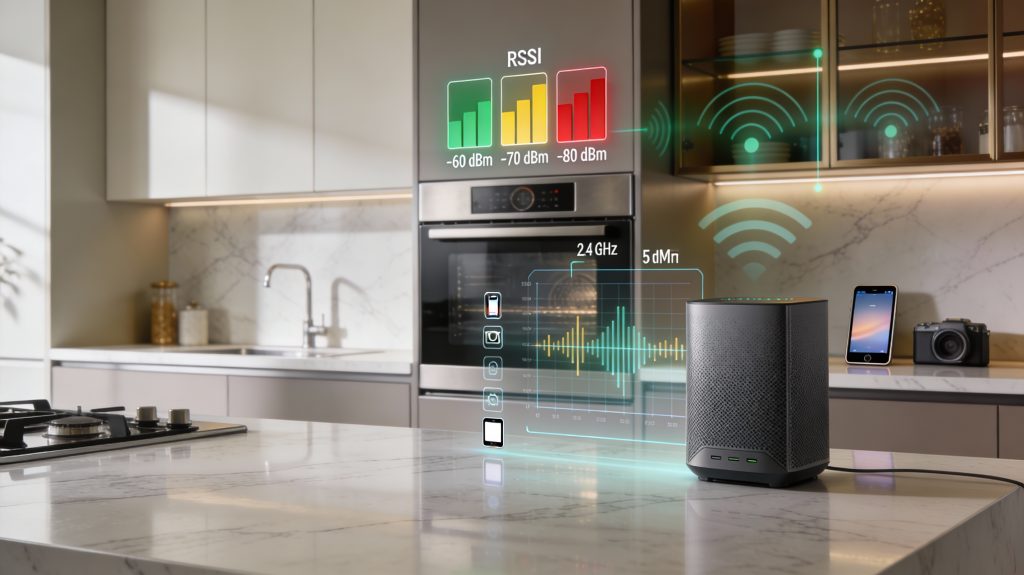
Signal strength is reported as RSSI in dBm. Walk to the oven with a phone Wi‑Fi app (NetSpot, WiFi Analyzer, or Fing) and note the RSSI.
If your oven sits below about -70 dBm, try moving the router or adding an access point near the kitchen.
2.4 GHz vs 5 GHz: range, compatibility, and tradeoffs
Many ovens (especially older GE Profile, Whirlpool, Samsung models) only support 2.4 GHz. Even when an oven supports both, 2.4 GHz often works better because:
If the oven requires 2.4 GHz, make sure it’s not being forced onto 5 GHz by a combined SSID. Creating a dedicated 2.4 GHz SSID can prevent band-steering issues.
Channel congestion and many-device load
2.4 GHz has three practical non‑overlapping channels (1, 6, 11). A crowded channel or heavy local Wi‑Fi usage (multiple phones, cameras, streaming boxes) will cause airtime starvation and disconnects.
Quick diagnostics you can run now
These measurements give you objective data to decide whether you need simple tweaks (channel, SSID, placement) or a hardware upgrade such as a dedicated 2.4 GHz access point or mesh node near the kitchen.
Device and firmware issues: bugs, sleep modes, and cloud dependencies
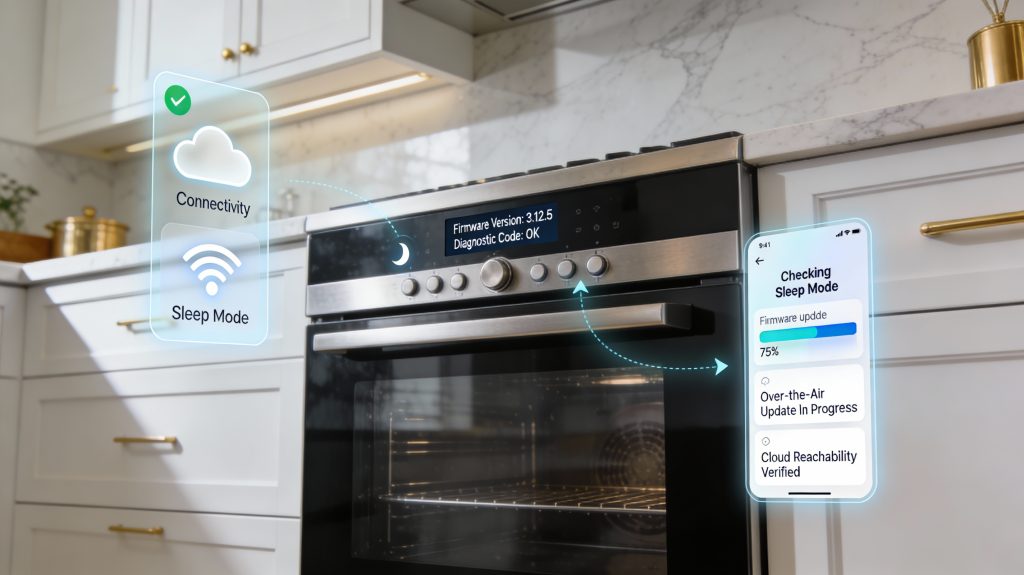
Smart ovens are three-layered systems: embedded firmware in the oven, the vendor’s cloud service, and your mobile app. Any one layer can break the chain. Below are the device-side problems you’ll run into and practical checks to separate “oven problem” from “network problem.”
Firmware bugs and update-related failures
Manufacturers push over‑the‑air firmware updates to add features or fix crashes — but updates can also introduce regressions. You might see repeated reconnect loops after an update or a sudden inability to rejoin Wi‑Fi.
Power management and “sleep” modes
To save power, some ovens put the Wi‑Fi radio into a low‑power state or turn it off when idle. That can look like random disconnects or slow reconnection after you open the oven.
Cloud dependencies and how to interpret app messages
Sometimes the oven’s local Wi‑Fi is fine but the oven can’t reach the vendor’s cloud — the app will often say “Device offline” or “Cannot reach server.”
How to gather device-side diagnostics (practical steps)
These steps help you identify whether the oven itself is misbehaving or if the problem lives in the cloud — the next sections explain environmental and router fixes you can try from your side.
Environmental interference and physical placement
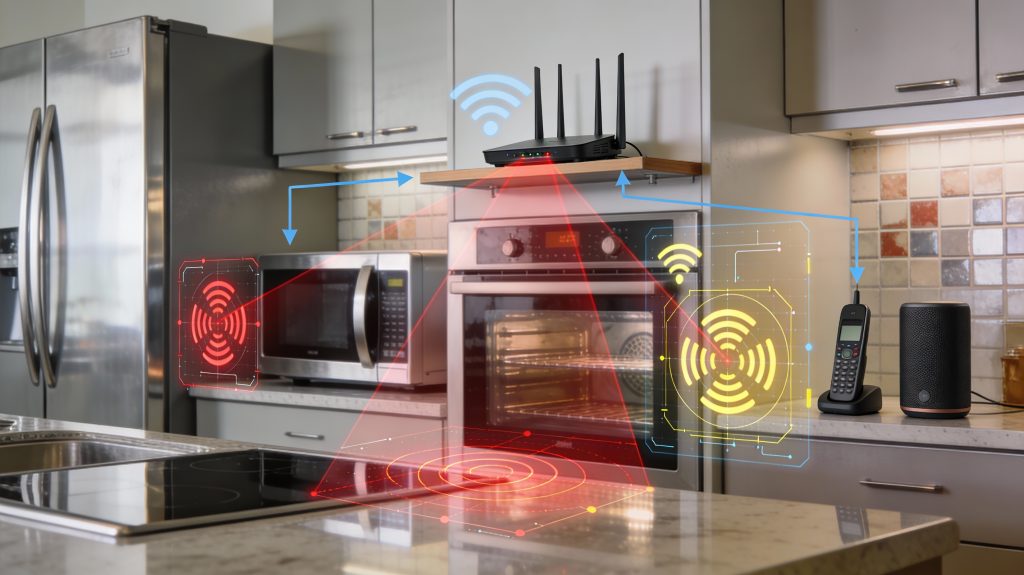
Physical location and nearby equipment strongly affect wireless performance. In a kitchen—full of metal surfaces, thick walls, and high‑power appliances—small changes in placement can turn a reliable signal into repeated disconnects. Below are the common culprits and practical, immediately actionable fixes.
Placement relative to the router and walls
Kitchens are often separated from living‑room routers by drywall, tile, or concrete. Even a single steel stud or foil‑backed insulation can attenuate Wi‑Fi.
Appliances and electronic interference
Some household devices radiate on or near the 2.4 GHz Wi‑Fi band and can overwhelm a smart oven’s radio.
A quick test: run the microwave while watching the oven’s connection; if disconnects coincide, you’ve found a strong clue.
Materials and multipath effects
Reflective surfaces (stainless steel fridges, canned‑goods pantry, tile backsplashes) create multipath — signals that bounce and arrive out of phase, causing cancellations.
Quick, practical fixes you can try now
If repositioning and appliance checks don’t help, the next section covers router settings and advanced configuration changes that often eliminate lingering problems.
Router settings, security, and advanced configuration fixes
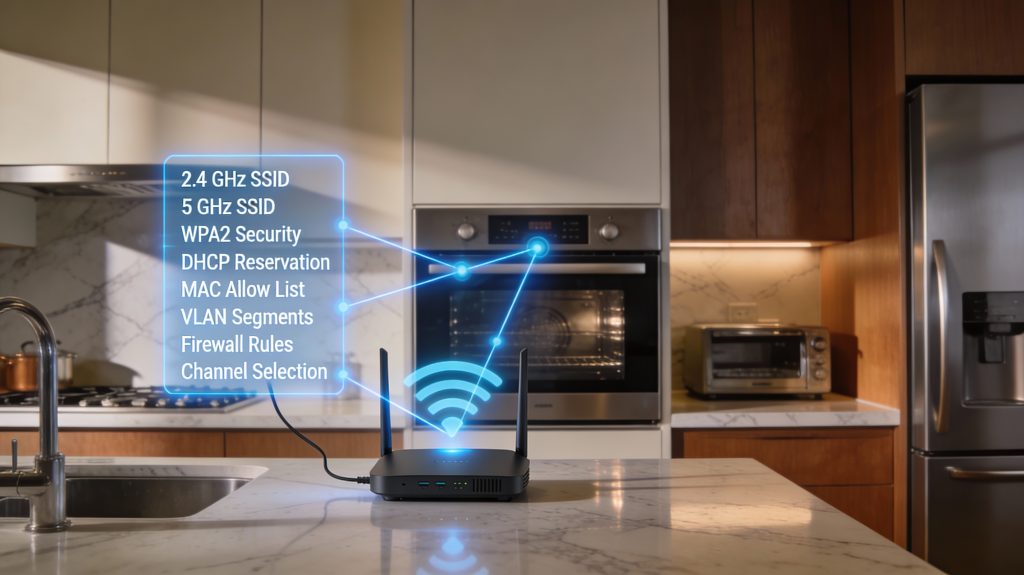
Router configuration is a frequent hidden cause of flaky IoT connections. Below are targeted, actionable settings you can change in your router’s web UI or app to stabilize your smart oven without compromising security.
SSID and band separation, and band steering
Many ovens prefer a single, stable SSID. If your router broadcasts the same SSID on 2.4 GHz and 5 GHz (band steering), the oven may flip between bands and drop.
WPA2 vs WPA3 compatibility
New routers default to WPA3 or mixed modes. Many IoT devices still only support WPA2.
MAC filtering, DHCP leases, and IP conflicts
MAC filtering or short DHCP leases can cause repeated drops.
UPnP, firewall rules, guest networks, and VLANs
Smart ovens need outbound access to cloud services; restrictive rules can block that.
Channels, firmware, and practical tips
Quick example: one user fixed repeated drops by reserving the oven’s IP on a Netgear Nighthawk, disabling band steering, and switching the oven to WPA2 — a simple 10‑minute change that stopped nightly disconnects.
Step‑by‑step troubleshooting checklist and practical fixes
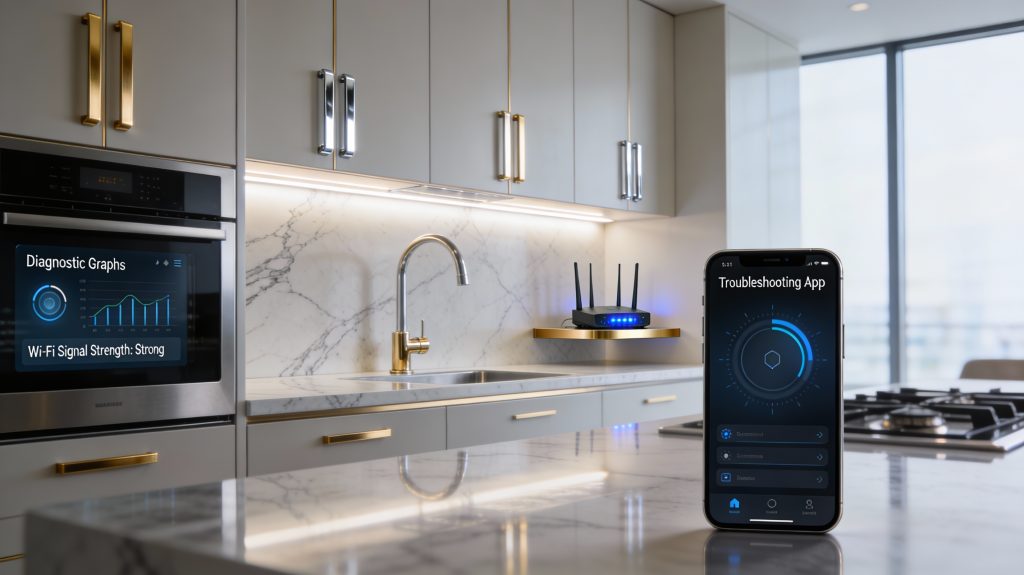
This prioritized checklist walks you from the fastest, lowest‑risk checks to deeper diagnostics. Work top‑to‑bottom until the problem is solved, and capture the requested evidence before you call support.
Quick sanity checks (first 5–10 minutes)
Targeted network fixes (next 10–30 minutes)
Isolation tests (to narrow fault to network vs device)
Firmware, app, and factory reset (if problem persists)
When signal is weak: practical hardware upgrades
What to capture and when to escalate
Proceed to the Conclusion for guidance on escalation and professional support options.
When to try fixes yourself and when to escalate
Intermittent Wi‑Fi drops usually stem from network or configuration issues you can diagnose with systematic testing. Use the checklist and configuration changes in this article to narrow the problem: check signal, change bands, update firmware, review router security, and monitor logs. If those steps restore stability, continue periodic checks and document settings.
If your oven still disconnects after network and firmware checks, collect connection logs and escalate to the manufacturer or a qualified technician. Intermittent connectivity during firmware updates can risk device functionality and merits prompt escalation. Act sooner, not later.