
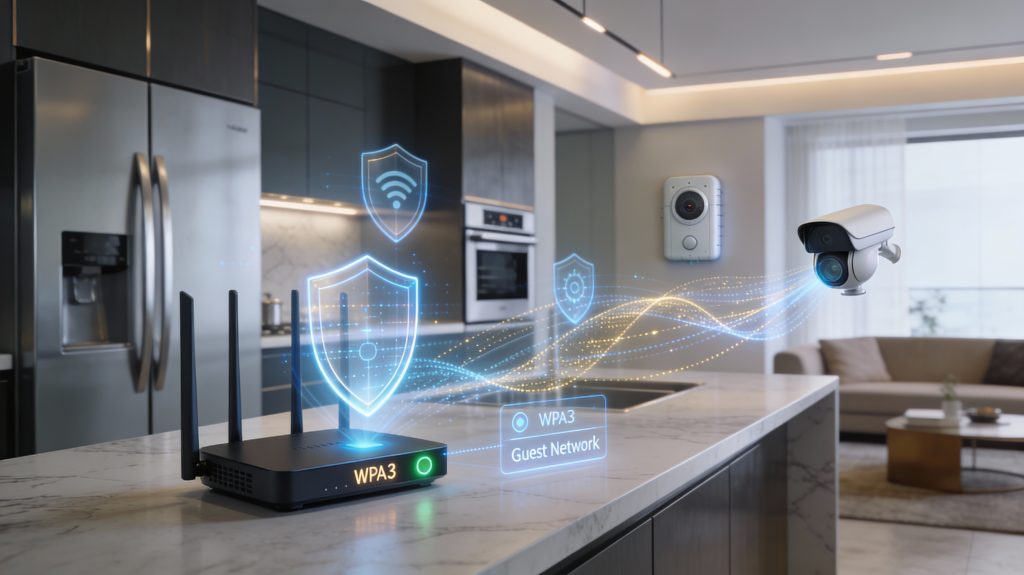
Smart appliances offer undeniable convenience, but they also introduce new cybersecurity vulnerabilities into your modern home. From connected refrigerators and smart thermostats to security cameras, every “Internet of Things” (IoT) device serves as a potential entry point for hackers seeking to steal personal data or hijack your network. To maintain a truly home luxury experience, you must treat these gadgets like any other computer by implementing layered defense strategies that prioritize privacy and network integrity.
This guide provides a comprehensive roadmap to securing smart appliances using practical, data-driven methods. You will learn how to inventory your connected devices, harden router settings with WPA3 encryption, and utilize guest networks to isolate high-risk hardware. By following these simple steps—such as enabling multi-factor authentication (MFA) and monitoring for unusual data traffic—you can protect your household from unauthorized access while ensuring your smart home remains both functional and resilient against evolving digital threats.
Why securing your smart appliances matters
Smart appliances make daily life easier, but they also create NEW attack surfaces in your home. Connected refrigerators, ovens, thermostats, cameras, and other devices can leak personal data, grant remote access to your network, or be recruited into large-scale attacks. You should treat them like any other computer and reduce exposure with simple steps.
This guide shows practical actions you can take now: map what’s connected and how it communicates; lock down your router and network; harden appliance settings and accounts; manage updates and software integrity; monitor device behavior for anomalies; and prepare for incidents while protecting your privacy. Follow these clear, data-driven measures to keep your household systems reliable and your information safe.
Map the risks: identify what’s connected and how it communicates
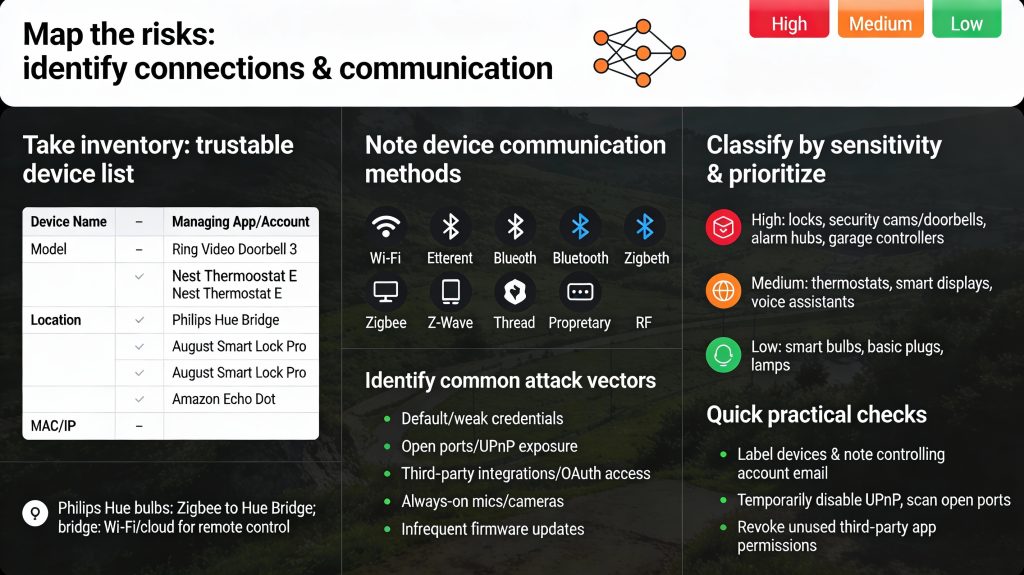
Take inventory: make a device list you can trust
Walk every room and list each smart appliance and its model (example: Ring Video Doorbell 3, Nest Thermostat E, Philips Hue Bridge, August Smart Lock Pro, Amazon Echo Dot). Check your router’s “connected devices” or use a network scanner app such as Fing to discover anything you missed. Put results in a simple spreadsheet with columns for device name, model, location, MAC/IP, and the mobile app/account that manages it.
Note how devices talk to the world
For every device record its connection method: Wi‑Fi, Ethernet, Bluetooth, Zigbee, Z‑Wave, Thread, or proprietary RF. Also list whether it relies on vendor cloud services (Google/Nest, Ring, Philips Hue cloud), local hubs (Hue Bridge, SmartThings, Hubitat), or third‑party integrations (Alexa, Google Home, IFTTT). Example: Philips Hue bulbs use Zigbee to the Hue Bridge, and the bridge uses your Wi‑Fi/cloud account for remote control.
Identify common attack vectors
Look for these red flags for each device:
Classify by sensitivity and prioritize
Score devices High / Medium / Low based on impact if compromised:
Focus first on High‑risk items (change passwords, isolate on a guest/VLAN, confirm latest firmware). Medium items follow; low‑risk devices still get baseline protections like strong Wi‑Fi keys and updated apps.
Quick, practical checks you can do now
With a clear inventory and prioritized risk map, you’ll be ready to take the next step: locking down your home network and router settings.
Lock down your home network and router settings
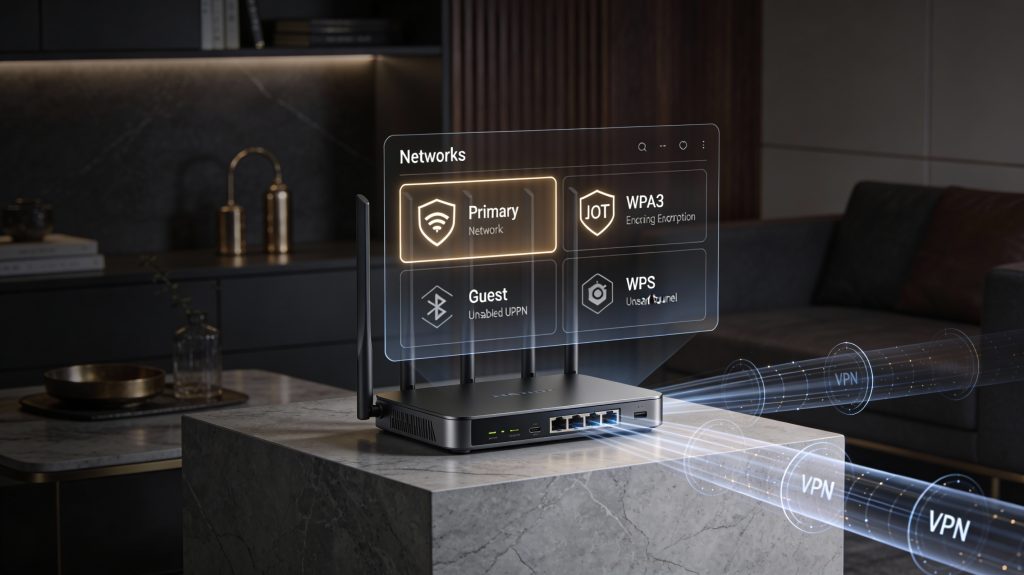
Your router is the gateway for every smart appliance. Locking it down reduces the attack surface for every device on your list.
Change admin credentials and turn off remote management
Log into your router’s admin page and replace the default admin username/password with a long, unique passphrase (12–16+ characters). Disable “Remote Administration” or “Web Management” from WAN—if left enabled, anyone can try to reach your router from the internet. Mirai-style attacks historically succeeded because devices kept default credentials; don’t make the same mistake.
Use the strongest Wi‑Fi encryption available
Set your Wi‑Fi to WPA3 if your router and devices support it; otherwise choose WPA2‑Personal with AES (not TKIP). Use a separate, strong Wi‑Fi passphrase for each network—avoid obvious SSIDs that reveal your name or router model.
Disable risky features you don’t need
Turn off WPS (PIN-based setup is easy to brute-force), UPnP (automatically opens ports; attackers abuse it), Telnet/SSH and legacy remote services if you don’t use them. Many consumer routers have these enabled by default—check settings and toggle them off.
Segment devices so breaches stay contained
Create an IoT or guest network and place smart appliances there so they cannot initiate connections to your laptops and phones. Consumer options:
Example: Put your Philips Hue Bridge and smart plugs on the IoT SSID; keep your work laptop on the primary SSID so a compromised bulb can’t jump to your files.
Keep firmware and DNS protections current
Enable automatic router firmware updates where available, or check the vendor’s site monthly. Consider using a reputable DNS with malware filtering—Cloudflare (1.1.1.2), Quad9 (9.9.9.9), or OpenDNS—to block known malicious domains at the network level.
Prefer VPNs or manufacturer tunnels over port forwarding
If you need remote control, avoid opening ports. Use the manufacturer’s secure cloud tunnel (authenticated) or a VPN into your network. If you must use port forwarding, restrict it to a single internal IP and nonstandard ports, and monitor logs.
Quick checklist you can apply now:
Harden appliance settings and accounts
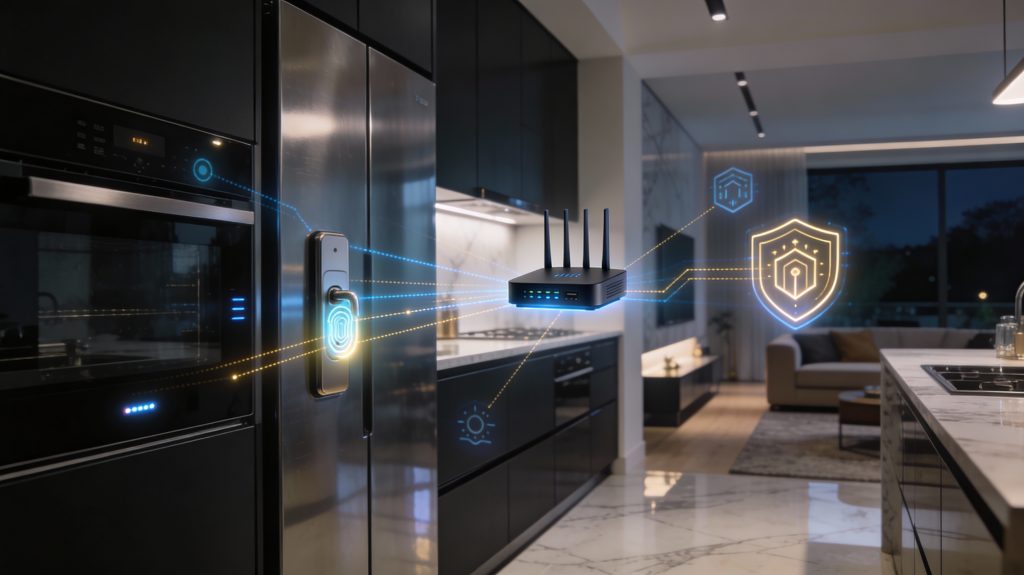
Default settings are the most common path attackers use to gain access. These device-level choices are high-impact, low-effort fixes you can apply right now.
Change defaults and strengthen credentials
Replace default usernames and passwords immediately. Use a long, unique password or passphrase (aim for 12–16+ characters) and store it in a password manager (1Password, Bitwarden, or Bitwarden and others). If a device forces simple PINs (smart TVs, baby monitors), change them to something non‑trivial and remove factory test codes.
Enable MFA and secure manufacturer accounts
Activate multi-factor authentication (MFA) on any manufacturer account or companion app. Prefer time‑based one‑time passwords (TOTP) or hardware keys (FIDO/U2F) over SMS when available.
Turn off unused sensors and features
Disable anything you don’t use—remote voice assistants, camera streaming, Bluetooth pairing, geolocation, or always‑on microphones. Each active sensor increases your exposure.
Limit app permissions and third‑party integrations
Open the companion app and revoke permissions you don’t need (contacts, microphone, precise location). Remove or reduce data shared with third‑party services (IFTTT, Alexa Skills, Google Home routines).
Use low‑privilege accounts and review users
Create guest or low‑privilege accounts for family, cleaners, or babysitters. Remove access for former roommates or discontinued services.
These device-level hardening steps greatly reduce the chance an appliance becomes an entry point—next, make sure those devices actually stay secure by managing updates and software integrity.
Manage updates, patches, and software integrity
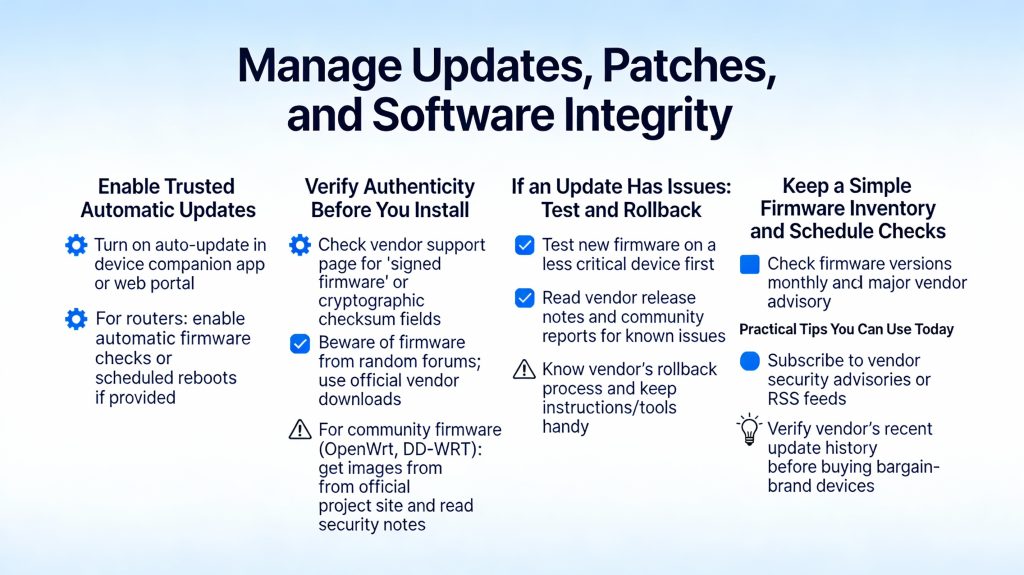
Firmware and software updates are your best defense against known exploits. Treat updates as a routine task—one that you can make mostly automatic, verifiable, and trackable.
Enable trusted automatic updates
If you trust the vendor, turn on automatic updates so critical fixes install without delay. Many manufacturers—Google/Nest, Apple (HomePod), Samsung SmartThings and mainstream router makers—push signed updates that install silently.
Verify authenticity before you install
Avoid blind trust. Look for vendor mechanisms that prove an update is legitimate—digital signatures, published SHA256 checksums, or HTTPS distribution with release notes.
If an update has issues: test and rollback
Updates occasionally introduce bugs. Don’t risk your main entry points.
Keep a simple firmware inventory and schedule checks
Track what you have and when you last updated. A plain spreadsheet or note app is enough.
Practical tips you can use today
Maintaining update hygiene shortens attackers’ window of opportunity—next, you’ll want to watch devices for suspicious behavior so you catch any problems that updates don’t prevent.
Monitor device behavior and detect anomalies
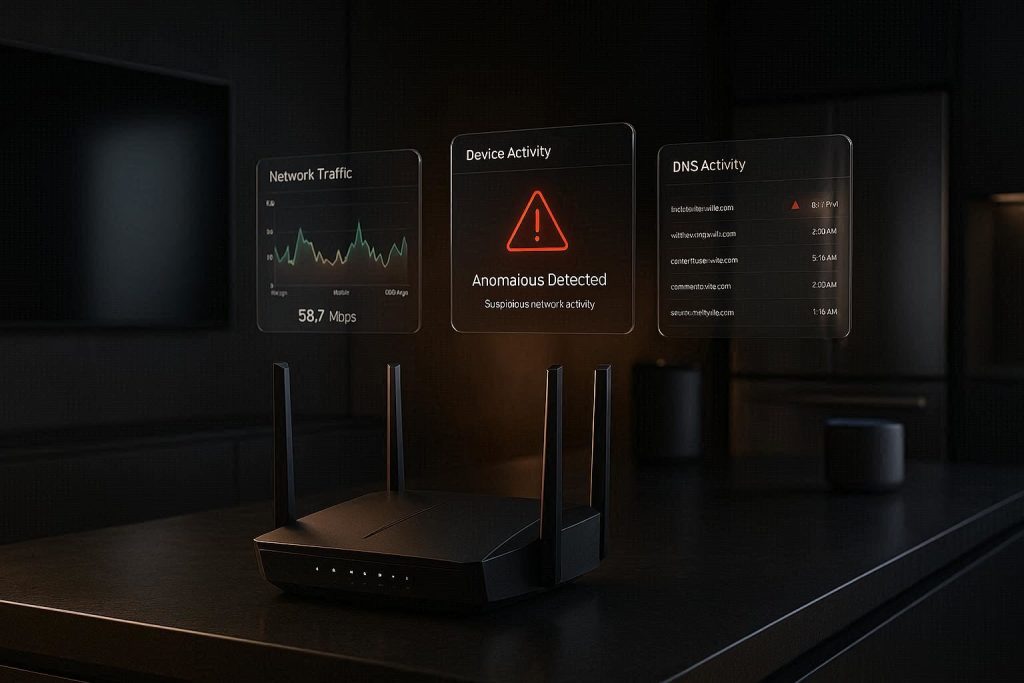
You should assume breaches are possible; monitoring helps you detect them quickly. The faster you spot odd behaviour, the sooner you limit damage. Think of monitoring as a smoke alarm—silent most of the time, indispensable when it alerts.
What to watch for
Look for clear, concrete signs that something’s wrong:
A real-world example: a household noticed their internet slow every evening. Router logs showed a smart TV making continuous outbound connections to an unknown CDN—turns out a compromised app was streaming content without consent. Early detection saved hours of troubleshooting.
Tools — from simple to advanced
Start with easy apps and move up as you need:
Configure alerts and logging
Put notifications to work so you don’t manually babysit everything:
A simple weekly checklist
When you find something suspicious, isolate the device (guest VLAN or unplug), change passwords, and investigate logs. Regular, low-effort monitoring shortens the window attackers have to operate and makes recovery decisive rather than chaotic.
Prepare for incidents and protect your privacy
No defense is perfect. Prepare a clear, practical plan so when things go wrong you can act fast, limit damage, and recover with confidence.
Immediate steps when a device is compromised
If you suspect a breach, isolate the device first — move it to a guest VLAN, disable Wi‑Fi, or simply unplug it.
A quick example: unplug a compromised Wi‑Fi camera, export its logs (if possible), factory reset, then re-add it to a freshly credentialed guest network rather than your main LAN.
Keep recovery “ingredients” ready
Prepare these in advance so recovery isn’t frantic.
Protect privacy and limit data exposure
Minimize what attackers can steal in the first place.
Lifecycle actions: retire and wipe devices
Before resale or disposal, securely wipe or remove storage.
With these incident‑response and privacy steps in place, you’ll be prepared to recover quickly and limit exposure—ready to apply the practical, ongoing approach in the Conclusion.
A practical, ongoing approach to appliance security
Securing your smart appliances is not a one‑time task but a repeatable process: inventory and prioritize devices, enforce strong network and device controls, keep software current, monitor for anomalies, and prepare incident procedures. Treat these steps as an operational checklist you revisit regularly — monthly for most homes, sooner after new device additions or alerts.
By applying these straightforward, data‑backed measures you’ll significantly reduce exposure to common threats and make your home network more resilient. Start today: map your devices, update critical firmware, and set up basic monitoring to gain immediate defense improvements.