High-end smart coffee maker in a luxury kitchen setting representing resetting a descale notification.

How to Reset the Descale Notification on Any Smart Coffee Maker

Seeing a persistent descale alert on your high-end espresso machine or smart brewer can be frustrating, especially when it interrupts your morning routine. However, these notifications are vital “health checks” triggered by water hardness sensors, brew counters, or internal flow meters to prevent mineral buildup from destroying your boiler. Learning how to reset the descale notification correctly is essential for any home barista; it ensures your machine’s extraction remains consistent, preserves your manufacturer’s warranty, and prevents the “phantom alerts” that often plague smart appliances.

Whether you use a Jura, Breville, De’Longhi, or Nespresso, this comprehensive guide provides the universal logic and model-specific strategies needed to clear maintenance lights safely. We will walk you through the critical preparation steps, explore app-based and manual button-combination resets, and provide troubleshooting tips for when a notification simply won’t disappear. By mastering these reset procedures, you can move beyond the annoyance of a flashing light and get back to what matters most: the perfect cup of coffee.

Why You Should Know How to Reset the Descale Notification

A descale alert is more than an annoyance — it’s a maintenance signal tied to water hardness, run-time counters, or completed cycles. When you reset it you either clear an internal counter or acknowledge that descaling was performed. Knowing how to reset correctly prevents premature skips, preserves warranties, and keeps extraction consistent.

This guide shows safe preparation steps, universal reset methods (menus, buttons, apps, power-cycles), how to locate model-specific procedures and diagnostic tools, troubleshooting when alerts return, and preventive practices and smart integrations to reduce repeat notifications. Follow these sections and you’ll keep your machine reliable and tasting its best. You’ll also learn when a manual reset is necessary and safe.

1

How Descale Notifications Work and What a Reset Changes
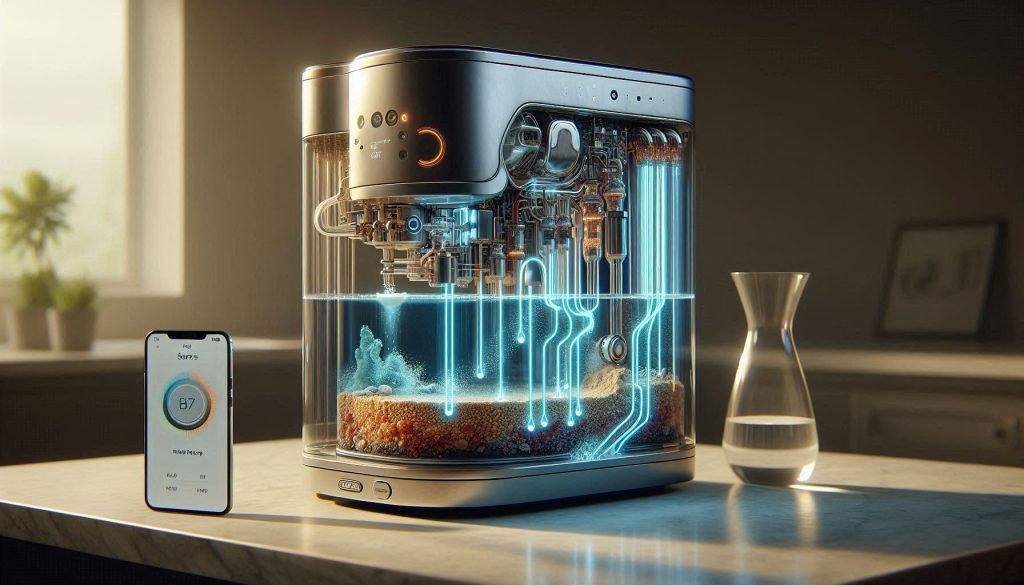
Smart coffee maker with visible internal water flow and sensors detecting scale, illustrating how descale notifications work.
Understanding descale notifications helps maintain consistent coffee quality and prevents hidden damage.

What trips the descale alert

Smart coffee makers use several methods — alone or together — to decide when descaling is due. Common triggers include:

Cumulative runtime or brew counters (e.g., every 300 cycles or X hours).
Water-hardness settings combined with total water volume passed through the heater.
Flow and temperature profile changes: slower flow or higher kettle-on time can indicate scale.
Conductivity or capacitance sensors that detect mineral deposits directly (more common on higher-end machines like Jura E8 or some commercial units).

Imagine a home user with a De’Longhi Magnifica on hard water: the machine may use a counter that reaches a threshold faster than a Jura with a conductivity probe, so alerts appear at different intervals.

Acknowledge vs. clear vs. true descaling

There are three different actions a reset can perform; conflating them causes mistakes:

Acknowledge: you silence the notification; the machine will remind you again soon unless the underlying counter is adjusted.
Clear the internal counter: the unit believes the maintenance interval has been satisfied and postpones the next alert.
Perform a true descaling cycle: the machine flushes descaling solution through heating elements and lines to remove scale.

Resetting the counter without performing a true descaling is like changing the “check engine” light without fixing the engine — it hides the symptom.

How manufacturers expect you to maintain the machine

Most makers design a workflow: set water-hardness once, run descaling when prompted, follow the descaling program, then use the menu/app to confirm completion. For example, Breville’s smart models expect you to run a descaling program and then press a “reset” in the menu to clear the counter; Nespresso often requires a button sequence to acknowledge completion.

Risks of an improper reset

Resetting without descaling can cause:

Reduced heating efficiency and longer brew times.
Clogged boilers, valves, and narrow tubes — leading to uneven extraction and bitter taste.
Potential warranty issues if maintenance is skipped and documented failure follows.

Quick practical tip: before you hit reset, check your machine’s water-hardness setting and recent brew count (shown in many apps/menus). If either suggests heavy use or hard water, do the descaling cycle first.

2

Safety Checks and Preparation Before You Reset
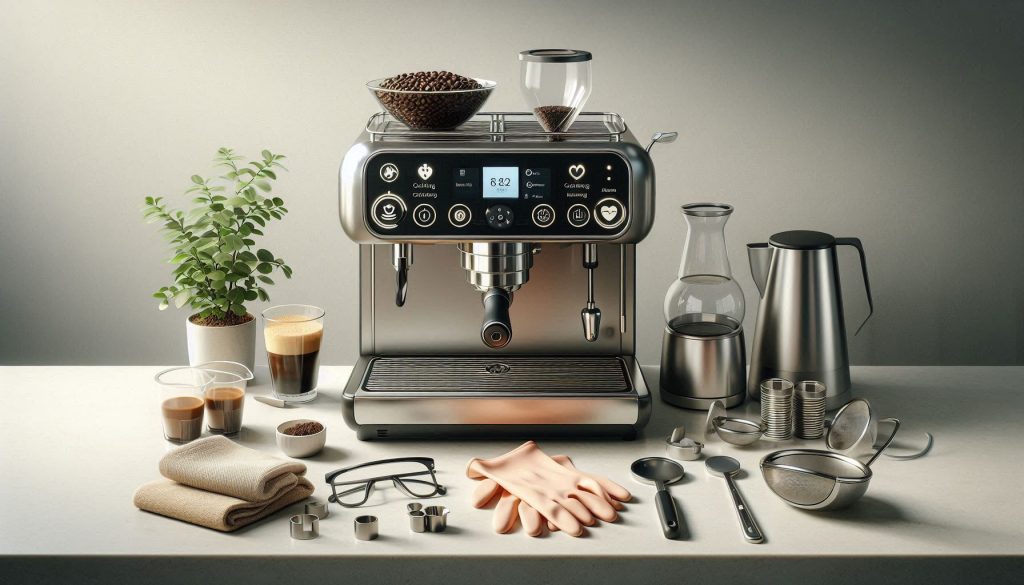
Smart espresso machine powered off with emptied reservoir and drip tray, surrounded by gloves, measuring cup, funnel, and descaler container, illustrating safety preparation before maintenance.
Preparing your smart coffee maker safely before a descale or reset protects both you and your machine.

Before you clear a descale alert, prepare the machine and workspace so the reset and any descaling go smoothly. The steps below are practical, safety-focused, and drawn from real-world machine behaviors (e.g., Breville, Jura, De’Longhi, Nespresso).

Power down, depressurize, and cool

Always remove power and allow the boiler to cool. For most espresso machines you should:

Unplug the unit and wait 20–60 minutes for the boiler to lose pressure and cool; high-pressure steam or hot water during maintenance can cause scalding.
Release any residual steam using the wand or purge button per your model’s routine (Breville Barista Express users often watch the pressure gauge return to zero first).

Remove beans, grounds and accessories

Protect the grinder, portafilter, and brew group from descaler contamination.

Empty the bean hopper and dosing chamber.
Remove and discard used puck/grounds; clean the portafilter and shower screen.
Take out removable brew group (if applicable) and let it dry separately.

Empty and inspect water reservoirs and trays

A quick visual check prevents surprises.

Dump the reservoir and drip tray into a sink; inspect for cloudy water, white deposits, or odd odors that indicate heavy scaling.
Look inside the tank with a flashlight—crystals or flaking plastic/scale should be noted before you run descaling.
If your model (Jura E8, some Nespresso/De’Longhi machines) has sensors in the tank area, remove debris that could interfere with readings.

Gather correct supplies

Using the right chemicals avoids damage and warranty issues.

Manufacturer-recommended descaler (best).
Alternatives: food-grade citric acid solution (recommended ratio 2–3%) or diluted white vinegar only if the manual allows—vinegar can corrode some parts and may void warranties.
Measuring cup, funnel, rubber gloves, eye protection, and disposable containers for used solution (500–1000 mL capacity typically enough).

Back up settings and check software

You don’t want to lose custom profiles.

Note or photograph custom grind/brew profiles and schedules.
Check the app or machine for pending firmware updates or maintenance locks; some Wi‑Fi models block maintenance steps during updates.

Quick safety checklist

You have unplugged and cooled the machine.
Beans/grounds removed.
Reservoir and drip tray emptied and inspected.
Correct descaler and protective gear on hand.
Custom settings recorded and app/firmware checked.

With these checks complete, you’ll reduce risk of incomplete descaling or hardware damage and be ready to run the descaling cycle and perform the reset.

3

Universal Reset Methods: Menus, Buttons, Apps, and Power-Cycles
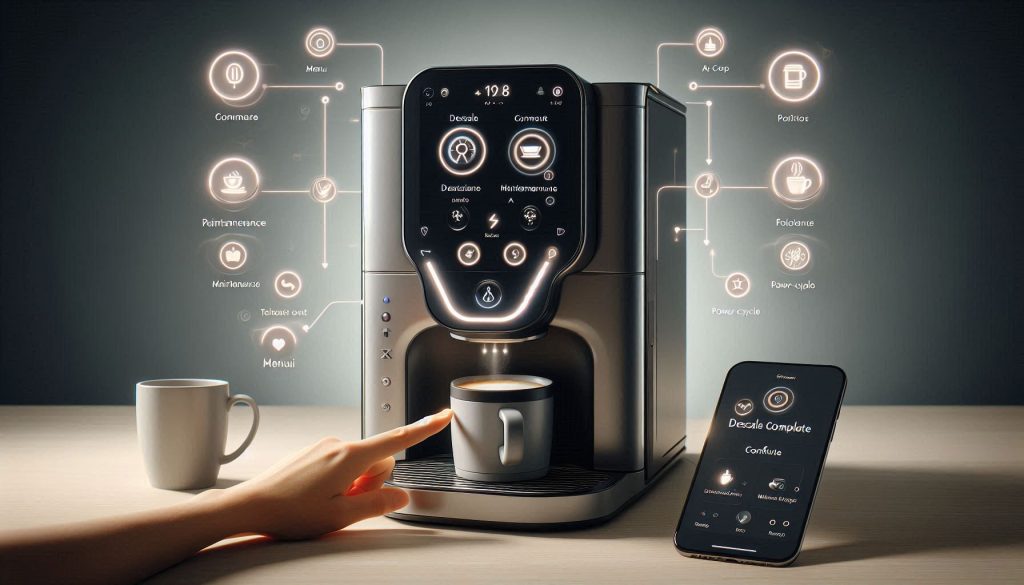
Smart coffee machine with hand pressing buttons, tablet menu open, and smartphone showing descale complete, illustrating universal reset methods.
Universal reset methods for smart coffee makers: menus, button combinations, app commands, and power-cycles.

This section gives you model-agnostic, step-by-step ways to clear descale notifications on most smart coffee makers. Use the method that matches what you actually did (full descale vs. troubleshooting a false alarm).

Most smart machines expose a Maintenance or Settings menu.

Steps: navigate to Settings or Maintenance > Descale (or “Calc”/“Water Hardness”) > Reset or Mark Complete. Confirm when prompted.
Typical confirmations: on-screen message “Descale complete,” checkmark icon, or steady green status LED.
When to use: after you’ve run the full descaling cycle and refilled the tank.

Example: on many Breville and De’Longhi models the menu path is Settings → Maintenance → Descale Reset; Jura’s E-series shows a “Maintenance done” prompt after a service routine.

Button-combination reset (physical controls)

Useful when the touchscreen is slow, locked, or the display is minimal.

Steps: hold the power or descale button together with a brew/hand-wash button for 5–15 seconds (different manufacturers use different combos). Release when lights flash or a tone sounds.
Typical confirmations: flashing LEDs settle to a steady color, audible beep, or brief message like “Service mode exit.”
When to use: when the menu is inaccessible or the descale LED won’t clear after an actual descaling.

Tip: If you own an older Nespresso or entry-level drip with LEDs only, a long-press sequence often clears an alert without affecting other settings.

App-based reset (companion mobile app)

Most Wi‑Fi/Bluetooth machines mirror maintenance functions.

Steps: open the app, go to Maintenance or Messages, mark the descale task as completed or send a remote reset command.
Typical confirmations: in-app confirmation, push notification, and synced display on the machine.
When to use: after remote service, tech-assisted descaling, or when you want to log maintenance history.

Controlled power-cycle and service/diagnostic modes

Power-cycling clears transient flags; diagnostic modes expose persistent faults.

Steps: unplug for 60 seconds, plug back in; if the alert persists, follow manufacturer steps to enter service/diagnostic mode (multi-button sequence) to view error codes.
Consequences: factory reset is a last resort — it clears profiles, Wi‑Fi settings, and saved recipes; only do it if guided by support.
Typical confirmations: error codes appear or disappear in the service menu; machine returns to default boot screen after factory reset.

Use these methods in sequence: menu/app first, button combos if needed, power-cycle for transient issues, and diagnostic/factory options only when necessary. Next, you’ll learn how to find model-specific reset instructions and make the most of diagnostic tools.

4

How to Find Model-Specific Reset Instructions and Use Diagnostic Tools
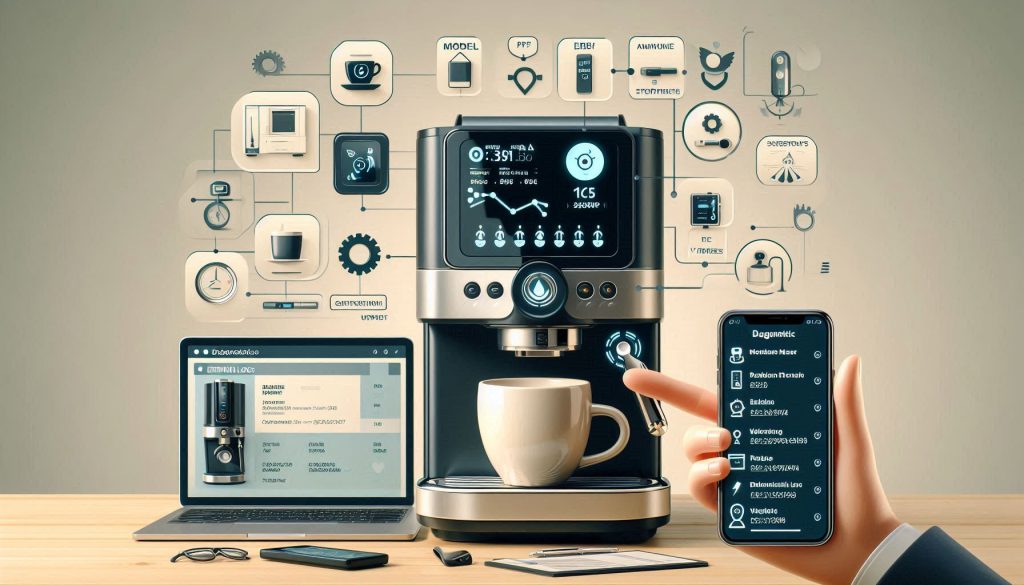
Smart coffee machine with serial/model label visible, laptop showing service manual, smartphone displaying diagnostic logs, illustrating model-specific reset instructions.
How to find model-specific reset instructions and use diagnostic tools for smart coffee makers.

When the universal steps fail, you need precise, model-level information and clean diagnostics before contacting support. This section shows how to identify your machine, locate official guidance, and collect the data technicians want.

Identify model and firmware quickly

Find the exact model and serial — it’s usually on a sticker under the drip tray, on the back, or inside the water-tank cavity. In companion apps look for About, Machine Info, or Settings → Device Details for firmware and MAC/Wi‑Fi IDs.

What to capture: model name/number, serial number, firmware version, and exact software/app version.

Locate official manuals and support pages

Search the manufacturer site first (Breville, De’Longhi, Jura, Nespresso, Philips/Saeco). Use the model number in site search; download the user manual and service or FAQ pages.

Tip: Many brands host PDF service manuals or maintenance bulletins that describe hidden reset sequences or known firmware fixes (e.g., some Jura firmware patches addressed false descale triggers).

Use community resources and video walkthroughs

Supplement official docs with verified forums (r/Coffee, Home-Barista) and YouTube repair channels. Prioritize posts with photos, timestamps, and matching model numbers.

Tip: Look for videos showing the same front-panel layout and firmware year — two machines with the same model name can differ by internal revision.

Extract error codes and diagnostic logs

If your app or machine has a diagnostic screen, photograph or screenshot every error code and menu screen. If the app logs history, export or screenshot message lists and timestamps.

What to capture: error codes, LED patterns, sequence of messages, time/date, and any rapid beeps or unusual noises.

Prepare a concise support packet

Assemble the essentials before you call or write support:

Model, serial, firmware/app version, purchase date (if recent)
Exact error codes and screenshots (or a short video)
Short chronology: what you tried (menu reset, descaling, power-cycle) and outcomes
Water hardness setting and last successful descaling

When to enable service-mode or call a technician

Service-mode diagnostics can show conductivity readings, pump pressure, and probe status — useful but advanced. Only enable if the manual permits or support asks you to; otherwise, let a trained technician run advanced tests on conductivity probes, flow sensors, and pump performance to avoid voiding warranty.

Next you’ll learn how to troubleshoot recurring or stubborn descale alerts.

5

Troubleshooting When the Descale Alert Returns or Won’t Reset
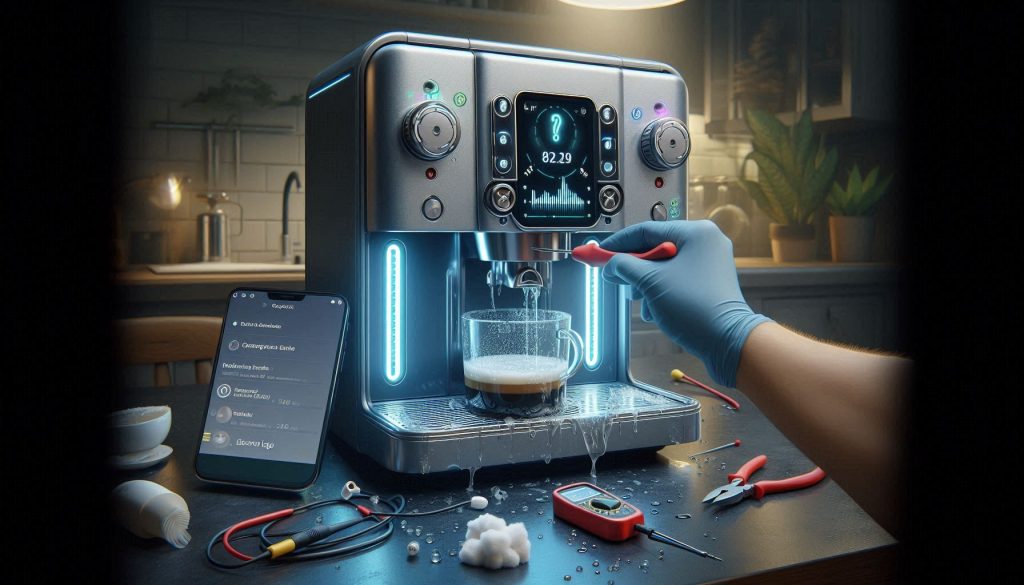
Smart coffee machine with water tank and brew group removed, showing scale on sensors; gloved hands cleaning probes; smartphone displays diagnostic logs and flashing LED alert.
Troubleshooting a persistent or recurring descale alert on a smart coffee maker.

When a reset fails or the descale alert reappears, use a data-driven workflow to isolate the root cause rather than chasing symptoms. The steps below are practical, targeted, and arranged from least to most invasive.

Confirm the descaling actually completed

Start by verifying you ran a full manufacturer-recommended cycle and used the right rinse volume.

Check the app or on-screen progress logs for a complete “Descale finished” message and timestamp.
Confirm you flushed the rinse volume the manual specifies — many machines need 1–2 L (check your model’s documentation).
Real-world note: one Breville Barista Express owner thought they’d finished descaling but had skipped the final rinse; the machine immediately re-alerted until the full flush was done.

Inspect accessible parts and sensors

Look for scale build-up or contamination where it causes false readings.

Remove and inspect the water tank, inlet filter, removable probes, and brew group for white crust or mineral flakes.
Wipe conductivity probes and probe contacts with a soft cloth and mild vinegar solution if allowed; dry fully.
For machines with a visible flow sensor or valves (e.g., some Jura, De’Longhi models), look for debris or stuck parts.

Run targeted tests

Use short, repeatable tests to isolate components.

Short brew test: run a quick hot-water cycle and observe flow rate and any sputtering or pauses.
Sensor checks: if you have a multimeter and the manual shows probe pins, check continuity or expected voltage ranges before and after a cleaning.
Watch LEDs during self-tests: steady vs. rapid blinking often indicates sensor vs. software faults—photograph patterns for support.

Check firmware and known bugs

Firmware can create “phantom” descale alerts.

Verify firmware/app versions and search release notes or user forums for descale-related bugs (some Jura and De’Longhi firmware patches addressed false triggers).
If an update is available, install it; if the alert started after an update, rollback guidance or factory reset may be needed.

Decision tree: next actions

Incomplete cycle or poor rinse → repeat full descaling and rinse.
Visible scale on probes/flow irregularities → clean or replace affected parts; retest.
Sensor reads erratically after cleaning → calibrate or replace sensor (or run service diagnostics).
Persistent alert after cleaning, firmware update, and factory reset → contact authorized service for hardware repair or pump/valve replacement.
6

Preventive Maintenance and Smart Integrations to Minimize Descale Alerts
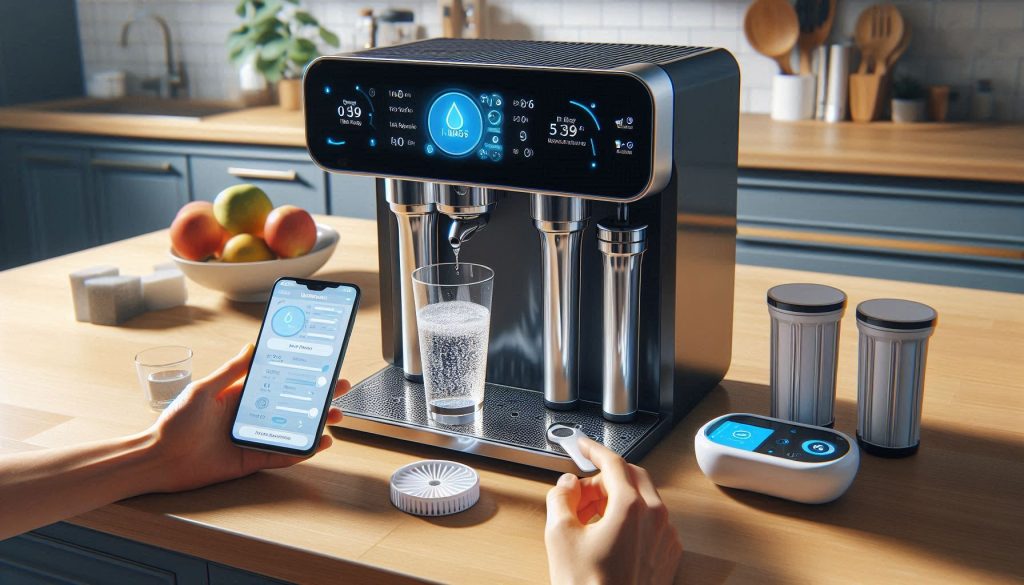
Smart coffee machine with water filter cartridges, TDS meter, and smartphone displaying maintenance reminders; hands adjusting hardness settings.
Preventive maintenance and smart integrations help reduce frequent descale alerts and maintain coffee quality.

Reducing how often your machine nags you starts with water and habits. The recommendations below are practical, low-effort steps you can apply immediately to cut descale frequency without sacrificing taste or reliability.

Test and manage water quality

Start by measuring what’s coming into the tank.

Use inexpensive water-hardness test strips or a TDS meter to quantify hardness and dissolved minerals.
Set your machine’s hardness level (many Jura, Saeco, and Breville models use this setting) so the algorithm matches reality.
If hardness is high, use filtered water or a cartridge rated for espresso machines rather than straight tap.

Filtration and softening options (trade-offs)

Choose the right filtration for cost, footprint, and environmental impact.

Cartridge filters: examples include Jura CLARIS, Philips/Saeco AquaClean, and Brita/Intenza-compatible cartridges. They’re convenient, reduce descale frequency, and preserve warranty compliance on many brands.
External filtration: under-sink reverse osmosis or whole-house softeners dramatically lower hardness but increase cost, require installation, and may remove minerals that affect flavor.
Salt-based softeners vs. cartridge: softeners are cheapest long-term but produce brine and alter water chemistry; cartridges produce waste but are low-maintenance.

Small, regular maintenance cycles

Short, scheduled actions prevent big problems.

Run a 30–60 second hot-water flush weekly to avoid stagnation and mineral deposit start-points.
Schedule a short cleaning or brew-group rinse every 2–4 weeks if you brew daily.
Replace filters on the manufacturer’s cadence (often 2–3 months) rather than waiting for alerts.

Automate reminders and logging

Let your smart features work for you.

Use the machine app or integrate with Home Assistant, IFTTT, or your calendar to auto-remind filter changes and rinses during low-use windows (e.g., late evening).
Enable logging where available to track brew volume vs. descale events; patterns help you choose cartridge vs. softener.

Consider cost, environment, and warranty

Balance what matters most to you.

Cartridges cost more per liter but are simple; softeners save money long-term but have environmental concerns.
Use manufacturer-recommended descalers—vinegar can be tempting but may void warranties or damage internals.

With these steps you’ll dramatically reduce false and frequent descale warnings and keep your machine tasting its best. Next, we’ll cover when to call support and how to proceed if preventative measures don’t stop the alerts.

Next Steps and When to Call Support

Resetting the descale notification is often straightforward if you follow the safe preparation steps and the correct reset pathway. If the alert returns or won’t clear, document your machine model, serial number, firmware version, error history, and the exact steps you tried. Use manufacturer-recommended descalers and record water source and frequency of use to show you followed best practices.

If problems persist after troubleshooting, contact authorized support — persistent alerts can indicate incomplete maintenance, failing sensors, or software faults that risk damage and may affect warranties. Share your documented steps when you call; authorized service is the most reliable way to protect your machine and restore reliable operation. Schedule service promptly if you’re unsure.

Leave a Comment

Your email address will not be published. Required fields are marked *