
Creating a cinematic experience at home is a dream for many, but a “spaghetti” of tangled cables trailing across the floor can quickly turn a high-end setup into an eyesore. Beyond the visual clutter, exposed wiring poses significant safety risks, including tripping hazards and potential fire dangers if cables are pinched or frayed. Learning how to hide home theater wires without cutting drywall is the ultimate solution for renters and DIY enthusiasts who want a sleek, professional finish without the permanent mess of sawing into walls or dealing with complex structural repairs.
This guide focuses on high-impact, surface-mounted cable management techniques that prioritize both aesthetics and signal integrity. By utilizing creative routing through baseboards, decorative raceways, and strategic furniture placement, you can achieve a “floating” tech look while keeping your wires organized and protected. Whether you are streamlining a 5.1 surround sound system or simply mounting a new 4K TV, these non-invasive methods ensure your home theater looks as polished as a commercial cinema—all while keeping your security deposit intact.
Why hiding wires matters for your home theater
You want a clean, professional-looking home theater without compromising safety or functionality. Hiding wires improves aesthetics, reduces trip and fire hazards, and helps maintain better audio/video performance by keeping cables organized and separated. This guide shows practical, surface-first solutions you can implement without cutting drywall, and points out when to call a licensed electrician.
You’ll learn how to plan routes, use surface-mounted raceways and furniture, tuck cables behind trim, and reduce cable count with wireless or near‑wireless alternatives. Finish steps cover labeling, securing, and safety checks so your installation looks tidy and performs reliably.
Follow these methods for a neat, safe theater—no drywall cutting required. Most solutions are DIY-friendly and achievable today.
Plan and prepare: Assess your system, power needs, and routes
Inventory every device and cable
Before you touch a cable, write a simple list of every component: TV, AV receiver, center/left/right speakers, subwoofer, Blu‑ray, game consoles, streaming sticks, and any network gear.
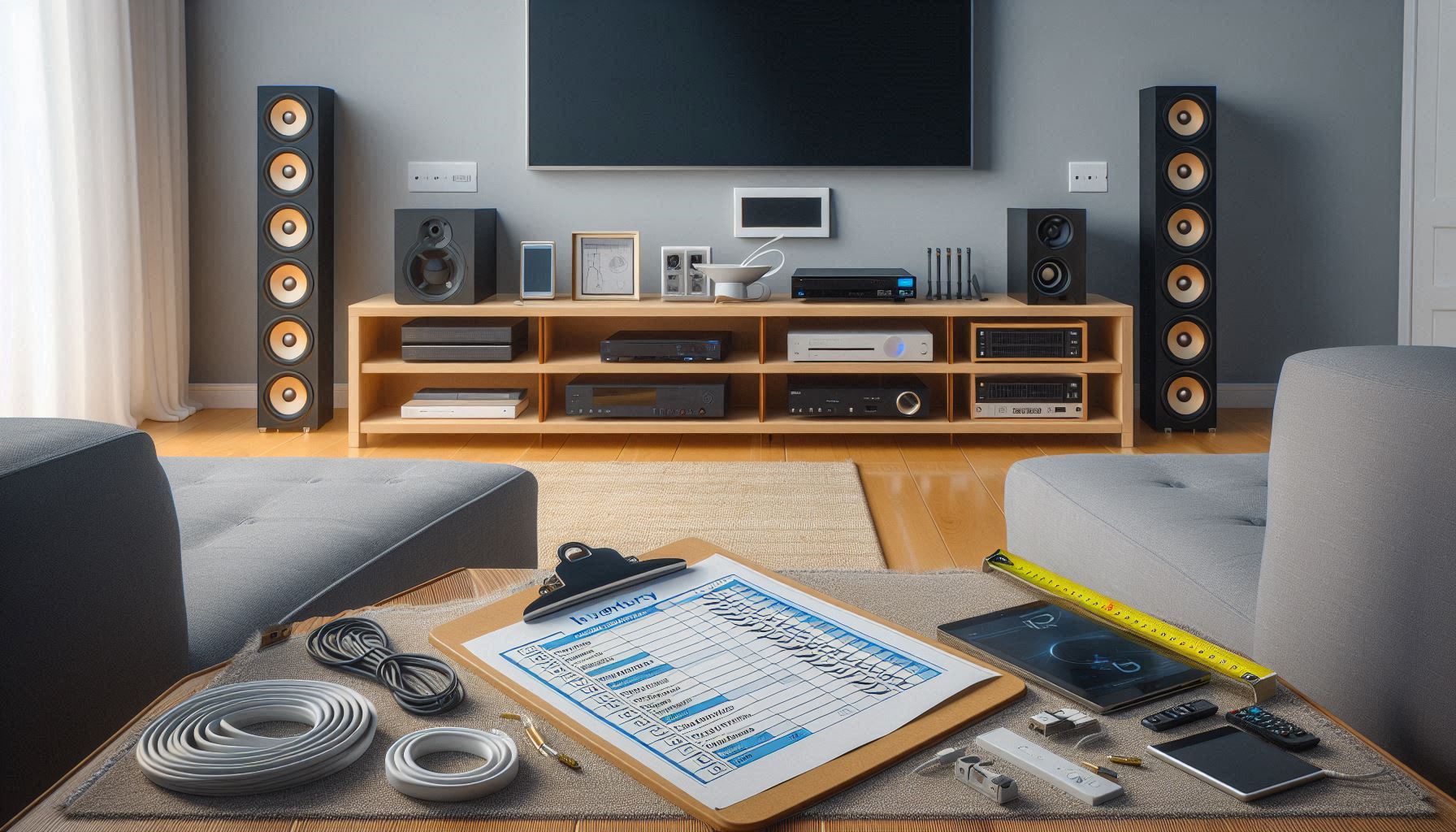
Note connector types (HDMI, optical, speaker wire, Ethernet, power) and approximate counts.
Measure cable lengths with slack
Measure from device to the outlet or rack along the route you plan to use. Add 10–20% extra for slack and routing around furniture—better to cut excess later than come up short. For HDMI, use high-quality, low-loss cables for longer runs (e.g., Monoprice Ultra 8K or Cable Matters Active HDMI options).
Map outlets, power needs, and surge protection
Locate existing outlets and measure distance. Identify which devices need dedicated circuits (large receivers/subwoofers can draw significant current). Plan to use a high-quality surge protector or UPS—Belkin 12‑outlet surge protectors and APC Back‑UPS units are reliable choices. Never use a temporary extension cord as a permanent power solution.
Identify safe, non-invasive routes
Look for practical surface routes that avoid opening walls: along baseboards, behind crown or picture moldings, under rugs, behind furniture, through accessible attic or closet spaces. Attic or closet access can let you run cables between rooms without drywall work—use fish tape or a flexible rod if needed.
Prioritize wired vs. wireless
Decide which connections must stay wired (power, often HDMI for 4K/120Hz/ARC/eARC, speaker wire for highest fidelity) and which can become wireless (streaming sticks, some surround speakers via wireless modules). If unsure, keep critical signal paths wired and experiment with wireless for secondary devices.
Check cable types and safety ratings
Confirm cable ratings: in-wall rated (if you ever change approach), CL2/CL3 for longer runs near heat sources, and plenum-rated when routing through HVAC plenums. For exposed runs, pick UV-resistant, flexible cables to avoid cracking behind furniture.
Tools, materials, and a simple sketch
Buy what you’ll need before starting: raceways (Legrand/Wiremold or D-Line), paintable cord covers, cable sleeves (JOTO), Velcro One‑Wrap, cable clips, surge protector/UPS, label maker (Brother P‑Touch or Dymo), tape measure, fish tape, wire cutters, and a stud finder.
Create a one-page sketch or photo plan: draw the room, mark devices, outlets, and your chosen routes, and label each cable on the drawing—this blueprint keeps the job tidy as you move to installation.
Surface-mounted raceways and paintable cord covers
Surface-mounted raceways are one of the fastest, cleanest fixes when you don’t want to cut drywall.
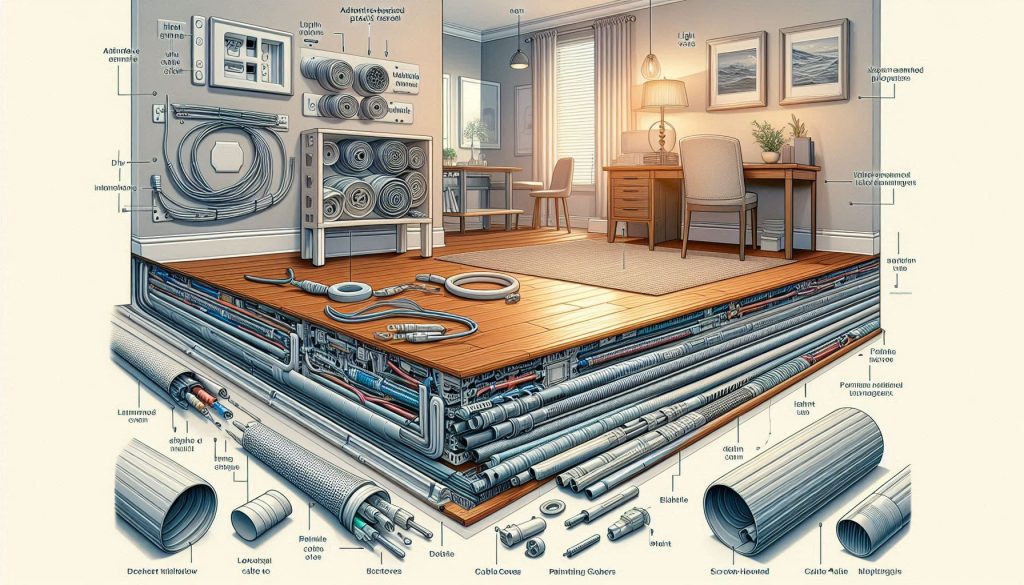
You’ll choose between adhesive-backed plastic channels for light-duty and rental-friendly installs, screw-mounted metal raceways for permanent, heavy-duty runs, and low-profile flat cable covers that tuck neatly under trim. Pick the style that matches permanence, load, and appearance.
Raceway types and when to use them
Measure, cut, and mount — step-by-step
- Measure the full route along the wall, include corners and outlet offsets; add 10% for adjustments.
- Buy a raceway slightly larger than your cable bundle; check internal width in specs.
- Cut plastic channels with a fine-tooth saw or PVC cutter; cut metal with a hacksaw or nibblers. Deburr edges.
- Clean the wall with isopropyl alcohol; adhesive sticks best to dry, dust-free surfaces.
- Test-fit pieces dry, then mount per manufacturer instructions: peel-and-stick for adhesive models, pilot-screw for metal raceways.
Routing multiple cables and capacity
Corners, transitions, and neat exits
Paintable options and safety notes
Use furniture, stands, and media cabinets to hide and manage wiring
Choose the right furniture for the job
Pick AV furniture that already thinks about cables. Look for dedicated cord cutouts, an open or ventilated back, and channels behind shelves.
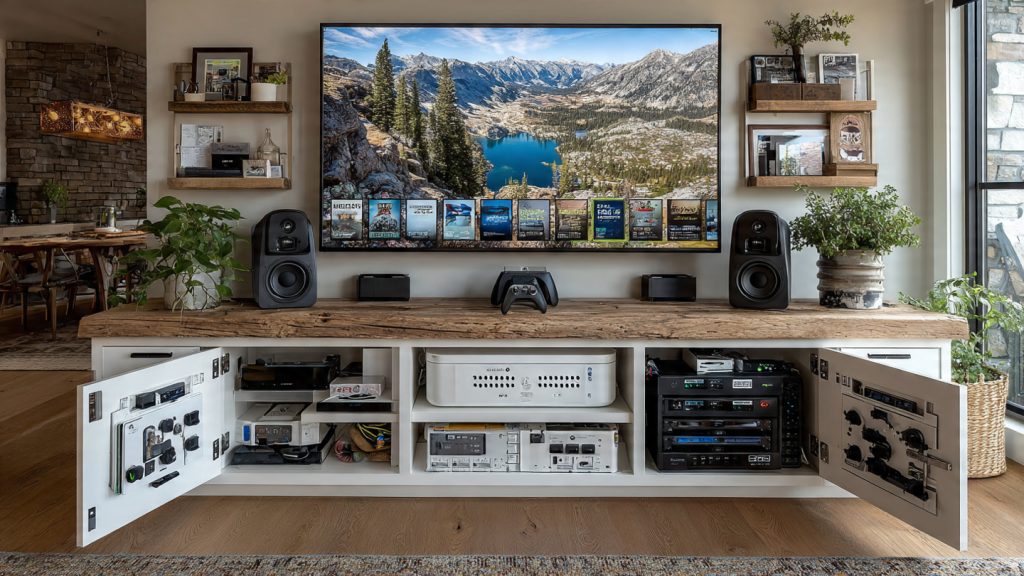
Popular lines like IKEA BESTÅ or many Walker Edison consoles include integrated access holes — you’ll save time and keep everything serviceable. If you buy used, prioritize a piece with a removable back panel so you can retrofit routing later.
Grommets and routing inside cabinets
Use built-in grommets or add adhesive cable grommets where cables pass through shelves and panels. They prevent chafing and look finished. Quick options:
Route speaker and HDMI runs along the rear center of the cabinet and drop them straight down to floor outlets — this keeps visible side and front areas clean. Leave 4–6″ of service loop near connectors for easy swapping.
Mount power strips and manage airflow
Install a surge protector or power strip inside the cabinet rather than behind the TV:
Secure, separate, and label cables
Keep power and signal cables apart to reduce interference — run them on opposite sides of the cabinet or in separate channels. Use reliable fasteners:
Label both ends of each cable with short tags so you won’t have to hunt later.
Removable panels and vertical runs
Create a removable rear panel or hinged access door to simplify maintenance. For vertical TV runs, use the cabinet to conceal the lower section of the cable run — clamp cables inside the cabinet and feed them up through the TV stand’s rear opening.
Next, you’ll learn simple trim and baseboard techniques to continue hiding cables along walls without cutting drywall.
Tuck wiring under baseboards, behind trim, and along moldings
If you want near-invisible routing but won’t cut drywall, the seams where floor meets wall are your best friend. These methods work especially well in older homes with shallow gaps and in rentals where permanence isn’t allowed.
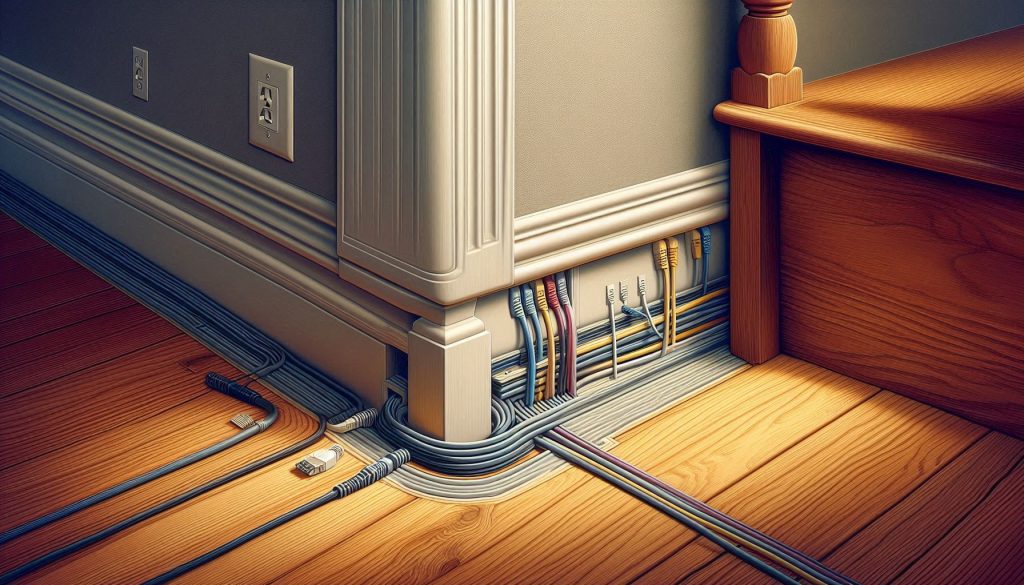
Run cables in the seam: how-to
Slip thin, flat cords (speaker, HDMI, Ethernet) into the gap under baseboard or quarter‑round:
For carpet edges or rugs, tuck flat cables under the binding or rug edge; place rug pads or a small bead of double‑sided tape to keep the edge stable.
Removing and re-seating trim without damage
You can lift and reseat baseboards or shoe molding with minimal damage:
This approach lets you tuck thicker—but still flat—cables behind trim temporarily and then reseat trim for a factory look.
Snap-on molding and adhesive trim channels
If you prefer non-invasive solutions, use snap-on cable molding or decorative trim with internal channels (brands like Legrand/Wiremold and D-Line make these). Look for:
Fastening, spacing, and safety
These trim techniques keep your walls intact and look professional — next, you’ll learn ways to reduce the number of physical cables with wireless and near‑wireless options.
Reduce cable count: wireless and near-wireless alternatives
Cutting down visible cables makes concealment much easier. Here are practical wireless and near‑wireless options, with when to use them and what tradeoffs to expect.
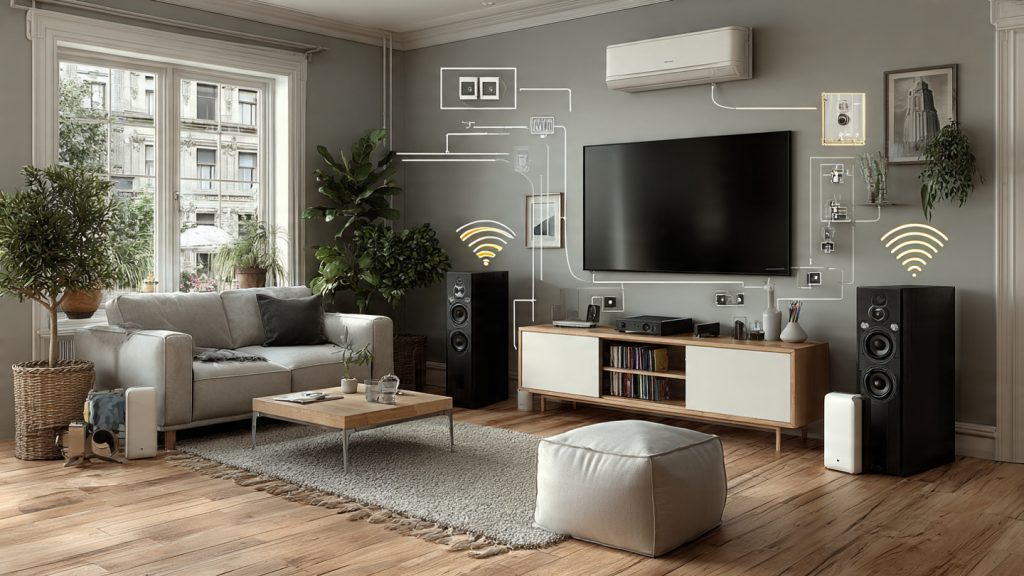
Wireless HDMI transmitters
Wireless HDMI (HDbitT/WHDI) systems like J-Tech Digital HDbitT kits or older IOGEAR/ Nyrius models let you move an HDMI source to a TV without a long cable run.
Wireless speaker systems and powered speakers
Go to active (powered) speakers or Wi‑Fi multiroom systems to eliminate long speaker runs.
Bluetooth and Wi‑Fi audio
Bluetooth is simple for music but often has compression and latency; aptX/aptX Low Latency helps but is device‑dependent. Wi‑Fi (AirPlay, Chromecast built‑in) offers higher quality and multiroom sync.
Streaming sticks and local sources
Plug devices like Chromecast with Google TV, Apple TV 4K, or Amazon Fire TV Stick directly into the TV’s HDMI — then hide the stick behind the set or in a nearby shelf.
Powerline networking adapters
Models like TP‑Link AV2000 (TL‑PA9020P) provide Ethernet over existing electrical wiring.
Hybrid approaches & placement tips
Combine short, hidden cables (a 3–6 ft HDMI tucked behind a stand) with wireless links for everything else. Place transmitters in open air for cooling and away from large metal obstructions.
Safety and battery considerations
If you use battery‑powered wireless speakers or transmitters, plan recharging or accessible battery swaps. For plugged transmitters, avoid hiding power bricks inside insulation or behind airtight enclosures; use UL-listed adapters and don’t overload outlets.
Next, you’ll learn how to finish the job with tidy labeling, cable management, and final safety checks for a professional look.
Final organization, labeling, and safety checks for a professional finish
Bundle and dress cables for clarity
Use hook‑and‑loop wraps (e.g., VELCRO Brand One‑Wrap) or braided sleeves (JOTO, Alex Tech) to group cables by function—power, video, audio—so future moves are fast.
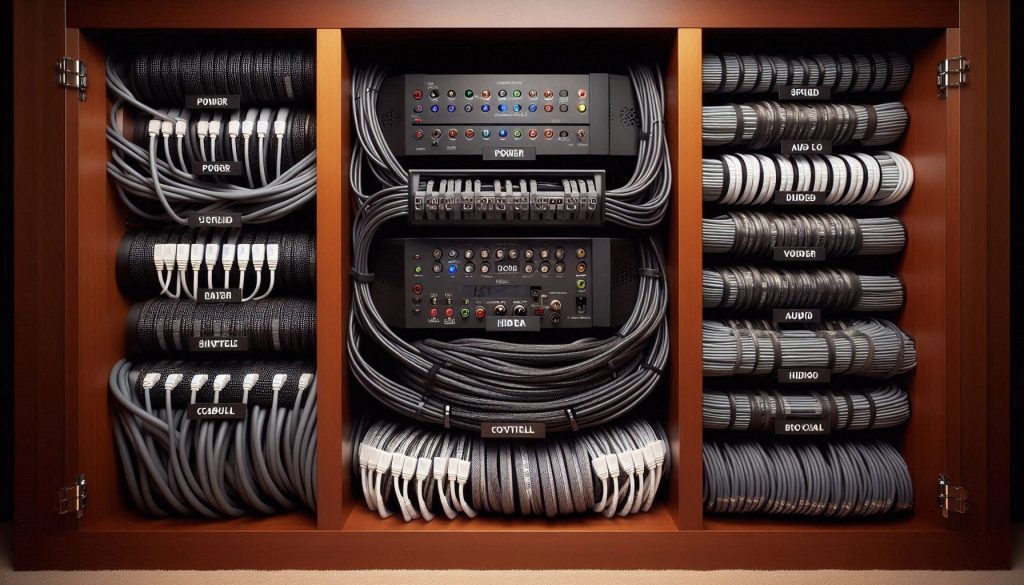
Bundle loosely: avoid tight wraps around power bricks or braided speaker cables to prevent heat buildup or compression of shields.
Keep power and signal paths separate
Route AC power and low‑level signal cables apart to reduce hum and interference. If they must cross, do so at 90° angles. In practice, you’ll notice less noise in audio lines when speaker/RCA/HDMI runs are separated from power bundles.
Choose the right surge protection and power management
Pick a surge protector or power conditioner sized for your gear:
Label both ends and document
Label both ends of every cable with a DYMO labeler, colored heat‑shrink, or numbered tags. Use a simple naming scheme: TV‑HDMI1, AVR‑SPKR‑L, etc.Create a wiring diagram or photo log:
Secure slack and relieve strain
Coil excess cable using the over‑under method and secure with Velcro—never tight zip ties at connectors. Use adhesive cable clips or small screw‑in anchors to prevent connectors from pulling under weight.
Final safety checks and maintenance schedule
When to call a licensed electrician
Call a pro if you need new permanent outlets, dedicated circuits for power amps, or any work that alters house wiring or could violate code. Describe what you have (device list, total amp draw, desired outlet location, and any planned rack or in‑wall receptacles) so they can quote and act quickly.
With your cables organized, labeled, and safety‑checked, you’re ready to finish confidently — see the Conclusion for final steps.
Finish confidently and seek professional help when needed
You now have practical, non‑invasive techniques to hide home theater wires without cutting drywall—from raceways and trim channels to smart furniture use and wireless alternatives. Use the planning, installation, and safety tips in this guide to route cables neatly, reduce clutter, and maintain access while keeping circuits and devices safe.
If you hit power limitations, code concerns, or want a permanent in‑wall solution, hire a licensed electrician or AV installer. Professionals protect you from hazards, ensure compliance, and can deliver a polished result when your DIY limits are reached. Start today confidently.
Finally — an article that doesn’t say “just cut a hole in the wall and call it a day.” 😂
Tried the raceway trick last weekend. Painted it, hung the TV, felt like a cable wizard.
Anyone else struggle getting a paint match? Mine looks slightly off in certain light.
Paint match can be tricky. Prime the raceway with a universal primer first, then use the same finish and sheen as your wall paint. Sometimes a slightly different sheen (eg. eggshell vs matte) makes it noticeable, so match that too. If you’re still off, try painting the whole wall — yes, I know — but often that’s the only way to make seams disappear in tricky lighting.
I took a small chip of the paint to the hardware store and had them mix a tiny sample. Saved me the repaint. Also, lighting angle makes a big difference — check it at different times of day.
Another quick tip: spray paint the raceway if you can remove it. Smooth finish from a spray can can blend better than brushed roller paint.
Or just embrace the mismatch and make a feature strip 😅 (Kidding… kinda.)
Good coverage on wireless and near-wireless alternates. I’m debating whether to go fully wireless for my speakers or keep a few wired.
Latency and syncing are my main worries — any practical experiences? Also, how well do TV wireless HDMI adapters hold up for 4K streaming?
I added a wireless sub to my wired speaker setup — best of both worlds. Sub latency is fine as long as the receiver has proper sync options. For HDMI, I had a wireless kit that handled 4K fine for streaming but not ideal for fast-paced gaming.
Wireless speaker systems are great for convenience but do test for latency before committing — especially for a home theater where lip-sync matters. Sonos/Denon HEOS/other mesh audio solutions typically keep latency low, but Bluetooth will not (avoid for main speakers). For wireless HDMI, choose a unit certified for low-latency 4K60 if you need gaming. Wi‑Fi-based HDMI extenders can be finicky; line-of-sight RF extenders tend to be more reliable. If possible, trial gear in your space and keep one wired fallback for critical components.
Loved the labeling + final organization section — such a life saver! 😍
I labeled everything with small tags and color-coded zip ties. Made moving stuff around way less stressful.
Quick q: what label size or method did others use? Stickers? Handwritten tags? Dymo?
Awesome, Priya — glad you got value from that. For durability, I recommend a printed label (Dymo or Brother P‑Touch) for the main cable ends, plus a tiny wrap label near the device. Use clear shrink tubing for a clean, permanent look on thicker cables. For quick temporary setups, colored zip ties + a small masking-tape label works fine.
Dymo all the way. Also use small colored heat-shrink tubes on speaker wires — looks neat and doesn’t peel. Pro tip: label both ends of the cable so you know what plug goes where.
Not bad, but tucking behind baseboards didn’t work for me — old house, uneven floors, baseboard gaps everywhere.
I followed the baseboard idea, the cords kept popping out and looked sloppy after a week.
I think the article could use a bit more on working with imperfect trim and historic homes.
Still appreciate the surface-mounted raceway ideas though — they helped a lot once I used flexible trim that clamps tighter.
Also check that you aren’t over-bending cables; stress points can push them out. Use low-profile cable tie mounts behind furniture to reroute tension away from the baseboard.
I have a 1920s place — used braided cable sleeves and heavy-duty adhesive clips. Took more time but held up. Also, caulk the visible gaps afterward, looks much cleaner.
If you don’t want to modify trim, hide cables behind furniture pieces like a tall console or use a decorative screen — sometimes clever placement wins over perfect concealment.
Great point, Connor. Old houses are a different beast. For uneven gaps you can use cable channels with a clamping cover (not just adhesive) and paintable flexible molding. Also consider using small spring clips or wire retainer staples under the baseboard edge (non-penetrating options exist) to keep cables from popping out. If you want a seamless look, a thin quarter-round with an internal cable groove can be added over the existing baseboard — minimal carpentry, no drywall cutting.
Noted — and don’t forget to keep cords accessible for maintenance. Historic homes often have quirks that need reversible solutions.
Great article — exactly what I needed!
I used paintable cord covers along the baseboard and it cleaned up my living room so fast. The step-by-step planning section was super helpful.
Question: I have a TV + soundbar + PS5 — any tips for managing power without cutting drywall? I was nervous about daisy-chaining power strips.
Also, loved the labeling advice. Took me 10 minutes to do and saved me headaches later.
Thanks for the sanity-saving guide!
If you’re worried about code, at least make everything easily accessible and don’t hide power strips permanently behind drywall/trim. Better safe than sorry.
I did something similar — used a slim power strip and velcroed it to the back of the cabinet shelf. Make sure the strip has surge protection and don’t block ventilation for the PS5. Also, leave 6″ of slack so you can pull devices out.
Glad it helped, Maya! For power: avoid daisy-chaining. If you can’t run an outlet behind the TV without cutting drywall, consider a flat extension that tucks behind the TV stand or a surface-mounted power raceway that matches your trim. If you have a lot of high-draw devices, an electrician can install a second circuit or an in-wall-rated power relocation kit — but since you want to avoid drywall work, routing a short, heavy-duty surge protector behind furniture is often the practical compromise. Label the plugs so you know which device is on which strip.