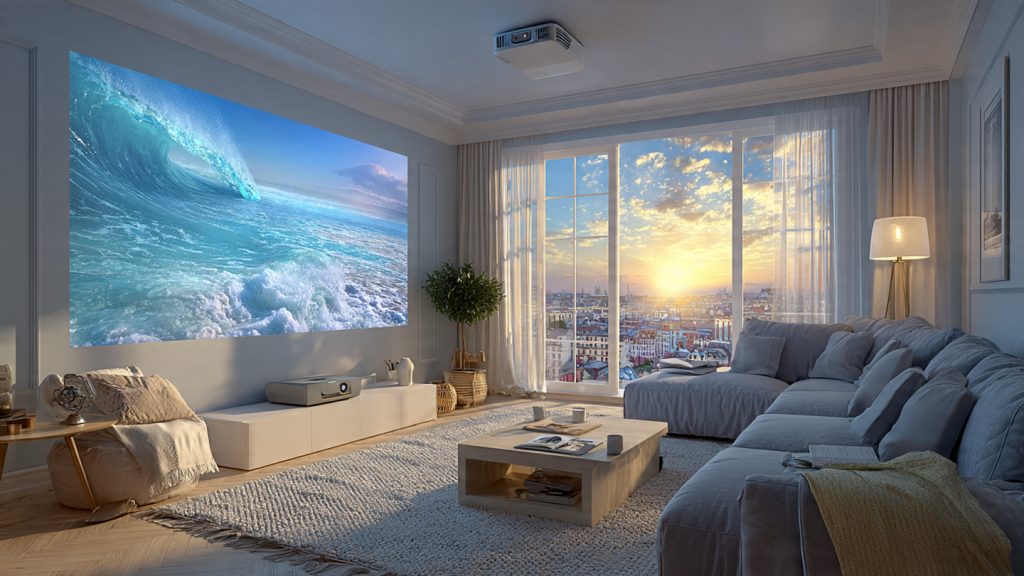
Transforming your home into a cinematic getaway starts with one pivotal decision: finding the perfect hardware to match your unique environment. Whether you are designing a dedicated blacked-out home theater or simply looking to upgrade your living room for Sunday night football, the “best” projector isn’t just about the highest price tag—it’s about the right fit. By evaluating your specific room dimensions, ambient light levels, and intended viewing habits, you can narrow down a saturated market to find a device that delivers crisp, vibrant visuals without overspending on unnecessary features.
This comprehensive guide simplifies the selection process by breaking down essential technical specs into practical, easy-to-understand steps. From understanding lumens and contrast ratios to choosing between Long-Throw and Ultra-Short Throw (UST) optics, we provide the roadmap you need to navigate the world of home electronics with confidence. Avoid the common pitfalls of mismatched resolutions or awkward installation layouts and discover how to choose a projector that perfectly aligns with both your physical space and your budget.
Find the Right Projector for Your Room
Choosing a projector should start with clear goals: how you’ll use it, who will watch, and what image size you need. Your room’s light levels, wall or screen surface, and seating layout will change what features matter most. Trade-offs include image quality versus installation complexity and how much you want to spend.
This guide walks you through practical steps so you can match a projector to your room and habits. You’ll learn to evaluate room conditions, compare projector types and brightness, pick resolution and optics for your layout, and plan installation and maintenance. By the end you’ll have a simple decision path to choose a projector that fits your space and budget. You’ll avoid costly mistakes and enjoy better viewing soon.
1
Assess Your Room and Viewing Conditions
Before you dive into specs, take a practical survey of the space. A quick, methodical assessment will save you money and grief later — and it tells you which projector features are actually needed.
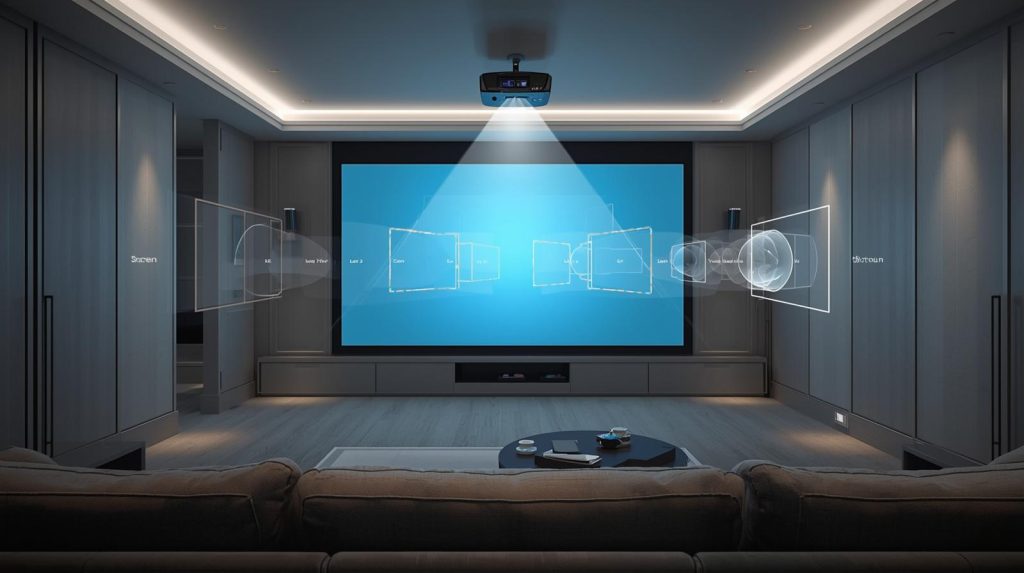
Choosing the right projector starts with understanding your room, lighting, and viewing habits.
Measure the space
Take these basic measurements and write them down.
Room length, width and ceiling height.
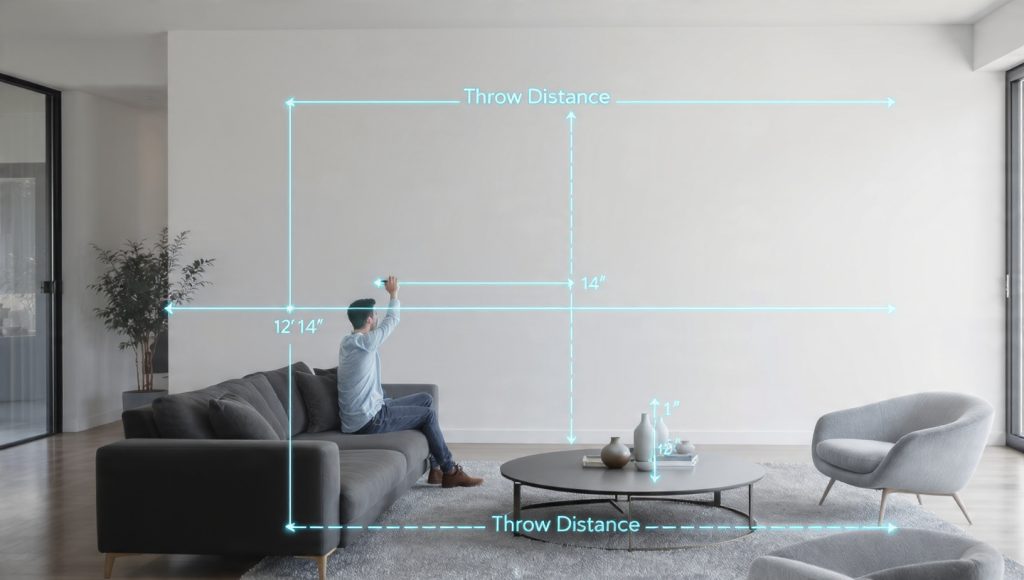
Distance from likely projector placement to the screen/wall (lens-to-screen distance).
Available wall or dedicated screen width and height.
Quick tip: use a tape measure or a laser distance measurer. If a projector spec lists a throw ratio, you can calculate image width: image width = lens-to-screen distance ÷ throw ratio. Example: 10 ft (120 in) ÷ 1.5 throw = 80 in image width.
Map seating and sightlines
Sketch your seating layout on graph paper or a simple app and note sightlines.
Mark primary (center) and secondary seating positions.
Aim to keep the primary seat within ±15° horizontal of the projector’s optical center to avoid severe keystone or brightness falloff.
Use viewing-distance guidelines: for immersive home cinema, sit ~1–1.5× screen diagonal for 4K or 1.5–2.5× for 1080p; for casual TV or group viewing, sit farther back.
A real-world example: in a 12 × 14 ft living room, a 100″ diagonal screen often places the couch 9–12 ft back — test with a taped “screen” on the wall before buying.
Note ambient light, surfaces and obstructions
Record environmental factors that affect perceived image quality.
Windows: number, size, orientation and whether you can darken them (blinds/blackout curtains).
Permanent lamps or fixtures that might hit the screen.
Wall color/texture: flat white or gray screens are best; textured or glossy paint will degrade sharpness and contrast.
Ceiling obstacles: beams, ceiling fans or vents that block placement.
Noise or heat sources (AV equipment, vents) that might interfere with placement or longevity.
Determine primary use and priorities
Decide what matters most: brightness for daytime viewing, low latency for gaming, accurate color for movies, or portability for occasional presentations. For example:
Gaming: prioritize low input lag (BenQ HT2050A is a common low-lag example).
Bright living rooms: look at higher-lumen models like Epson’s Home Cinema series.
Business/portable: consider Epson PowerLite or compact projectors such as the Anker Nebula Capsule.
Record all measurements and notes — they will be the checklist you refer to when comparing models in the next section.
2
Understand Projector Types and Light Sources
Choosing the right imaging technology and light source shapes your picture, maintenance, and long‑term cost. Here’s how to read the trade-offs and match them to how you actually use the room.
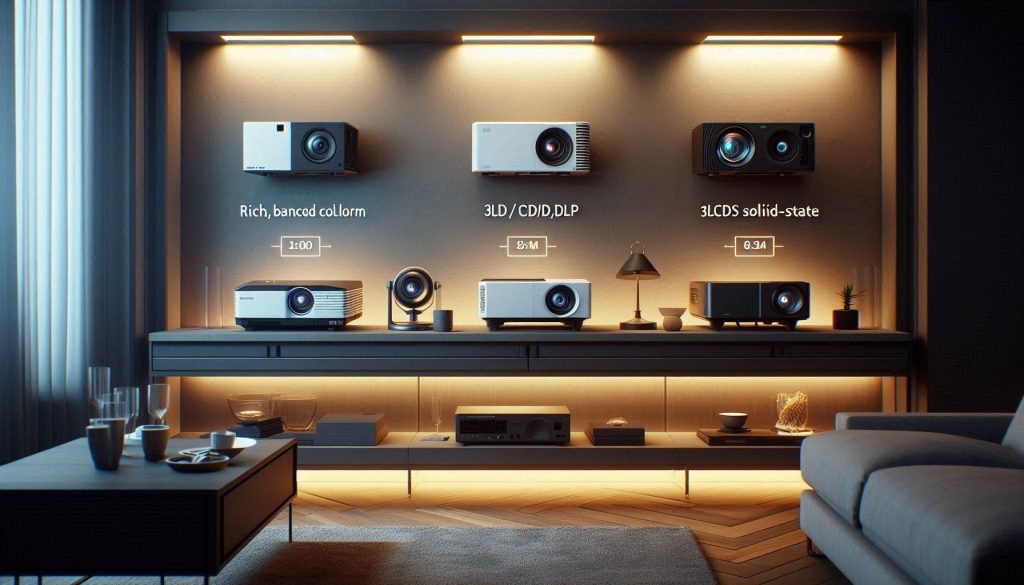
DLP (Digital Light Processing): Often delivers sharp images, strong motion handling and compact projectors. Many home models (e.g., some BenQ projectors) are DLP. Watch for the “rainbow” artifact on single‑chip DLPs if you’re sensitive to brief color flares. DLP is a good choice if you game or need a compact, high‑contrast look.
3LCD (often marketed simply as LCD): Produces very bright, vivid color because color brightness tracks white brightness closely. Epson’s Home Cinema line is a typical 3LCD choice. 3LCD avoids rainbow artifacts and works well in everyday living rooms and classrooms.
LCoS (Liquid Crystal on Silicon — sold as SXRD, D‑ILA): Combines smooth, film‑like images and excellent blacks; you’ll see this in higher‑end home‑theater models (Sony, JVC). It’s ideal for dark‑room movie nights where cinematic contrast matters more than portability.
Light sources: lamp (UHP), laser, and LED
Traditional lamps (UHP): Lower upfront cost and high peak brightness, but expect 2,000–5,000 hours before a costly replacement and gradual color/brightness loss. Lamps need a brief warm‑up and cool‑down cycle and contain materials requiring proper disposal.
Laser: Higher initial price but 20,000+ hours of stable brightness and color, near‑instant on/off, and little maintenance. Laser is excellent for bright rooms or heavy daily use — many commercial and premium home models now use laser engines.
LED (or hybrid LED/laser): Very long life (often 20,000+ hours), excellent color saturation for small/portable units (Anker Nebula, ViewSonic M1), and instant start. LEDs typically deliver fewer lumens than laser or lamp, so they’re best in darkened rooms or for casual use.
How to match tech to your room and use
Bright, sunlit living room: prioritize high‑lumen laser or lamp models (look for ≥3,000 lumens) or use an ALR screen.
Dedicated dark home theater: LCoS or high‑contrast 3LCD gives the best cinematic image.
Gaming or multi‑use living room: DLP for low lag and crisp motion, or 3LCD for brighter color if ambient light isn’t severe.
Portability/casual streaming: LED projectors save maintenance and power.
Quick tip: add replacement lamp cost and expected service life into your total cost of ownership before you buy.
3
Match Brightness and Contrast to Ambient Light
How lumen ratings translate to real rooms
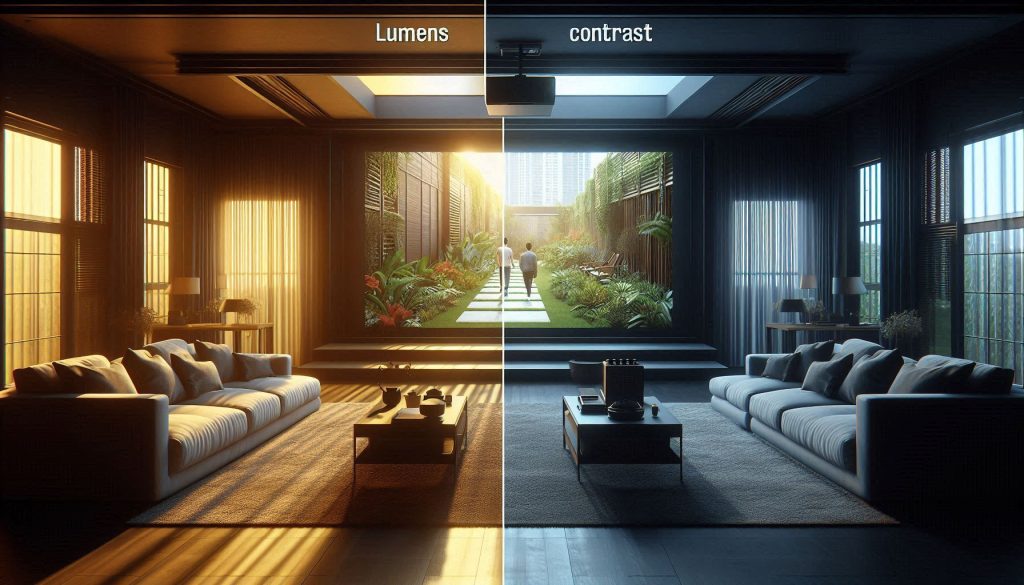
How ambient light affects projector brightness, contrast, and real-world image quality.
Manufacturers quote lumens (ANSI lumens is the useful industry standard) to describe light output, but usable picture depends on your room. As a rule of thumb:
Fully dark home theater: 1,000–2,000 ANSI lumens is usually plenty for a cinematic, comfortable image.
Dim living room (lamps on, some daylight): 2,000–3,000 ANSI lumens is a safer target.
Bright room (daylight streaming, large windows): 3,000–5,000+ ANSI lumens or an ALR screen is required to keep colors punchy.
For example, a BenQ HT-series with lower lumen specs shows excellent film‑like blacks in a dark room, while brighter Epson or Optoma models suit sunlit living areas.
Screen gain and color choices affect perceived brightness
Screen material and wall color change perceived brightness:
White screens (gain ~1.0) reflect light evenly.
Higher‑gain screens (1.2–1.5) increase picture brightness but narrow viewing angles and may boost hotspotting.
Gray or ALR screens reject ambient light and improve black levels in brighter rooms, but they demand slightly higher lumen projectors to keep highlights bright.
If your walls are pale off‑white, your image will look brighter than on a dark-painted wall; a gray paint can help blacks but reduces peak brightness.
Contrast ratio, black levels and ambient wash
Contrast ratio numbers are useful only as a reference—manufacturers measure them differently. What matters is black‑level performance in your environment: ambient light fills shadow areas, eliminating subtle detail. LCoS and some high‑end DLP/3LCD models deliver deeper blacks, which matter most in darker rooms. Dynamic irises can help, but they may cause brightness fluctuation in some scenes.
Quick, practical tests you can do today
Set your room to the usual viewing lighting and project a 20–80% gray test image; if gray looks washed to light gray, you need more lumens or an ALR screen.
Try a dark movie clip with deep shadow detail and watch for loss of texture in blacks.
Compare two presets (e.g., “Cinema” vs. “Bright”) and judge eye comfort—too bright causes fatigue and color clipping.
If possible, demo a projector in your space or rent one for a weekend—real viewing beats specs. Next, you’ll use these brightness and contrast choices to size resolution and optics for your layout.
4
Choose Resolution, Image Size and Optics for your Layout
Pick a native resolution that fits your seating and content
Image size, resolution, and seating distance work together to determine perceived sharpness.
Image sharpness comes from both native resolution and how big you make the image. Use these simple viewing-distance rules of thumb:
1080p (FHD): sit roughly 1.5–2.5× the screen diagonal.
4K (native or pixel‑shift): you can sit closer, about 1–1.5× diagonal, which makes extra detail visible.
Practical example: a 100″ diagonal 16:9 screen has a width ≈ 87.2″. At 1080p you’d sit ~150–250″ (12.5–21 ft) away; with 4K you can be ~100–150″ (8–12.5 ft) and still see improved detail. If your couch is close, prioritize 4K or pixel‑shift models (Epson 5050UB / Optoma UHD50X) or native 4K Sony VPL series.
Calculate screen size and throw distance
Use these formulas:
Screen width (16:9) ≈ diagonal × 0.871.
Throw ratio = projector distance ÷ screen width → distance = throw ratio × screen width.
Example: 100″ diag → width ≈ 87.2″. If the projector has a 1.5:1 throw, distance ≈ 1.5 × 87.2″ = 130.8″ (10.9 ft).
Check the projector’s specified throw ratio range (e.g., 1.2–2.0:1) and its zoom factor to see if you can achieve the screen size from your mounting spot.
Understand throw, zoom and lens shift
Throw ratio determines placement. Short-throw (~0.5–1.0:1) and ultra‑short‑throw (UST, ~0.2–0.4:1) let you put the projector near the screen; examples: LG HU85LA, Samsung The Premiere.
Zoom (fixed vs powered): powered zooms make fine adjustments easier—vital if you can’t move the mount.
Lens shift (optical) lets you move the image vertically/horizontally without keystone; it preserves image quality and is worth paying for on ceiling installs.
Lens memory and keystone trade‑offs
Lens memory stores positions for different aspect ratios (handy if you switch between 16:9 and 2.35:1).
Avoid digital keystone when possible—digital correction rescales pixels and softens the image. Use optical lens shift and physical mount adjustments instead.
Quick how‑to: measure your seating distance, choose diagonal using the viewing-distance rule, compute required screen width, then use the projector’s throw ratio (and zoom range) to confirm install distance. If space is tight, prioritize short‑throw or UST models and optical lens shift over keystone.
5
Assess Connectivity, Audio and Smart Features
Inputs, standards and streaming options
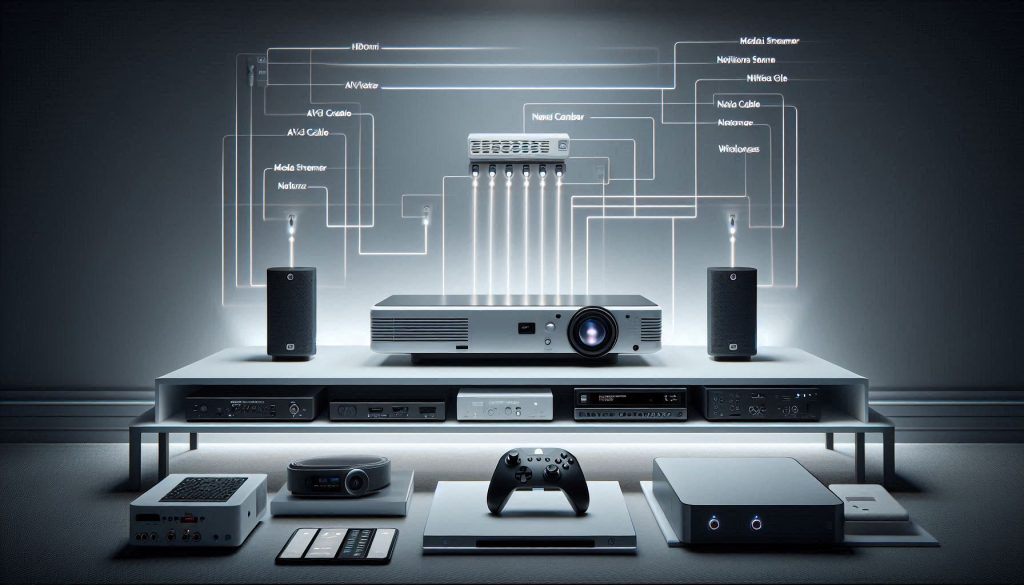
A refined home theater setup showing a projector connected to audio and video components through clean, organized cabling. Wireless indicators and a smart control device highlight modern streaming and automation features, illustrating how connectivity choices affect everyday usability and system compatibility.
How the projector connects determines how smoothly it joins your existing gear. Prioritize:
HDMI: check version (HDMI 2.0 vs 2.1) for 4K@60/120Hz, and HDCP support for protected streaming.
Other ports: DisplayPort (rare), USB (media playback or power for a streaming stick), VGA (legacy), and Ethernet for reliable networking.
Wireless casting and built‑in OS: some projectors include Android TV, Roku or proprietary platforms (e.g., XGIMI HORIZON, Anker Nebula series). If you use a favorite streaming ecosystem, a dedicated stick (Chromecast, Roku, Fire TV) is often the simplest, powered by USB on the projector.
Real-world tip: if you plan to stream 4K HDR regularly, choose HDMI 2.0+ with HDCP 2.2; for next‑gen gaming, look for HDMI 2.1-capable models.
Audio: onboard vs external
Built‑in speakers are convenient for small bedrooms or casual viewing, but they rarely deliver true home‑theater dynamics.
Use built‑in only for background TV or portable setups.
For movies or gaming, route sound to an AVR, soundbar, or powered speakers via HDMI ARC/eARC or a line‑level (RCA/3.5mm) output.
If you need wireless audio, confirm Bluetooth support and codec compatibility.
Example: a living‑room projector with modest onboard sound can pair with an entry-level Sonos soundbar for instant upgrade.
Control, integration and gaming features
Consider control options important for permanent installs:
RS‑232 and IP/HTTP control for Crestron/AMX or custom automation.
IR and simple remote control for casual setups.
Look for low‑latency or gaming modes and support for 120Hz/VRR if you’re gaming — many projectors targeted to gamers (e.g., Optoma, BenQ gaming lines) advertise sub‑20 ms lag in Game Mode.
Quick prioritization checklist
Required ports and HDMI version
HDCP and HDR support
Ethernet/Wi‑Fi for updates and casting
Audio outputs (eARC/line out) for external systems
Control protocols (RS‑232/IP) for fixed installs
Low‑latency/gaming specifications
With your connectivity and audio needs clarified, you’ll be ready to plan the physical install, maintenance schedule and final budget in the next section.
6
Practical Installation, Maintenance and Budget Planning
Good gear is only part of a successful setup — you also need a realistic plan for installation, ongoing costs, and support. The steps below show how to think through placement, service needs and a budget so your purchase performs for years.
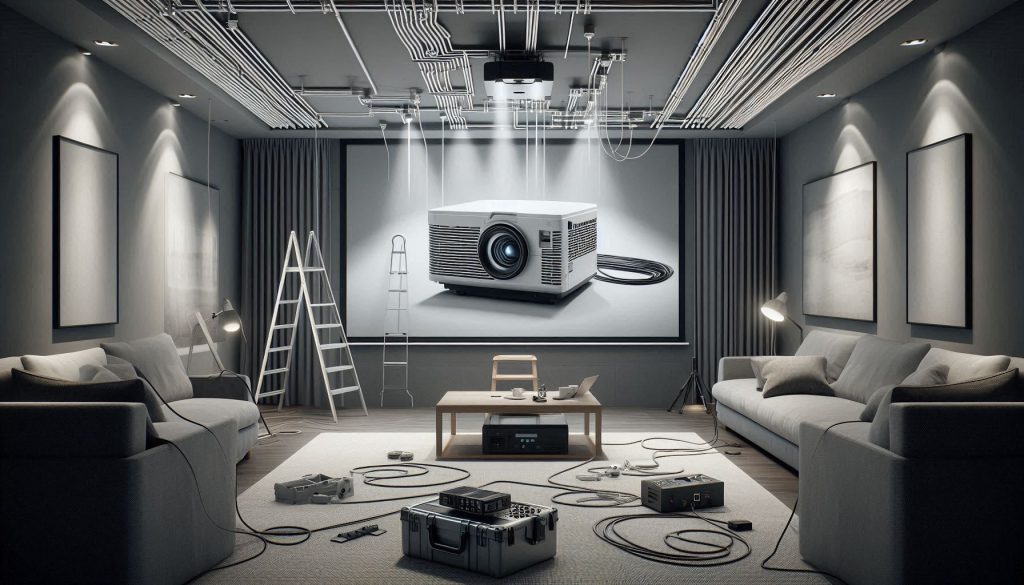
Installation planning: mounts, cables, power and noise
Measure throw distance and ceiling height before you buy; use the projector’s throw chart to verify image size fits your wall or screen.
Decide ceiling mount vs shelf: ceiling mounts keep cables tidy but require secure joists and possibly a professional install. Shelf or cabinet installs are easier to change.
Plan cable runs early: passive HDMI reliably up to ~10–15 m; longer runs need active HDMI, HDMI-over-CAT6 extenders, or fiber. Run power on a dedicated circuit or a good surge protector/UPS for stability.
Allow ventilation clearance (typically 2–6 in./5–15 cm around vents) and avoid enclosed cabinets unless you add ventilation.
Consider fan noise: quiet home‑theater models often list noise around 20–26 dB in Eco modes; high‑brightness modes can push 30+ dB. If you watch dialogue-heavy movies, prioritize low-noise models or place the projector farther away.
Maintenance, lamp and support expectations
Lamp projectors: lamp life typically 2,000–5,000 hours; replacement lamps cost roughly $80–$300 depending on model (e.g., BenQ/Optoma lamp prices vary). Budget for at least one replacement over the product lifetime.
LED/laser projectors: rated life commonly 20,000–30,000+ hours — effectively maintenance-free for many users.
Filters: clean or replace per manual (monthly in dusty rooms; less often in clean environments).
Warranty & service: check length (1–3 years common), whether on‑site service exists, and availability of local repair centers.
Firmware updates: prefer brands with active firmware support (Epson, Sony, BenQ, Optoma often provide updates via Wi‑Fi/USB).
Deal‑breakers: unsupported HDMI/HDR, difficult service/support, excessively high lamp replacement cost.
With a clear installation plan and realistic budget, you’ll be ready to finalize your choice — move on to the Conclusion to make the selection that fits your room and priorities.
Make a Confident Choice for Your Room
By assessing your room and viewing conditions, matching projector type and light source to ambient light, and balancing brightness with contrast and resolution, you ensure the best picture for your space. Confirm optics, throw distance and image size fit your layout, then verify inputs, audio and smart features meet your needs. Plan installation, routine maintenance and a realistic budget before buying.
Use the checklist from the previous section to compare models side by side and prioritize what matters most for your environment — image quality, reliability, or value. With this methodical approach you’ll select a projector that delivers the right image, dependable operation, and long-term satisfaction. Start testing options in your room before final purchase.
54 thoughts on “How to Choose the Best Projector for all your Rooms”
Victor Chen
Does anyone have tips for audio? The article covered it briefly — built-in speakers are usually meh, right? I’m thinking of pairing my projector with a small soundbar.
Built-in speakers are generally okay for casual TV or background audio but not for immersive movie nights. A compact soundbar or a small 2.1 system usually makes the biggest audible difference per dollar.
Minor nit: the article mentions contrast ratios but doesn’t explain how manufacturers inflate those numbers. CxA numbers vs native contrast — could have used a clearer explanation.
Still helpful overall though.
Great suggestion. You’re right — advertised contrast ratios can be marketing-driven. We’ll add a section explaining native vs dynamic contrast and how to judge real-world contrast.
Good read. I was surprised by the section on lamp types — I didn’t realize LED and laser had such difference in lifespan and color performance.
One minor gripe: I wish there was a quick comparison table for common room sizes and recommended lumen ranges. Would’ve made choice faster.
Thanks — that’s useful feedback. We wanted to keep the flow light, but a quick-reference table is a great idea for a follow-up. We’ll consider adding one.
Appreciate the installation and maintenance tips. I always forget about filter cleaning schedules and then my image gets dusty.
FYI: my Epson has a washable filter — cleaning every 6 months has kept it quiet and bright. Anyone else have experience with filterless models?
Filterless models (often sealed LED or laser engines) are low-maintenance but can be pricier. They’re great if you don’t want routine cleaning, especially in homes with pets.
Small correction: the article says ‘center the projector with the screen’ — technically center the lens axis, not the chassis. People forget that and then struggle with alignment.
I liked the deep dive on resolution and optics. I think too many people obsess over 4K when their room size and seating distance don’t need it.
Honestly, I’m running a 1080p projector right now and it looks fantastic at 100″ — saves a ton of cash.
Exactly — matching resolution to screen size and viewing distance is one of the most cost-effective improvements. Glad the article helped clarify that.
One long rant: read the warranty fine print. My first projector’s lamp died at 18 months; apparently my ‘heavy use’ voided part of the warranty. Very annoying.
If you’re a heavy user (lots of movie nights), consider extended warranty or laser units. Lesson learned the hard way 😅
Ugh, that’s frustrating. We always recommend checking warranty coverage for lamps and what qualifies as ‘heavy use’. Laser models reduce that risk but cost more upfront.
Love the budgeting section — putting warranty and lamp replacement into the total cost really changes the equation.
Long comment: I bought a mid-range unit thinking lamp costs wouldn’t matter, then the replacement price shocked me. If you’re not ready for laser, at least check lamp lifetime and replacement cost before buying. My suggestion: do 5-year total cost math.
Good point. Performance varies: some built-in Android TV implementations are snappy, others lag. For the best experience, consider using an external streamer (Chromecast, Apple TV, Fire Stick) if responsiveness matters.
I use an external Apple TV and it’s MUCH better. The built-in OS on my projector froze during updates once, so I won’t rely on it for daily navigation.
Funny story: tried mounting a projector in a rental without asking — landlord was NOT impressed 😂. So yeah, check your building rules before hard-mounting.
Otherwise, the article’s suggestions on temporary mounts and table placement are clutch.
Loved the humor in the piece, very readable. Some parts made me chuckle out loud (the renter warning was real 😂).
Constructive: maybe add a small section on projector screens vs wall paint — not everyone can mount a screen.
I think the connectivity section could emphasize latency for gamers. The article mentions input lag but not sourcing best-case numbers.
If you’re gaming, look for projectors advertising <40ms at 1080p/60Hz or use 120Hz modes if available.
Great article — super helpful breakdown. I especially liked the part about matching brightness to ambient light. I recently swapped a 2000-lumen unit for a 3500-lumen one after reading this and the picture is way better during daytime.
Quick question: anyone here used short-throw projectors in a small living room? Thinking about mounting one above the TV but worried about keystone and install complexity.
Short-throw can be a game-changer for small spaces. Make sure you check the lens shift and keystone correction specs — lens shift keeps geometry cleaner than digital keystone. Also consider a mount that allows fine adjustments.
If you can, try to place the projector on a shelf or a low table for a couple days before committing to a mount. You’ll notice how sensitive alignment is. Saved me a headache. 🙂
I have a short-throw in a 12×14 room. Mounting above the TV worked fine but I had to use a fixed-mount tilted about 5° and small lens shift. Pro tip: use a test pattern during setup to avoid distortion later.
I enjoyed the practical layout advice. My living room has weird angles and the guidance on optics/throw ratios helped narrow options down fast.
Random tip: tape out the screen size on the wall with butcher paper before buying — saves returns.

Does anyone have tips for audio? The article covered it briefly — built-in speakers are usually meh, right? I’m thinking of pairing my projector with a small soundbar.
Soundbar connected via optical or HDMI ARC worked great for me. Cheap Bluetooth speakers often add latency, so test lip-sync.
I used a portable Bluetooth speaker for a while — lipsync was annoying. Switched to wired and it’s much better.
Built-in speakers are generally okay for casual TV or background audio but not for immersive movie nights. A compact soundbar or a small 2.1 system usually makes the biggest audible difference per dollar.
Minor nit: the article mentions contrast ratios but doesn’t explain how manufacturers inflate those numbers. CxA numbers vs native contrast — could have used a clearer explanation.
Still helpful overall though.
Agree — watch real review footage or test in-person if possible. Specs alone won’t tell the whole story.
Dynamic contrast is basically a marketing trick most of the time. Look for black level examples in reviews instead.
Great suggestion. You’re right — advertised contrast ratios can be marketing-driven. We’ll add a section explaining native vs dynamic contrast and how to judge real-world contrast.
Good read. I was surprised by the section on lamp types — I didn’t realize LED and laser had such difference in lifespan and color performance.
One minor gripe: I wish there was a quick comparison table for common room sizes and recommended lumen ranges. Would’ve made choice faster.
Totally agree. I used a quick chart from another site when buying and it saved so much time. Maybe add one to the article’s appendix?
You can eyeball it: small/dim room = 1500-2500, living room with windows = 2500-4000, bright spaces = 4000+. Not exact but helped me.
Thanks — that’s useful feedback. We wanted to keep the flow light, but a quick-reference table is a great idea for a follow-up. We’ll consider adding one.
Appreciate the installation and maintenance tips. I always forget about filter cleaning schedules and then my image gets dusty.
FYI: my Epson has a washable filter — cleaning every 6 months has kept it quiet and bright. Anyone else have experience with filterless models?
I bought a sealed laser model last year — zero filter maintenance and surprisingly quiet. The upfront cost was higher but worth it for me.
Filterless models (often sealed LED or laser engines) are low-maintenance but can be pricier. They’re great if you don’t want routine cleaning, especially in homes with pets.
Beware: sealed doesn’t mean invincible. If dust gets in from vents or the room is especially smoky, you might still notice issues over years.
Small correction: the article says ‘center the projector with the screen’ — technically center the lens axis, not the chassis. People forget that and then struggle with alignment.
Good technical callout — centering the lens axis is the correct approach. We’ll clarify that wording to avoid confusion.
Yep. Manufacturers sometimes show the casing centered but the lens is offset. Always inspect the lens position before mounting.
I liked the deep dive on resolution and optics. I think too many people obsess over 4K when their room size and seating distance don’t need it.
Honestly, I’m running a 1080p projector right now and it looks fantastic at 100″ — saves a ton of cash.
Same here. I opted for 1080p + good lens and I’m way happier with color and brightness than my friend who bought 4K but cheap optics.
Exactly — matching resolution to screen size and viewing distance is one of the most cost-effective improvements. Glad the article helped clarify that.
One long rant: read the warranty fine print. My first projector’s lamp died at 18 months; apparently my ‘heavy use’ voided part of the warranty. Very annoying.
If you’re a heavy user (lots of movie nights), consider extended warranty or laser units. Lesson learned the hard way 😅
Ugh, that’s frustrating. We always recommend checking warranty coverage for lamps and what qualifies as ‘heavy use’. Laser models reduce that risk but cost more upfront.
I bought an extended plan and used it once — felt worth it. But yeah, read the details.
Some retailers sell extended warranty that actually covers lamp replacements — might be worth the extra for heavy viewers.
Love the budgeting section — putting warranty and lamp replacement into the total cost really changes the equation.
Long comment: I bought a mid-range unit thinking lamp costs wouldn’t matter, then the replacement price shocked me. If you’re not ready for laser, at least check lamp lifetime and replacement cost before buying. My suggestion: do 5-year total cost math.
Also check for warranty terms about lamps — some manufacturers limit coverage, so read small print.
That five-year cost view is exactly what we hoped readers would take away. Glad it resonated.
Yes! I ran that math before my last purchase and it saved me from a model with cheap initial price but expensive lamps.
Nice write-up, but felt a little light on smart features — like which platforms are most reliable? Does Android TV in projectors still feel sluggish?
Good point. Performance varies: some built-in Android TV implementations are snappy, others lag. For the best experience, consider using an external streamer (Chromecast, Apple TV, Fire Stick) if responsiveness matters.
I use an external Apple TV and it’s MUCH better. The built-in OS on my projector froze during updates once, so I won’t rely on it for daily navigation.
If you like gaming, low-latency external boxes are better too. Internal apps are convenient but rarely optimized for speed.
Funny story: tried mounting a projector in a rental without asking — landlord was NOT impressed 😂. So yeah, check your building rules before hard-mounting.
Otherwise, the article’s suggestions on temporary mounts and table placement are clutch.
I used a ceiling pole that clamps to a joist — removed it when I left. Worked perfectly and left no trace.
Also check the lease: some folks were surprised by ‘no-drill’ clauses. Stick to non-invasive methods if unsure.
Hah, good reminder! Rentals complicate permanent installs. We added temporary and reversible mounting tips for that reason.
Loved the humor in the piece, very readable. Some parts made me chuckle out loud (the renter warning was real 😂).
Constructive: maybe add a small section on projector screens vs wall paint — not everyone can mount a screen.
Thanks — adding a screens vs paint comparison is a solid idea. We’ll include pros/cons and recommended paints for those who want to avoid screens.
I used a specially formulated projector paint — cost more than regular paint but huge improvement over plain white.
If you can’t afford a screen, a well-prepped matte paint with a light gray tint improves contrast in bright rooms.
I think the connectivity section could emphasize latency for gamers. The article mentions input lag but not sourcing best-case numbers.
If you’re gaming, look for projectors advertising <40ms at 1080p/60Hz or use 120Hz modes if available.
And don’t forget to use HDMI 2.1-compatible gear for newer consoles if you want 4K/120Hz.
Also check the mode names — many projectors have a ‘Game’ mode that reduces image processing for lower latency.
Good point. We can add a specific gamer checklist with typical lag thresholds and how to test input lag with your console/PC.
Great article — super helpful breakdown. I especially liked the part about matching brightness to ambient light. I recently swapped a 2000-lumen unit for a 3500-lumen one after reading this and the picture is way better during daytime.
Quick question: anyone here used short-throw projectors in a small living room? Thinking about mounting one above the TV but worried about keystone and install complexity.
Short-throw can be a game-changer for small spaces. Make sure you check the lens shift and keystone correction specs — lens shift keeps geometry cleaner than digital keystone. Also consider a mount that allows fine adjustments.
If you can, try to place the projector on a shelf or a low table for a couple days before committing to a mount. You’ll notice how sensitive alignment is. Saved me a headache. 🙂
I have a short-throw in a 12×14 room. Mounting above the TV worked fine but I had to use a fixed-mount tilted about 5° and small lens shift. Pro tip: use a test pattern during setup to avoid distortion later.
I enjoyed the practical layout advice. My living room has weird angles and the guidance on optics/throw ratios helped narrow options down fast.
Random tip: tape out the screen size on the wall with butcher paper before buying — saves returns.
Butcher paper + HDMI test pattern video = perfect setup session. Took me 2 hours but avoided a wrong purchase.
Yes, do the tape trick. Also try different seating positions when you tape it out to check sightlines.
Great hands-on tip — testing the actual projected size physically is one of the best ways to confirm a purchase.