
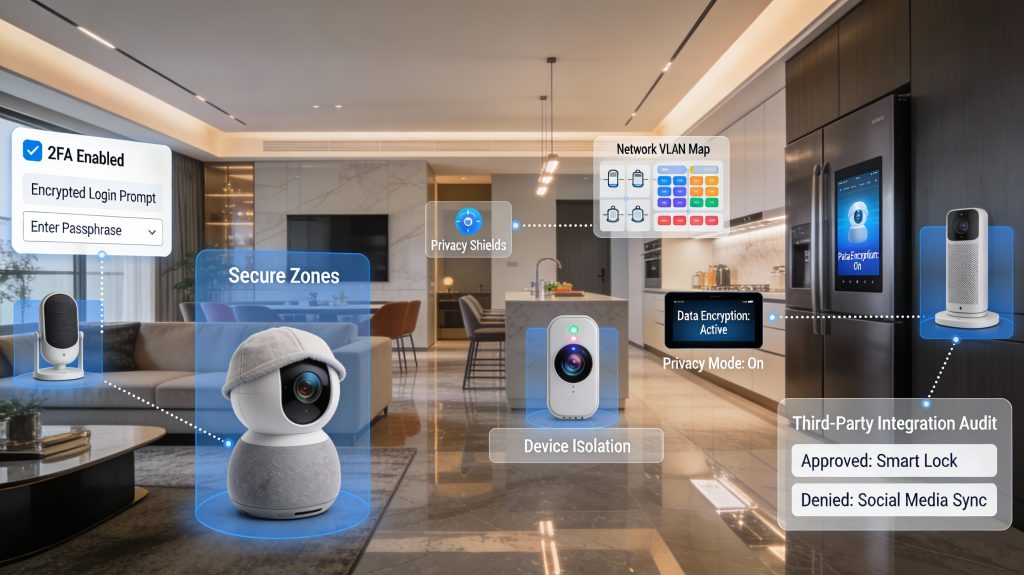
The modern smart home offers unparalleled convenience, but it often comes at the cost of your personal privacy. From cameras that monitor your living room to voice assistants that log every command, these devices are designed to collect data by default, often prioritizing cloud-based functionality over user security. Without intervention, your daily routines, private conversations, and home habits can become a goldmine for data profiling or a target for unauthorized access.
To reclaim your home’s digital boundaries, you must move beyond the factory settings and implement proactive security measures. This guide provides a comprehensive roadmap for hardening your smart home, covering everything from network segmentation and encrypted authentication to the physical management of sensors. By following these targeted steps, you can strike a balance between high-tech automation and robust data protection, ensuring your smart home remains a private sanctuary rather than a data pipeline.
Why Your Smart Home Privacy Settings Matter
You rely on smart devices to make life easier, but they continuously collect signals about when you’re home, what you do, and what you like. Default settings favor convenience and cloud services, not privacy, so you must choose stronger controls to limit tracking, profiling, and unauthorized access. Small changes reduce risk.
This guide shows the targeted settings to change across your router, accounts, cameras, voice assistants, and integrations. You’ll get concrete options to harden networks, tighten authentication, mute sensors, curb voice data, and audit third-party sharing. Follow these steps to regain control of your home data without losing useful automations. Each recommendation explains the privacy trade-offs so you can balance convenience and protection for your household with practical, step-by-step actions.
Harden Your Network and Router Settings
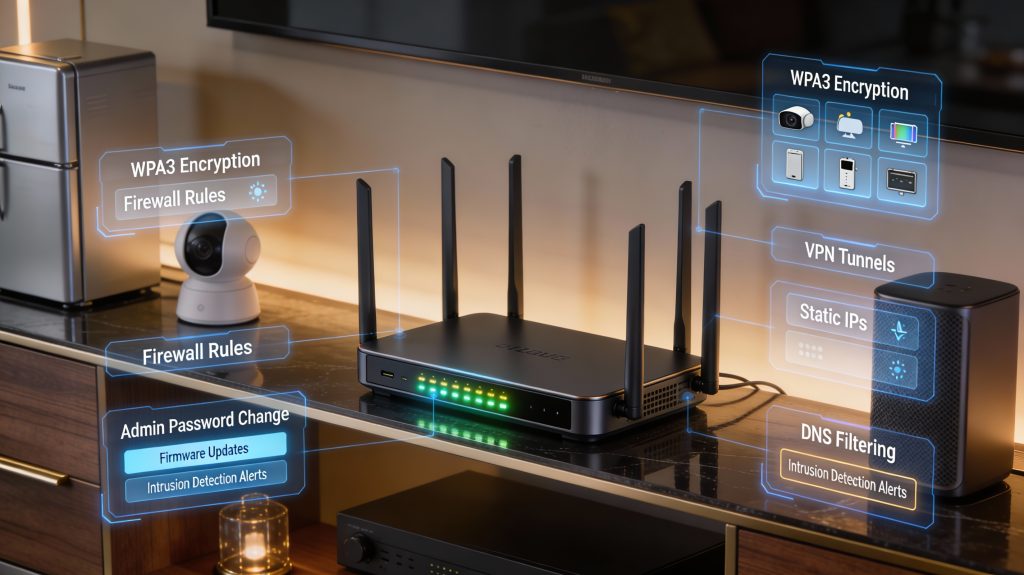
Your home network is the single gateway between attackers and every smart device. Tightening router and network settings cuts the attack surface dramatically—think of it as locking the front door and adding internal doors to every room.
Replace defaults and strengthen Wi‑Fi
Change the router admin username and use a long, unique passphrase (at least 12 characters). Enable WPA3 if your router and devices support it; if not, use WPA2‑AES (avoid TKIP). Disable WPS—its convenience has repeatedly been exploited in the wild (Mirai-style IoT compromises are a reminder of how quickly default settings are abused).
Actionable steps:
Segment IoT devices: guest networks and VLANs
Put cameras, bulbs, smart plugs, and other IoT on a separate guest network or VLAN so a compromised device can’t reach your laptop or NAS. Mesh systems like Eero/Google Nest make guest networks simple; for VLANs and stricter controls look at ASUS RT‑AX88U, Netgear Nighthawk RAXE500, or Ubiquiti UniFi/UDM‑SE for enterprise‑grade segmentation.
Lock down remote access and SSID hygiene
Disable remote administration unless you need it; if you do, use VPN rather than exposing ports. Rename SSIDs so they don’t reveal router make/models (avoid “Arris_X5000” or “HUAWEI_HOME”).
Keep firmware current and enable network protections
Apply router firmware updates promptly—many device compromises exploit unpatched router flaws. Consider adding network‑level protections:
Real-world note: an inexpensive Firewalla or Pi‑hole can block telemetry and malicious callbacks for devices that never get firmware updates.
These steps drastically reduce lateral movement and automations’ blast radius. Next, you’ll lock down the accounts and authentication that control those devices so unauthorized parties can’t simply log in and bypass your network protections.
Secure Accounts and Authentication for Devices and Services
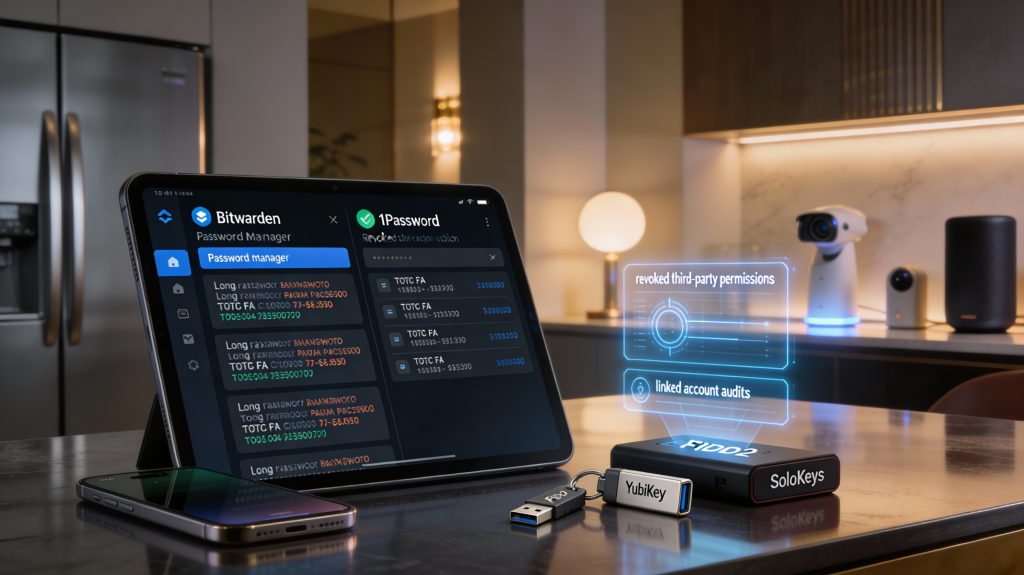
Weak or reused passwords and unsecured vendor accounts are one of the most common ways attackers get into smart homes. Industry reports (for example, breach analyses such as the Verizon DBIR) repeatedly show that most intrusions involve compromised credentials. Treat every device companion app and cloud account like a door to your home—lock it.
Use a password manager and strong, unique passwords
Instead of inventing variants of one password, generate long, random passwords per device and store them in a reputable manager. Good choices include 1Password, Bitwarden (open source), and Dashlane. Make your password manager’s master password a long passphrase, and enable 2FA on that account.
Actionable steps:
Enable app-based or hardware 2FA—avoid SMS when possible
Where vendors offer it, enable two‑factor authentication. Prefer TOTP authenticators (Authy, Microsoft Authenticator, or the built‑in phone authenticators) or FIDO2 hardware keys (YubiKey 5, YubiKey Bio, SoloKeys) over SMS, which can be intercepted.
Quick tips:
Audit linked accounts, recovery options, and shared access
Review account recovery emails, phone numbers, and trusted devices—remove stale entries. Check OAuth and third‑party permissions (Amazon, Google, Apple allow you to view and revoke connected apps). Remove family members or tenants from shared access when they no longer need it.
Deprovision devices before sale or transfer
Before gifting or selling, factory‑reset devices, unlink them from your vendor account, and confirm they’re removed from any cloud history. Follow vendor‑specific transfer docs—some platforms (Nest, Ring, Wyze) have account unlink steps beyond a simple reset.
Locking down accounts prevents attackers from changing automations, downloading recordings, or taking over device settings. Next, translate that account control into physical privacy by checking camera and microphone permissions and settings.
Control Camera and Microphone Privacy Settings
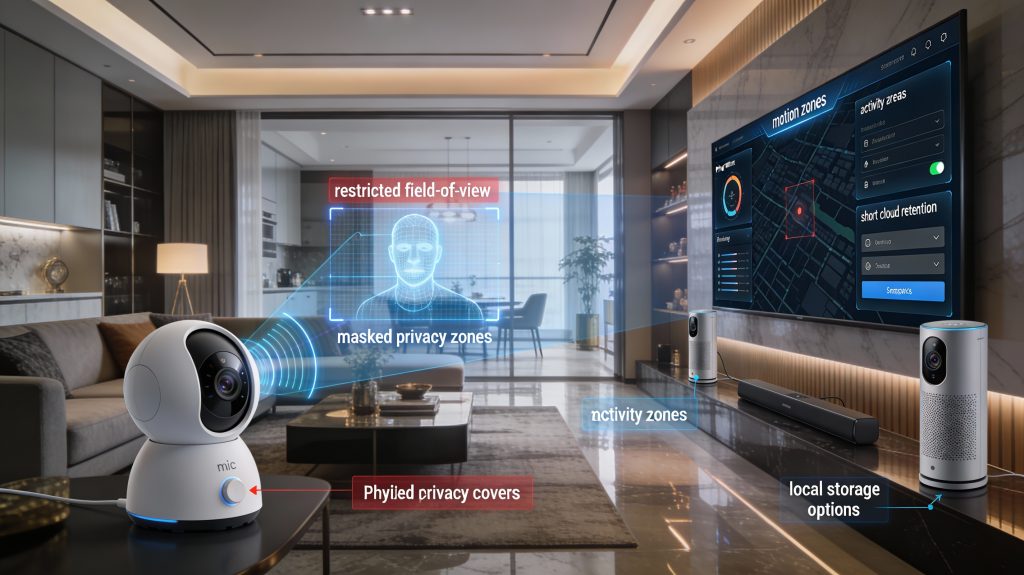
Cameras and microphones are the most sensitive sensors in your home. Treat them like windows and microphones into your life: assume anything they record could be seen or heard outside your household unless you explicitly limit it.
Configure recording, motion zones, and field-of-view
Narrow what your cameras actually “see” and record.
Real-world tip: parents often keep a playroom camera on 24/7; configuring a small activity zone for the playmat avoids capturing other parts of the house when people move through.
Prefer local-first storage and short cloud retention
Where possible, keep footage on local media under your control.
Comparative note: Some vendors (Nest, Ring, Arlo) prioritize cloud features and may require subscriptions for history—balance convenience with exposure.
Physically disable or cover sensors when not needed
Software toggles can fail. Use hardware controls.
Lock down sharing and remote access
Limit who can view, stream, or receive notifications.
Next, you’ll learn how to reduce what voice assistants keep and share so spoken moments don’t end up in a cloud log.
Limit Voice Assistant Data Collection and Skills
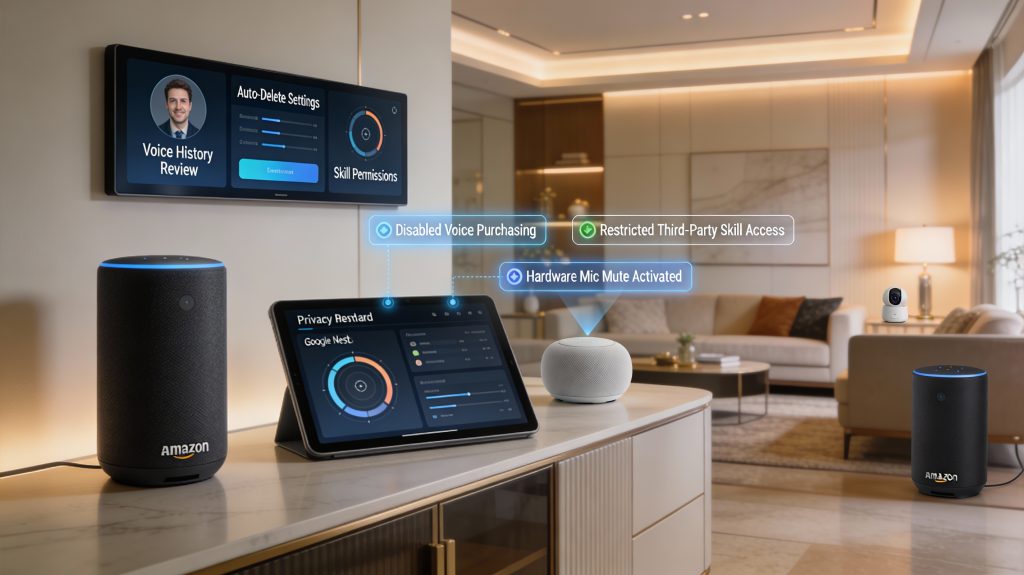
Voice assistants are convenient but they continuously listen for wake words and often store transcripts or audio clips. Limiting what they keep and which third‑party “skills” can access your home reduces profiling and the chance an external app can overreach.
Review and delete stored voice data
Check your assistant’s privacy dashboard and routinely remove recordings you don’t need.
Where available, enable automatic deletion (auto‑erase after a set period) and turn off any “help improve voice recognition” or similar options that send raw audio for analysis. Vendors have at times used human reviewers to grade assistant responses—if that concerns you, disable any program that shares audio outside automated systems.
Stop voice purchases and unwanted voice actions
Unauthorized transactions are a real risk—misheard words can trigger orders.
Restrict third‑party skills and account linking
Treat skills/actions like apps: limit what you install and what they can access.
Use hardware controls and avoid profile building
Physical muting is a last-resort privacy guard.
Quick checklist: review history monthly, enable auto-delete, disable voice purchasing, remove unused skills, and use the hardware mic mute when privacy matters.
Manage Third-Party Integrations, Data Sharing, and Cloud Policies
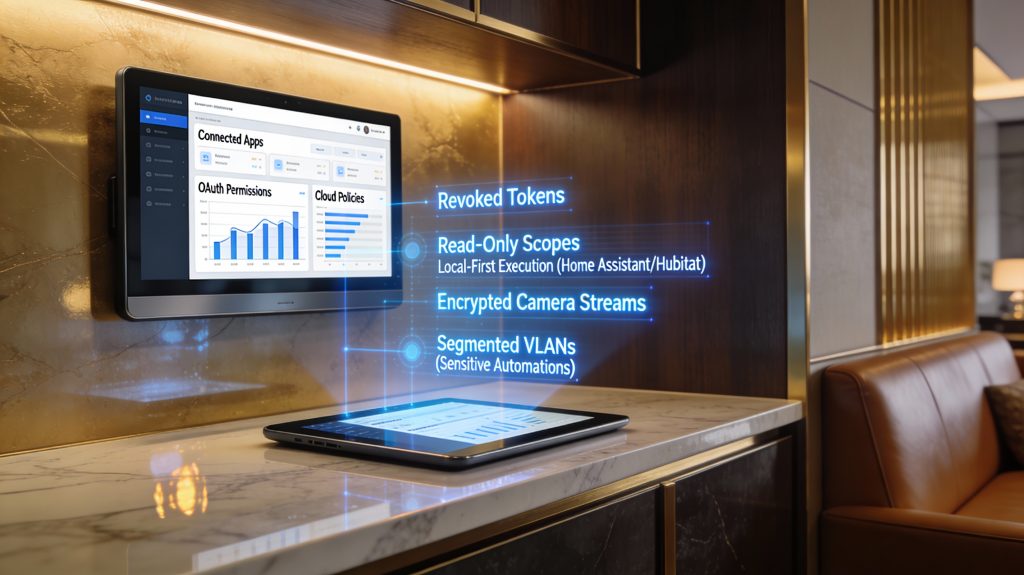
Smart home value often comes from integrations, but each connection is a potential privacy leak. Be proactive: audit what’s linked, tighten permissions during authorization, and prefer local or encrypted integrations where possible.
Audit and prune connected services regularly
Start with a clean slate—every three months:
Limit scopes and use least-privilege tokens
When you authorize a new integration, treat the OAuth prompt like a permissions audit.
Prefer local control and end-to-end encryption
Local-first platforms reduce cloud exposure.
Read and act on vendor privacy policies
Know what data is collected, retained, and shared.
Practical tip: isolate high‑risk automations
Keep sensitive automations local and segregated.
A best practice is to pair regular audits with conservative permission grants—this keeps integrations useful without turning your home into a telemetry pipeline.
Maintain and Monitor: Updates, Audits, and Incident Preparedness
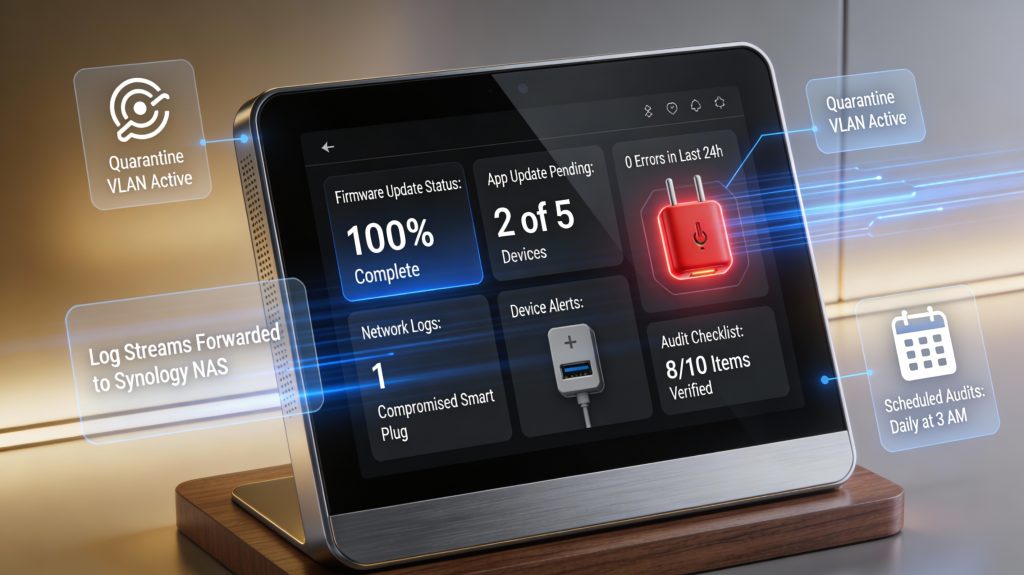
Privacy isn’t a one‑time configuration—you need routines that keep protections effective and shrink the window of exposure. Below are practical steps you can put into place this week and maintain over time.
Keep firmware and apps current—safely
Enable automatic updates where vendors are reputable (e.g., Nest, Philips Hue), but vet update sources and timing.
Example: Many users prefer UniFi or Asus routers because they publish clear changelogs and let you schedule firmware installs.
Monitor device activity and network logs
Set up simple monitoring so you see unusual behavior before it becomes a breach.
Real world: a family avoided data leakage when a forgotten smart plug started contacting an unfamiliar overseas server—network alerts made it obvious.
Run periodic privacy audits
Every 3–6 months, perform a focused review:
Make a checklist and mark completion dates.
Prepare a lightweight incident response plan
Know what you’ll do before panic sets in.
Secure physical access and handle disposal responsibly
Lock network closets, restrict hub access, remove SD cards, and factory‑reset devices before resale. Wipe any local storage (NAS or hub) and request account deletion from vendors when leaving a platform.
These maintenance habits minimize exposure and shorten recovery time—next, bring everything together in the final steps to take control of your smart home privacy.
Take Control of Your Smart Home Privacy
When you systematically apply the privacy controls in this guide—hardening your network, tightening account and authentication settings, curbing camera/mic access, limiting voice assistant data, and restricting third‑party integrations—you remove the most common attack surfaces in smart homes. Prioritize local control, minimal data retention, and transparent vendor policies; these choices have measurable impact on exposure and data misuse. Make configuration changes, enable strong monitoring, and schedule regular audits to keep settings current as devices and threats evolve.
Start with the highest‑impact settings first, then adopt a cadence for reviews and firmware updates. Favor devices that offer local processing and clear privacy documentation. By taking these steps, you keep your home both functional and private—protecting what matters without sacrificing convenience or resilience.