
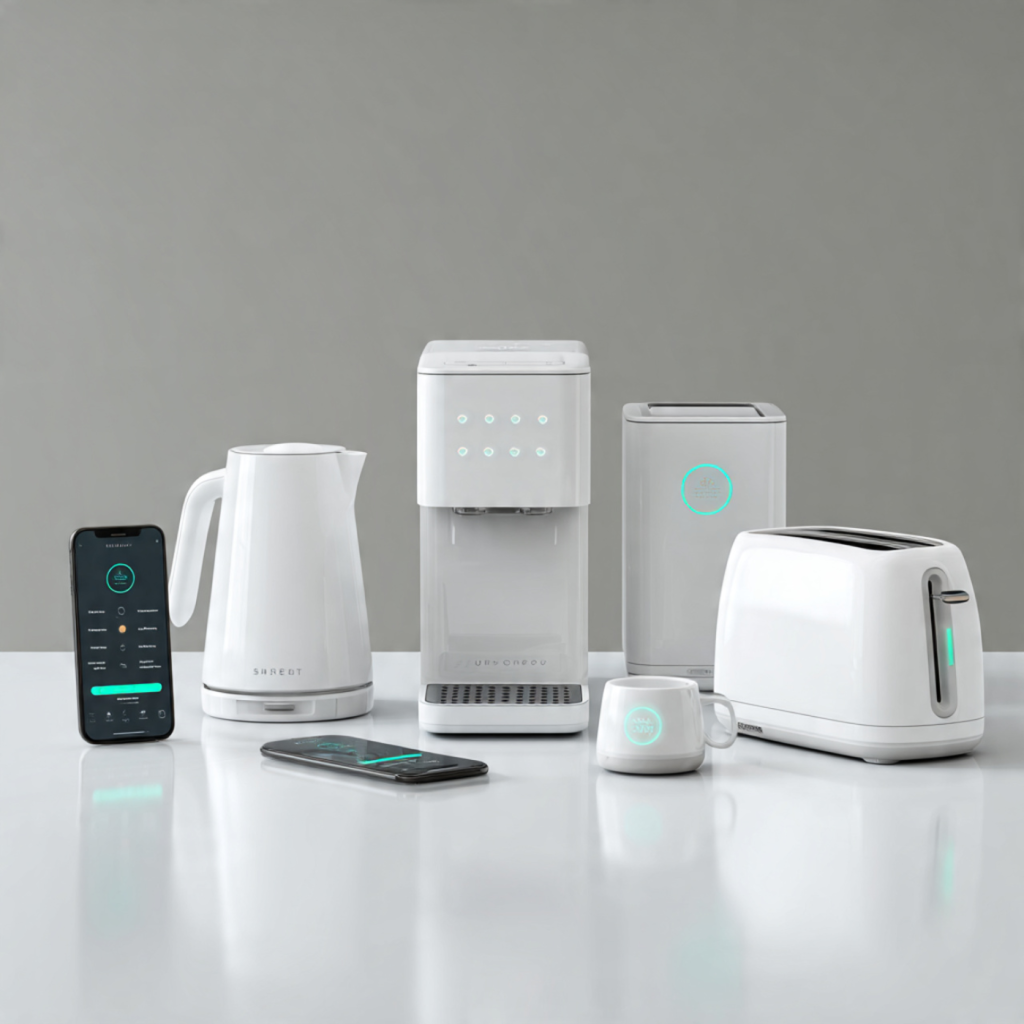
Make Mornings Effortless: Sync Your Coffee Machine with Smart Home Gear
You’ll save time and may be surprised that smart automation can cut morning prep by up to 30 minutes. This guide shows you how to check compatibility, connect devices, create routines, and troubleshoot quickly.
What You’ll Need
Step 1 — Audit Compatibility and Network Setup
Don’t guess—check: Is your coffee maker actually ready for the smart home party?Confirm that your coffee machine supports remote control or smart integration. Open the manual or product page and look for Wi‑Fi, Bluetooth, Zigbee, Thread, Matter, or a proprietary cloud/API.
Check the machine’s firmware and your phone. Update the coffee machine’s firmware and ensure your smartphone OS and the manufacturer’s app meet minimum requirements. Note Wi‑Fi band requirements (many devices require 2.4 GHz, not 5 GHz).
Create a short compatibility checklist:
Identify bridging options if direct support is missing. Use a smart plug to schedule power, a universal relay (e.g., Sonoff) to mimic button presses, or a software bridge like IFTTT or Home Assistant for advanced integrations.
Create accounts now so you don’t lose time later. For example, if your machine isn’t HomeKit‑ready but supports IFTTT, sign up for both the manufacturer account and an IFTTT account before moving to setup.
Step 2 — Connect the Machine to Your Network and App
One connection to rule them all—get your brewer talking to your phone in minutes.Follow the manufacturer’s onboarding precisely: plug in the machine, open the official app, and put the device into pairing mode. Use the app’s guided flow and accept any permission prompts.
Join the device’s setup network when prompted (the machine may broadcast an SSID like “CoffeeMaker_Setup”); enter your home Wi‑Fi credentials exactly as they appear (remember many devices require 2.4 GHz). If the device uses Bluetooth, pair it directly from your phone, then enable cloud access in the app if you want remote control.
Add hub‑based machines from the hub’s device menu and grant requested permissions (location, cloud token). Record the account used, app login, and the device ID or serial number in a password manager or notebook so you can reauthenticate quickly.
If you hit errors, perform these quick fixes:
If you used a smart plug or relay as a bridge, add that accessory now in its app or your hub, then verify it can switch power and report state (on/off). For example, schedule the smart plug to turn on and confirm the machine reaches ready status in the coffee app.
Step 3 — Create Automations and Routines
Why push a button? Automate your coffee ceremony — wake up, smell the coffee, avoid the chaos.Open your smart‑home hub or coffee app and create a new morning routine. Create a routine that triggers when your alarm ends, when a motion sensor detects you entering the kitchen, or at a scheduled time.
Define actions in sequence. Include steps such as preheat, start grinder, begin brew, and adjust lights or blinds. Insert short delays so the machine can reach the required temperature before grinding and brewing (for example, 60–90 seconds).
Use conditional logic to avoid wasted brews. Add conditions like only brew if water level sensor reports “OK” and only brew if bean hopper > X%. Add calendar checks to skip brewing if a meeting shows you’ll be away.
Include voice triggers for hands‑free control. Create an Alexa or Siri shortcut phrase like “Good morning — brew” to start the routine.
Add safety and reliability checks. Configure an automatic shutoff if the machine runs longer than a safe timeout, and add a final step that turns off smart plug power if a fault persists.
Plan and label clearly. Label routines with descriptive names (e.g., “Weekday: Alarm → Coffee”) and set push/voice notifications for failures.
Test each automation in isolation before combining them to confirm timing and device states.
Step 4 — Optimize for Reliability and Safety
Smart is great—until it isn’t. Want reliability? Do these underrated tweaks.Place your coffee machine inside solid Wi‑Fi range or add a dedicated access point/mesh node near the kitchen; avoid crowded 2.4 GHz channels (use 1, 6 or 11) to reduce dropouts. For example, move the router or add a small mesh pod rather than relying on a marginal signal through walls.
Assign static IPs or create DHCP reservations for your coffee machine, hub, and key sensors so you can reliably reach them for diagnostics (for example, reserve 192.168.1.45 for the brewer).
Enable automatic firmware updates if you trust the vendor; otherwise, subscribe to release notes and test new firmware on a non‑critical day before rolling out to your main routine.
Add redundancy: create a local backup automation on your hub and keep a manual override (a physical brew button or a smart plug with a labeled rocker) so you can brew when cloud services fail.
Implement safety limits: set a maximum run time (for many machines 10–15 minutes is safe), enable automatic shutoffs, and use smart plugs that report power and support the appliance’s load. For example, if your machine draws ~1,200 W, choose a plug rated ≥1,800 W with energy reporting.
Secure accounts: use unique, strong passwords, enable two‑factor authentication, disable unnecessary remote access, and enable login notifications to prevent unauthorized control.
Quick checklist
Step 5 — Troubleshoot, Maintain, and Expand Integrations
Problems happen. Know the quick fixes and how to scale beyond a single smart mug.Create a troubleshooting checklist and run it when things fail. Verify power, confirm network connectivity, check app permissions, and reboot devices in controlled order (router, hub, machine) to avoid race conditions.
Check logs and activity history in your hub or device apps to pinpoint failures. Review recent automation triggers, error messages, and timestamps—this often shows whether a schedule or a cloud call failed.
Test local control when cloud integrations fail. Disable the cloud path and use local APIs, LAN commands, or a hub like Home Assistant or HomeKit to verify the machine responds. Consider moving critical routines to local‑first platforms (Home Assistant, HomeKit) for greater resilience.
Schedule regular maintenance tasks on a calendar: descale the machine, replace or check water filters, and update firmware quarterly (or per vendor recommendations). For example, set a quarterly reminder labeled “Brew maintenance” with checklist items.
Expand automations to other kitchen devices (smart kettle, speakers, HVAC) to build multi‑device scenes like “Perfect Morning” — e.g., start brew, heat kettle, set thermostat to 68°F, and play your morning playlist. Document your routines and device settings so you can replicate the setup after upgrades or when onboarding additional family members.
Enjoy Smarter Mornings
By verifying compatibility, connecting devices properly, crafting reliable automations, and maintaining safety, you’ll have dependable, hands‑free coffee; test, document, and iterate to refine your perfect routine—are you truly ready to wake to coffee on cue every single morning?