
Few things ruin a cinematic experience faster than a lip-sync error. Whether it’s a slight delay or a jarring disconnect where the audio trails seconds behind the action, dialogue lag is a common frustration affecting nearly a quarter of all home theater users. Understanding why dialogue lag happens is the first step toward fixing it; usually, the culprit is a bottleneck in audio processing, a “handshake” issue between your TV and soundbar, or high-latency wireless connections like Bluetooth. This guide provides a comprehensive workflow to identify the root cause—whether it’s your HDMI eARC settings, firmware bugs, or improper audio formats—and offers actionable solutions to restore perfect synchronization.
By following this expert-led tutorial, you will learn how to precisely measure latency in milliseconds using simple smartphone tools and move through a tiered troubleshooting process. We cover everything from “quick wins” like power-cycling and cable swaps to advanced optimizations for HDMI ARC/eARC, optical, and PCM/Bitstream configurations. Instead of guessing which setting to toggle, you’ll follow a structured path designed to isolate the problem device and implement the best fix, ensuring your soundbar delivers crisp, perfectly timed audio for movies, gaming, and live broadcasts.
Why Dialogue Lag Happens and How This Guide Helps You
Up to 25% of viewers report noticeable lip‑sync errors; you know the jarring delay when mouths move before speech. This guide shows you how to measure latency in milliseconds and identify symptoms like trailing or intermittent dialogue.
You’ll follow a step‑by‑step workflow: confirm the problem, try quick fixes, pick the best connection (HDMI ARC/eARC, optical, wireless), optimize processing and formats, run advanced diagnostics and firmware checks, decide repair, replacement, or workarounds.
Confirm the Problem: How to Identify and Measure Dialogue Lag
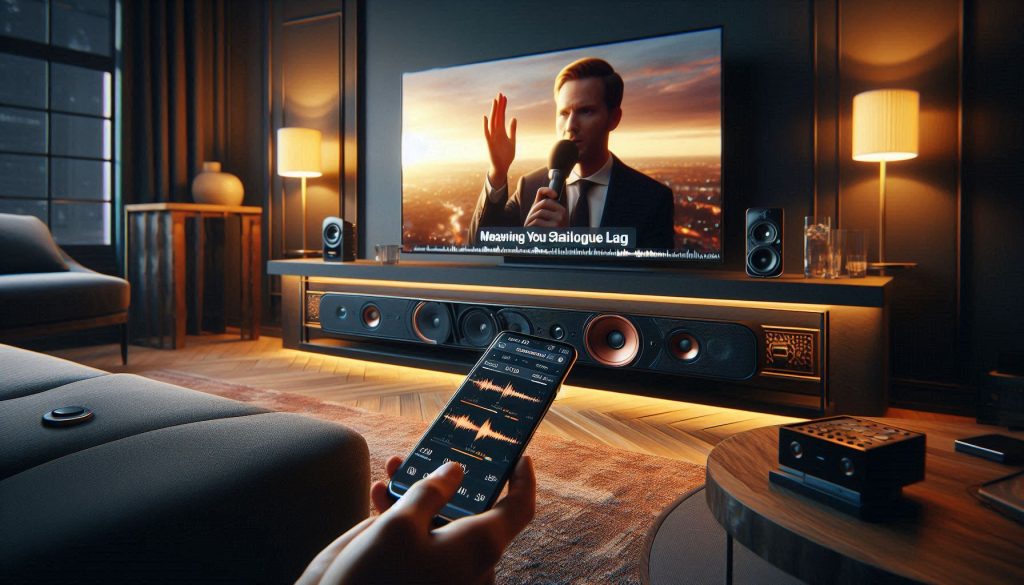
Before changing settings, you need objective proof that audio is delayed and by how much. These repeatable checks use only a smartphone, free files, or built‑in content so you can quantify the problem and isolate its source.
Quick visual lip‑sync checks
Use close‑up speech shots where lips are obvious — news anchors, interviews, or a face‑to‑camera YouTube clip. Watch these on each input (built‑in apps, HDMI box, game console, Bluetooth). If mouths clearly move before words every time, you have measurable lag.
Use a known sync test file
Search YouTube for “lip sync test” or use audio test clips from sites such as AudioCheck.net. These files have clear visual cues (hand claps, beep+mouth movement) so you can create a repeatable reference across sources and apps.
Measure with your smartphone (fast method)
- Point your phone camera at the TV so both the actor’s mouth and the soundbar speaker are visible.
- Record a 10–20 second clip of a clear syllable or clap.
- Play the clip back frame‑by‑frame. On a 30 fps video each frame ≈ 33 ms; count frames between visible mouth movement and when sound appears to estimate delay in milliseconds.
Measure with waveform comparison (more precise)
- Use two phones: one records the TV internal speaker, the other records the soundbar (or record TV speaker, then swap to soundbar).
- Import both recordings into free Audacity and align waveforms. The horizontal offset gives you the delay in milliseconds.
Interpret the results
Example indicators:
Now that you can measure and classify the problem, the next section walks you through fast, safe first steps to try before deeper changes.
Quick First Steps: Power Cycle, Cables, and Simple Setting Checks
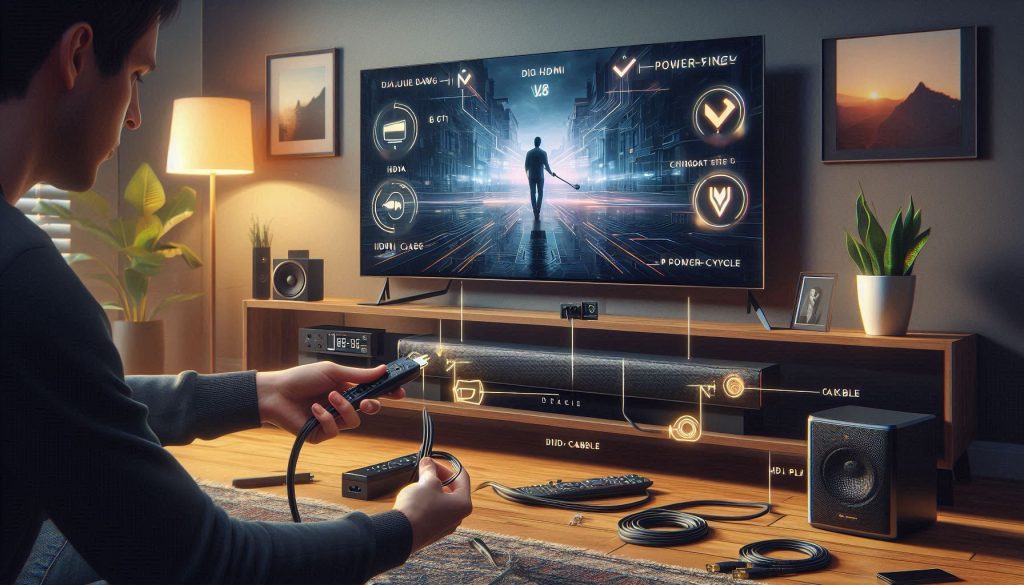
Start with controlled, low‑effort fixes that often resolve the majority of dialogue‑lag cases. These checks expose bad handshakes, corrupted ARC/eARC sessions, or simple misconfigurations before you change deeper audio processing.
Priority checklist (do these in order)
- Power‑cycle everything: TV, soundbar, and source device (unplug each for 30–60 seconds, then plug back in).
- Bypass extras: connect your source directly to the TV or directly to the soundbar—temporarily remove A/V receivers or HDMI switchers.
- Reseat and replace cables: swap HDMI/optical cables with known good, certified cables.
- Try alternate ports: use the TV’s labeled ARC/eARC HDMI port, or a different HDMI input on the source.
- Check simple menu items (below) and test again.
How to power‑cycle and why it helps
Physically unplugging clears corrupted ARC/eARC sessions and resets HDMI handshakes. Real‑world note: users of Sonos Beam (Gen 2) and Samsung HW‑Q series frequently fix a quarter‑second lag by a 60‑second full power cycle—the TV and soundbar re‑negotiate audio formats cleanly on restart.
Cable and port best practices
Quick menu checks to run now
A bad HDMI handshake or corrupted ARC session often inserts buffering (tens to hundreds of milliseconds). If these quick steps don’t fix it, move on to connection type and processing optimizations in the next section.
Choose the Right Connection: HDMI ARC/eARC, Optical, or Wireless
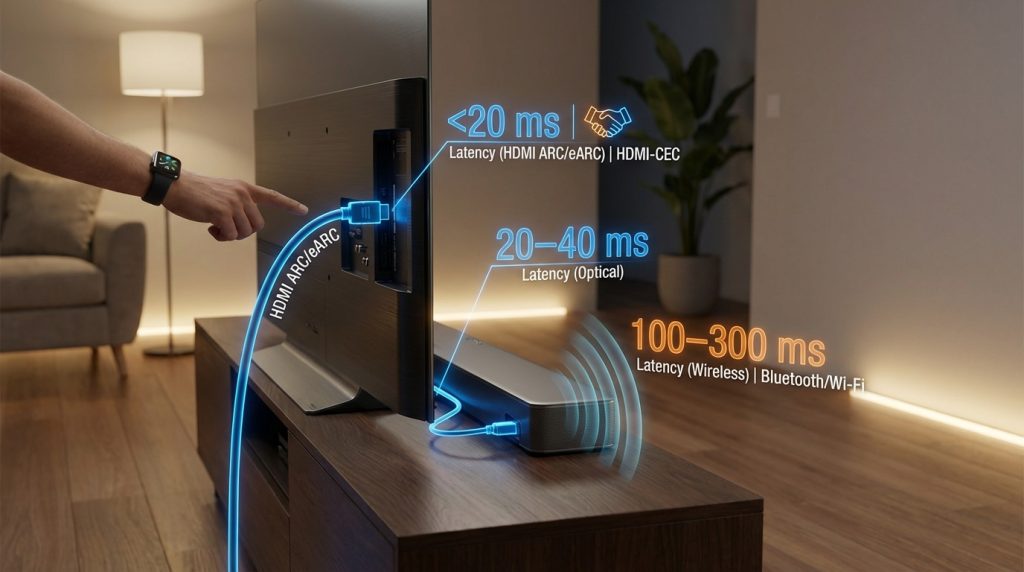
Latency is largely a connection problem. Below is a practical, data‑driven comparison and step‑by‑step guidance so you can pick and configure the lowest‑latency path for your setup.
Connection characteristics (what to expect)
How to configure HDMI-CEC and ARC/eARC (stepwise)
- On TV: enable HDMI‑CEC (may be labeled Anynet+/Simplink/BRAVIA Sync).
- On TV: set Audio Output to “Receiver/External Speakers” and enable ARC/eARC.
- On soundbar: select the TV ARC/eARC HDMI input; enable ARC/eARC in its menu.
- Use a certified HDMI cable (Premium High Speed or HDMI 2.1 for eARC).
- Power‑cycle TV and soundbar (unplug 30–60s) to force a clean handshake.
Troubleshooting ARC/eARC and format negotiation
Using the right physical path and a clean ARC/eARC handshake removes most buffering sources. Next, you’ll learn how to tune audio formats and processing on each device to further reduce delay.
Optimize Audio Processing and Format Settings on TV, Source, and Soundbar
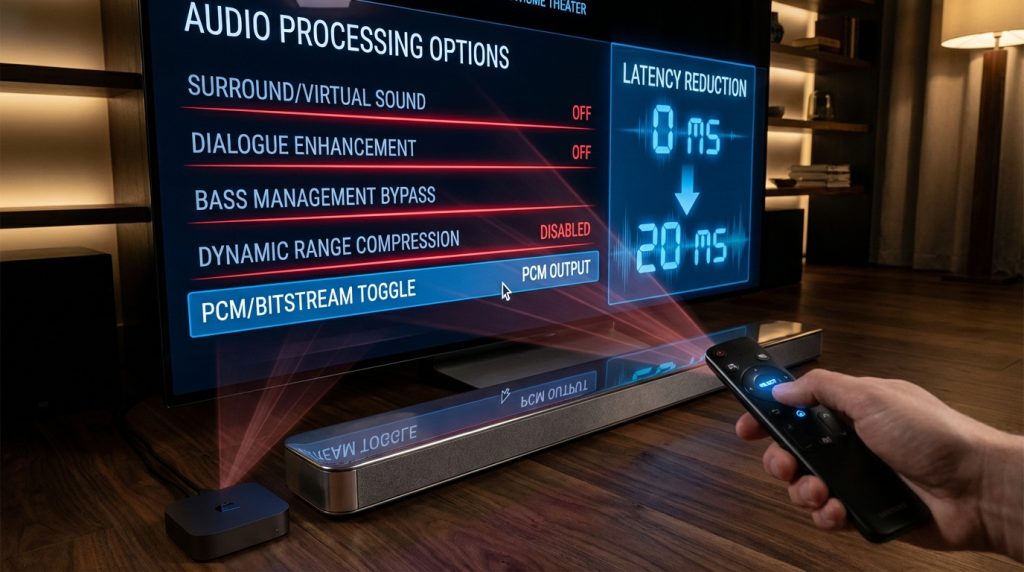
Post‑processing and format conversion are frequent culprits for lip‑sync errors. Methodically removing or changing these layers often fixes delay faster than hardware swaps.
Turn off the usual suspects (step-by-step)
Start on the device that’s doing the decoding (usually the soundbar or TV) and disable one feature at a time, testing after each change.
Example: On a Sonos Beam (Gen 2) turn off “Virtualize Sound”; on a Samsung HW‑Q900A disable “Adaptive Sound” and “Active Voice Amplifier.”
PCM vs Bitstream: pick the right trade-off
A practical path: set source → TV → soundbar to 2‑ch PCM; if good, test multichannel PCM; only revert to bitstream if you need surround formats.
Sample rate and codec gotchas
Many devices resample to 48 kHz. If your source is 44.1 kHz (CDs, some streaming transcoded tracks) and the TV/soundbar resamples, that resampling can add latency. Best practice:
Testing disciplined changes
Change one setting at a time, play a short dialogue clip, and record video of the screen + audio (phone camera). Compare visually to measure lag. This isolates which feature introduced the delay.
Next you’ll use firmware checks and diagnostic measurements to quantify whether your tweaks truly reduced latency.
Advanced Troubleshooting: Firmware, Diagnostics, and Measuring Improvements
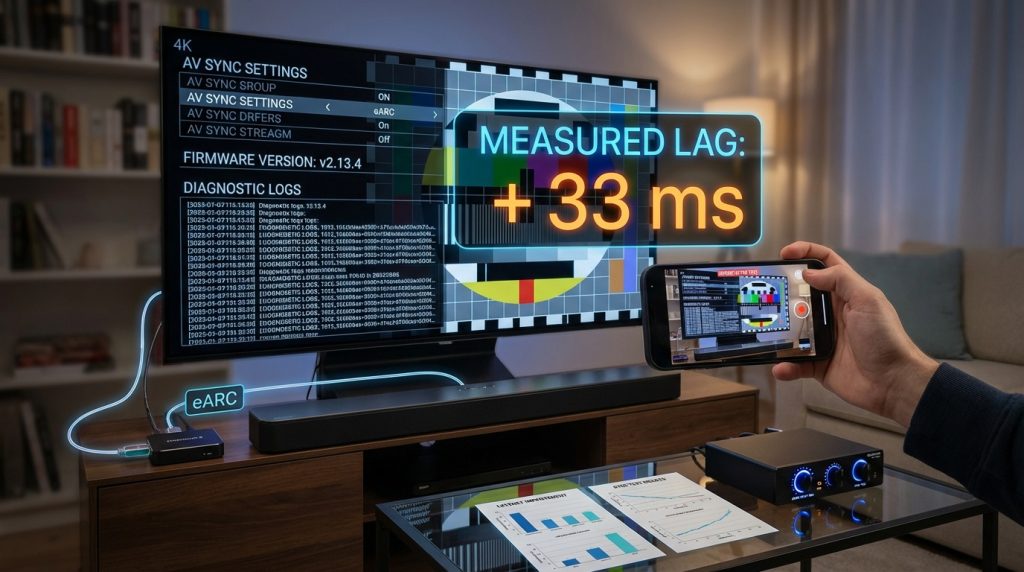
If the quick fixes didn’t remove the lag, you’re entering deeper diagnostic territory. The goal here is to get reliable before-and-after measurements, update or revert firmware when warranted, run manufacturer diagnostics, and isolate the failing component so you know whether to continue tweaking or escalate to support.
Firmware and release notes
Check and install firmware via the official app, USB, or OTA update on your soundbar, TV, and source device. Don’t skip release notes — manufacturers often list “AV sync” or “lip‑sync” fixes.
Run diagnostics and collect logs
Use built‑in diagnostics or app logs before you factory reset.
Safe factory reset
Back up network credentials, presets, and note all settings first. Perform the reset per the manual, then reapply only essential settings to test.
Controlled latency measurements
Use short test files with a sharp visual marker (white flash or clapperboard) and a single click/pop sound. Record the TV and speaker with a phone camera positioned so the screen and the speaker are both visible.
Swap components to isolate
Switch output to TV speakers, headphones, or another soundbar to see if lag follows the soundbar or the source/TV.
External delay/sync box
If hardware limits prevent a software fix, an external audio delay unit from makers like Gefen or Extron (or audio processors with delay) can add precise ms adjustments as a last‑resort workaround.
Document for support
When you contact support, include:
Decide Next Steps: Repair, Replacement, or Workarounds
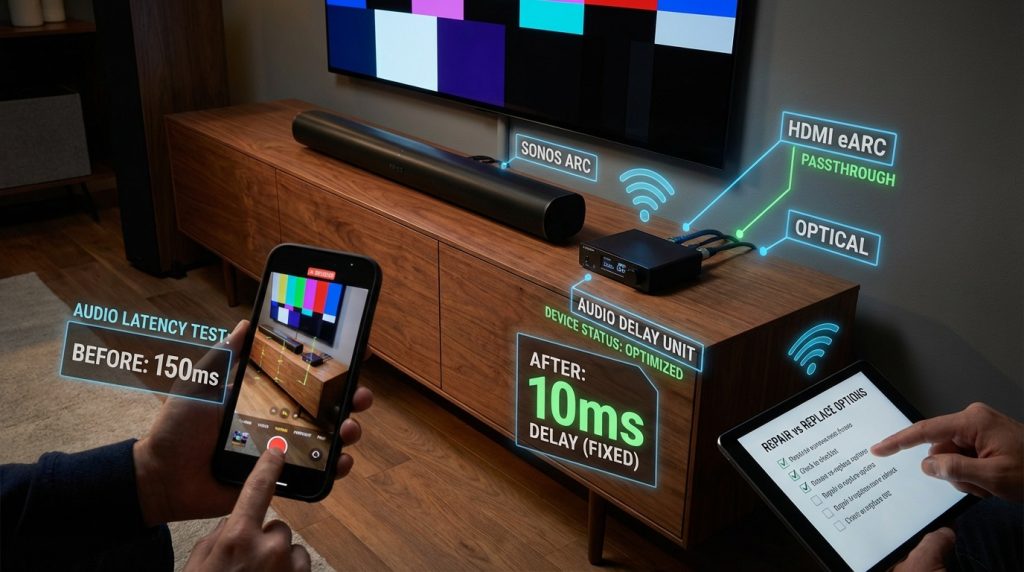
After a full troubleshooting pass you’ll face a practical choice: keep using temporary fixes, push for repair under warranty, or replace the soundbar/TV. Use the sections below to weigh cost, expected latency gains, and real-world practicality.
Evaluate warranty and escalate support
Documented evidence speeds service and increases the chance of a favorable outcome.
Signs that the problem is hardware-limited
Look for consistent patterns across configurations — that usually means a hardware or DSP limitation.
If those are true, a repair or replacement is justified; if it’s intermittent or limited to one input, continue troubleshooting.
Affordable and practical workarounds
If repair is impractical or out-of-warranty, try lower-cost remedies before buying new gear.
Real-world note: a friend fixed a 120 ms lag by switching from a wireless TV connection to HDMI eARC and adding a 20 ms delay in the bar’s app — an inexpensive fix compared to replacement.
Choosing a replacement soundbar
Prioritize specs and controls that reduce repeat problems.
With your decision path selected, move to the final checklist and next actions in the Conclusion.
Restoring Natural Dialogue: Final Checklist and Next Actions
Checklist—quick wins first: power-cycle devices, use HDMI eARC/ARC (or wired optical), set TV/soundbar to passthrough/“Game”/“Low Latency,” disable post-processing, and update firmware. Measure lip‑sync with test tones before and after; log settings, connection type, firmware versions, and measured delay.
If problems persist, contact support with your logs and steps taken. Consider repair or low‑latency replacement (look for <20 ms total latency or DTS/PCM passthrough). Keep firmware current and retest after changes for accuracy.