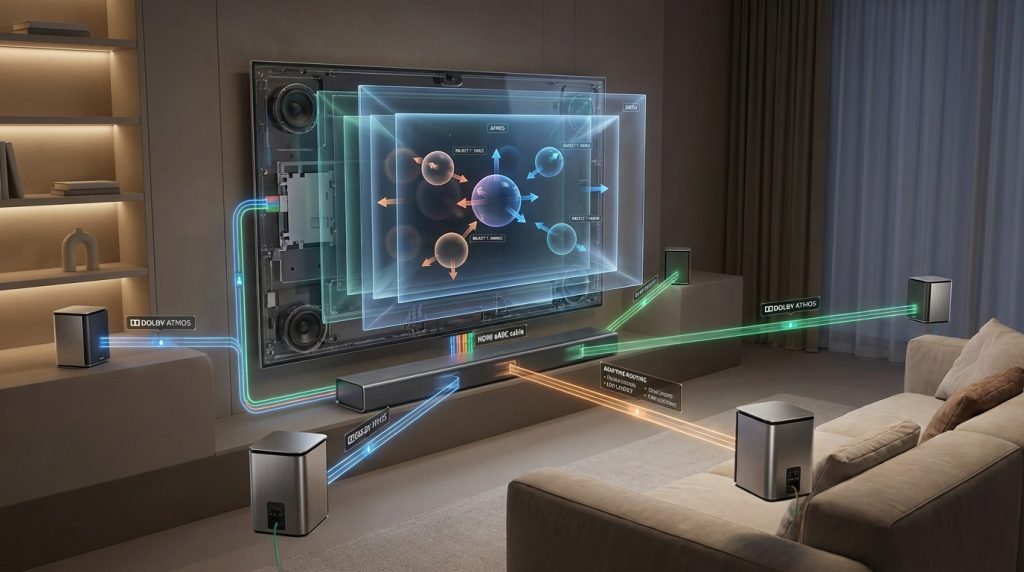
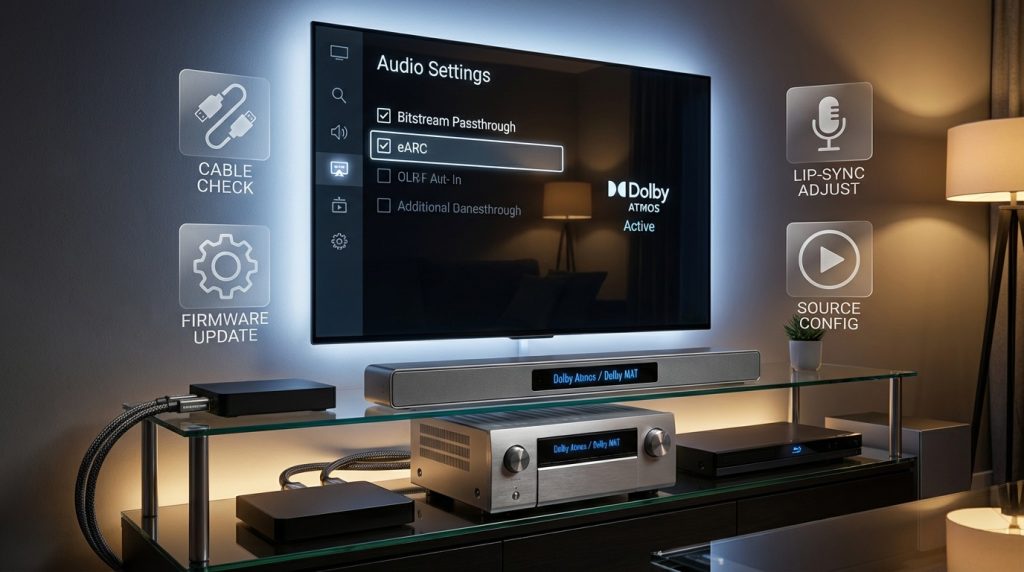
Dolby Atmos FlexConnect is a revolutionary audio technology that eliminates the need for complex wiring and fixed speaker placements. By intelligently combining a TV’s internal speakers with compatible wireless satellite speakers, FlexConnect optimizes sound based on your room’s unique layout. This results in a seamless, immersive spatial audio experience that adapts to your environment rather than forcing you to move furniture to fit a traditional 5.1 or 7.1 surround sound system.
When shopping for a new display, identifying which TVs support FlexConnect is essential for future-proofing your home theater. Currently, brands like TCL and Hisense are leading the integration of this technology into their premium and mid-range lineups, often pairing them with dedicated wireless speaker kits. To ensure compatibility, look for models featuring HDMI eARC, advanced MediaTek chipsets, and official Dolby certification, as these hardware components are the backbone of high-fidelity, object-based audio routing.
Why Dolby Atmos FlexConnect Matters for Your TV Audio
Imagine getting true object‑based sound in your living room without wiring chaos or an AV receiver upgrade. Dolby Atmos FlexConnect is designed to do exactly that, sending precise audio objects from your TV to compatible speakers or soundbars.
You want immersive audio that’s simple to set up and works with streaming apps, game consoles, and broadcast sources. Knowing which TVs support FlexConnect matters when you buy or upgrade, because compatibility affects format passthrough, lip‑sync, and surround imaging.
This article gives a clear, data‑driven way to identify compatible TVs and configure them for best results. It focuses on practical verification steps.
1
Understanding Dolby Atmos FlexConnect: Purpose and Capabilities
Dolby Atmos FlexConnect intelligently routes and adapts object-based audio between your TV and connected speakers for the best possible surround experience.
What FlexConnect actually is (in practice)
Dolby Atmos FlexConnect is best thought of as a smart routing and negotiation layer for Atmos‑encoded audio inside a TV ecosystem. Rather than forcing a single path (TV decodes, or TV blindly passes a bitstream), FlexConnect negotiates between source, TV, and audio sink to choose the optimal handling for Atmos metadata and audio objects. In real‑world use that means the TV can:
detect what the source (streaming app, game console, Blu‑ray) is sending (e.g., Dolby Digital Plus with Atmos objects, or TrueHD+Atmos),
query what the sink (soundbar, AVR, wireless speaker) can accept (codec, channel count, eARC/ARC support),
decide whether to pass the original bitstream, repackage/transcode, or render some objects locally while sending others downstream.
Think of it as the traffic manager that tries to deliver the most faithful Atmos experience given the limitations of your chain.
How it handles metadata, routing, and device negotiation
FlexConnect works around three practical tasks:
Metadata awareness: it preserves object metadata when possible, ensuring overhead like object positions and movement aren’t discarded during transport.
Capability negotiation: it uses HDMI/ARC/eARC handshakes and software profiles to determine what each device can accept and selects the best-compatible transport (lossless TrueHD over eARC when available, or DD+ when needed).
Adaptive routing: if the sink can’t accept the native stream, FlexConnect will repackage or downmix selectively—reducing transcoding when possible to avoid unnecessary audio degradation.
User benefits you’ll notice
Easier multi-device setups: fewer manual toggles between “TV decode” and “passthrough.”
Better fidelity more often: FlexConnect favors passing native Atmos streams when the downstream device supports them.
Flexible wireless bridging: in systems that support it, FlexConnect can hand off object data to wireless speakers or soundbars with minimal latency compromises.
Practical limits and what to expect
Bandwidth matters: full lossless Atmos (TrueHD) often requires eARC; standard ARC or wireless links may force compressed DD+ or downmixes.
Codec support varies: not all sinks accept every Atmos container; FlexConnect can’t create what hardware won’t support.
Source dependency: if the app or device outputs a flattened stereo or simple 5.1 stream, FlexConnect can’t reconstruct missing objects.
Quick real‑world example
If you stream Netflix on a TV that supports FlexConnect and you have an eARC soundbar capable of TrueHD+Atmos, FlexConnect will usually pass the TrueHD stream intact. If you connect older Bluetooth rear speakers that only take stereo, it will instead repackage and send the best matched format to each device—prioritizing object preservation where possible.
2
Technical Requirements and How FlexConnect Works in a TV Ecosystem
Dolby Atmos FlexConnect intelligently routes object-based audio between your TV and speakers for immersive, wire-free surround sound.
Below you’ll get a data‑driven checklist of what your TV, downstream gear, and network must provide for FlexConnect to function reliably — and how the TV’s internal audio path decides whether Atmos arrives intact at your speakers.
Core hardware pathways: HDMI, optical, and bandwidth realities
HDMI eARC (recommended): supports full‑bandwidth lossless streams (Dolby TrueHD + Atmos or Dolby MAT encapsulations). If you want native TrueHD object streams, eARC is effectively mandatory.
HDMI ARC and optical (limitations): both are frequently limited to compressed Dolby Digital/Dolby Digital Plus or PCM stereo; optical outright cannot carry TrueHD/Atmos objects.
Cables and HDMI version: use certified HDMI cables that match eARC requirements; faulty or old cables cause handshake failures and forced downmixing.
Example: TVs like the LG C2/C3, Sony A90J/A95K, and Samsung QN90-series have eARC-capable HDMI ports — a practical starting point when shopping.
Codec interoperability and containers
Streaming services mostly use Dolby Digital Plus (DD+) + Atmos for bandwidth efficiency; Blu‑ray uses TrueHD + Atmos.
Dolby MAT (multi‑channel audio transport) is increasingly used to transport object metadata in streaming environments; both the TV and AVR/soundbar must understand MAT for lossless passthrough via eARC.
Your TV must be able to recognize and either passthrough or repackage these containers without stripping object metadata.
Firmware, drivers, and licensing
Firmware-level Atmos handling: the TV needs audio drivers and a firmware audio pipeline that are Atmos‑aware — i.e., they preserve object metadata or expose it to downstream devices.
Licensing: manufacturers must implement Dolby licensing for Atmos and any FlexConnect-level features; lack of certification can cause the TV to downmix even if the hardware supports the transport.
Processing horsepower: real‑time repackaging or partial decoding benefits from dedicated audio DSPs or sufficiently capable SoCs — older TVs may fail to transcode without glitches.
Network and wireless bridging considerations
If FlexConnect extends to IP/wireless (for wireless rears or bridging to smart speakers), expect requirements similar to video streaming: stable gigabit Ethernet or Wi‑Fi 5/6 with low latency and proper QoS.
Wireless bridges often force compressed Atmos (DD+) or stereo fallback; verify manufacturer specs for supported wireless audio codecs and latency.
Device negotiation, passthrough vs local decoding, and practical tips
Handshake mechanics: EDID/eARC negotiation determines whether the TV sends the original bitstream or decodes locally. You can watch handshakes fail in practice — for example, a TV may report only DD+ support to a soundbar if a cable or firmware misreports EDID.
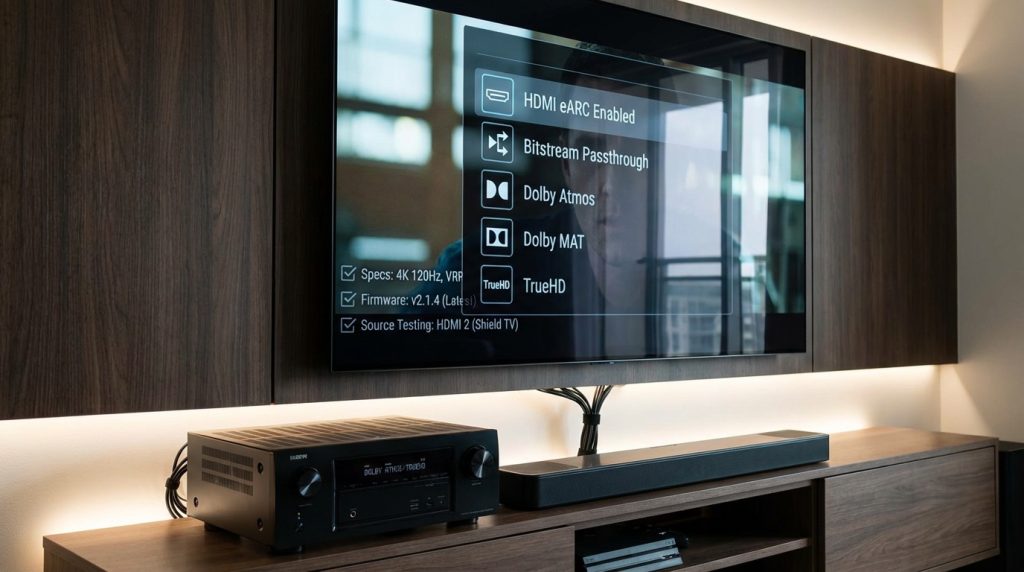
Passthrough preferred: set the TV to “bitstream/passthrough” where possible so your AVR/soundbar handles Atmos decoding and object rendering.
Quick checks: enable eARC on both TV and soundbar, update firmware, use an app known to output Atmos (Netflix, Disney+), and check the receiving device’s display of incoming format.
These technical layers — physical transport, codecs, firmware, and negotiation — determine if FlexConnect can preserve Atmos objects end‑to‑end or must fall back to safer but lower‑fidelity formats.
3
Which TVs Are Likely to Support FlexConnect and How Manufacturers Approach It
Not all TVs handle Dolby Atmos the same — hardware tier, platform, and licensing determine real FlexConnect behavior.
You don’t need a spreadsheet of every model to predict FlexConnect support. Use the cues below to evaluate any TV quickly and reliably — and to understand why some sets say “Atmos” on the box but don’t behave the way you expect.
Which tiers and models are most likely to include FlexConnect‑style features
Premium and upper‑mid‑range models are the safest bet because they combine the necessary hardware, licensing, and software polish:
Flagship OLEDs and top QLED/mini‑LED sets (e.g., Sony A9x/A95, LG C/G series, Samsung QN9x/QN90) typically have eARC, advanced audio DSPs, and active Dolby relationships.
Upper‑mid models from TCL, Hisense, and Vizio (their higher‑end lines) increasingly include eARC and better audio pipelines; entry‑level models often omit eARC or limit passthrough.
Older or budget sets may advertise “Dolby Atmos” for app playback (internal decoding) but lack the passthrough or metadata handling FlexConnect needs for objects to travel downstream.
How smart TV platforms influence behavior
Platform choice affects how audio is handled at the OS and app level:
Google TV / Android TV: Often exposes bitstream/passthrough options and supports modern audio containers, so you’re more likely to get intact Atmos handoffs.
webOS (LG) and Tizen (Samsung): Manufacturers control the audio stack; higher models are tuned for interoperability, but behavior can vary by firmware.
Roku OS and some proprietary platforms: historically more conservative about passthrough (check model‑specific notes); Roku TVs may require explicit eARC support in higher trims.
The role of Dolby licensing and manufacturer partnerships
Dolby licensing isn’t automatic — manufacturers must certify features and sometimes pay for branding. That means:
A Dolby Atmos logo on a product can mean internal rendering only, certification‑backed passthrough, or both.
Look for explicit wording: “Dolby Atmos passthrough”, “Dolby MAT / Dolby TrueHD passthrough”, or eARC support — those signal FlexConnect‑compatible behavior.
Quick checklist to verify FlexConnect compatibility (do this before you buy)
Confirm the TV has HDMI eARC and an explicit eARC setting in menus.
Look for spec lines stating “Atmos passthrough”, “Dolby MAT”, or “TrueHD passthrough”.
Check the smart TV platform and known passthrough quirks (search model + “eARC passthrough”).
Read in‑box documentation and the online manual — manufacturers often note limitations there.
Search AV forums or hands‑on reviews for real‑world handshake tests with AVRs/soundbars.
A short real‑world example: one buyer saw “Dolby Atmos” in the app list on a mid‑range TV but discovered the soundbar only ever showed DD+. Reading the manual revealed the TV decoded Atmos internally (no passthrough), a detail hidden in the marketing copy — the kind of nuance FlexConnect helps you avoid.
4
How to Verify a Specific TV’s FlexConnect Compatibility
Verifying FlexConnect means checking real passthrough behavior, not just trusting the Dolby Atmos logo.
This practical checklist walks you through quick, actionable checks so you can confirm whether a particular TV will let Dolby Atmos object metadata pass through intact (FlexConnect-style behavior) rather than just decode or downmix it.
Read the technical specs carefully
Start with the spec sheet and product manual — they often hide the important language.
Look for “HDMI eARC” (not just ARC), “Dolby MAT passthrough”, “Dolby TrueHD passthrough”, or explicit “Atmos passthrough” wording.
Note HDMI versions and the number of eARC-enabled ports; a single eARC port is common on many TVs.
Watch for licensing language: a Dolby logo can mean internal rendering only — you want explicit passthrough claims.
Test with real sources
Verifying with live sources is the fastest proof.
Use a streaming app that offers Atmos (Netflix, Apple TV+, Disney+) and play a confirmed Atmos title. Check whether your AVR/soundbar shows an Atmos or “MAT/TrueHD” input rather than just DD+ or PCM.
Try a physical UHD Blu‑ray or a hardware player known to output Dolby TrueHD/MAT through HDMI. If the TV passes that signal to your AVR and the AVR reports TrueHD/Atmos, passthrough works.
If you have an AV receiver, connect the source -> TV -> AVR chain and then bypass the TV by connecting source -> AVR -> TV to isolate whether the TV is changing the signal.
Inspect the TV’s audio/menu reporting
Look in the audio settings while playing an Atmos source.
Search for options like Bitstream vs PCM, Passthrough toggle, eARC Mode, or HDMI Input audio format reporting.
While a movie plays, many TVs show the incoming audio format (e.g., Dolby MAT, Dolby Digital Plus, PCM). That on‑screen readout is your quickest indicator.
Consult firmware notes and support channels
Manufacturers occasionally add or remove passthrough behaviors via updates.
Check firmware changelogs, online manuals, and the model support page for audio-related revisions.
Search AVSForum/Reddit for model-specific handshake tests (search “ MAT passthrough”).
If still unsure, contact manufacturer support with your model and firmware version and ask whether the TV passes Dolby MAT/TrueHD over eARC.
Red flags to watch for
“Dolby Atmos” only listed under internal apps with no passthrough mention.
No eARC or only ARC listed.
Specs state “downmixes Atmos to stereo/surround” or only list DD+.
Marketing copy uses ambiguous terms like “Immersive audio” without technical detail.
Use these checks before you buy or while troubleshooting so you don’t confuse internal decoding with true Atmos passthrough — the next section will show how to set up, optimize, and fix common FlexConnect issues if your TV supports it.
5
Setup, Troubleshooting, and Best Practices for Using FlexConnect with Your TV
Once you’ve confirmed FlexConnect-style passthrough is available, follow these steps to get reliable end-to-end Atmos playback and fix common problems quickly.
Source configuration (apps and players)
On streaming devices or apps (Netflix, Apple TV, Disney+), select a confirmed Atmos title and set the app or player audio output to bitstream/passthrough where available.
On physical players (Ultra HD Blu‑ray players, Apple TV 4K, Nvidia Shield), choose Dolby Digital Plus/TrueHD passthrough or “Auto / Bitstream” rather than forced PCM.
Example: on an Apple TV 4K, go to Settings > Video and Audio > Audio Format > Change Format = Off so the device can negotiate TrueHD/MAT with downstream devices.
TV audio settings (bitstream vs PCM, eARC)
Set the TV audio output to Bitstream/Auto or Passthrough, not PCM. Enable eARC in the TV’s HDMI/audio menu.
If a TV offers a separate eARC mode (some LG/Sony menus), set it to “Auto” or “Enhanced” to allow full bandwidth for MAT/TrueHD.
Disable any TV-level audio enhancements (virtualizer, dialog boost) that can force downmixing.
Example models: on an LG C2/C3 you’ll enable eARC and set Sound Out to “HDMI ARC (eARC) + Optical” only if you intend to use eARC.
Connecting external audio devices
Prefer source -> TV (when TV must pass MAT) -> AVR/soundbar over source -> AVR -> TV unless the AVR is explicitly the hub for Atmos. If passthrough fails, test the AVR-first path.
Use an Ultra High Speed HDMI cable (HDMI 2.1-rated) for eARC, particularly for longer runs; many problems vanish after replacing a cheap cable.
Soundbar examples: Sonos Arc, Samsung HW-Q950A; AVR examples: Denon AVR-X3700H, Marantz SR8015. These report TrueHD/Atmos or MAT on successful passthrough—use that as verification.
Troubleshooting common problems
Lip sync: power-cycle all devices, then adjust the TV’s audio delay or the AVR’s lip‑sync/delay setting. CEC toggles can reset negotiation.
Channel loss/downmixing to stereo: ensure the TV is in bitstream/passthrough and that the streaming app is sending Atmos. Try connecting the source directly to the AVR to isolate.
No Atmos label on AVR: swap to an Ultra High Speed HDMI cable, check eARC ON in the TV, update firmware.
Firmware bugs: check changelogs and rollback if a recent update broke passthrough; manufacturers sometimes release hotfixes within weeks.
Best practices and validation
Use wired Ethernet or a stable 5 GHz Wi‑Fi for streaming Atmos content.
Keep TV, source, and AVR/soundbar firmware current; register for beta updates if manufacturer offers early fixes.
Validate with known test content (Dolby demo trailers, Netflix’s “Test Patterns” or Apple TV Atmos trailer) and confirm the AVR/soundbar shows Dolby MAT/TrueHD/Atmos.
With these setup steps and fixes in hand, you’ll be ready to finalize your system and choose the right TV or audio hub—see the Conclusion for practical next steps.
Making an Informed Choice: Practical Next Steps
You should now have a clear framework to determine whether a TV will support Dolby Atmos FlexConnect and set it up. Prioritize hardware: a TV with HDMI eARC support, compatible firmware, and manufacturer FlexConnect or Atmos over HDMI/USB claims. Inspect specs, menus, and support docs; contact support if uncertain. Verify with an Atmos source and eARC-enabled AVR or soundbar, checking passthrough and object-channel indicators.
If buying, choose models from manufacturers actively documenting FlexConnect and with ongoing firmware updates. Test promptly and keep firmware current regularly; log issues and pursue vendor support if needed.