
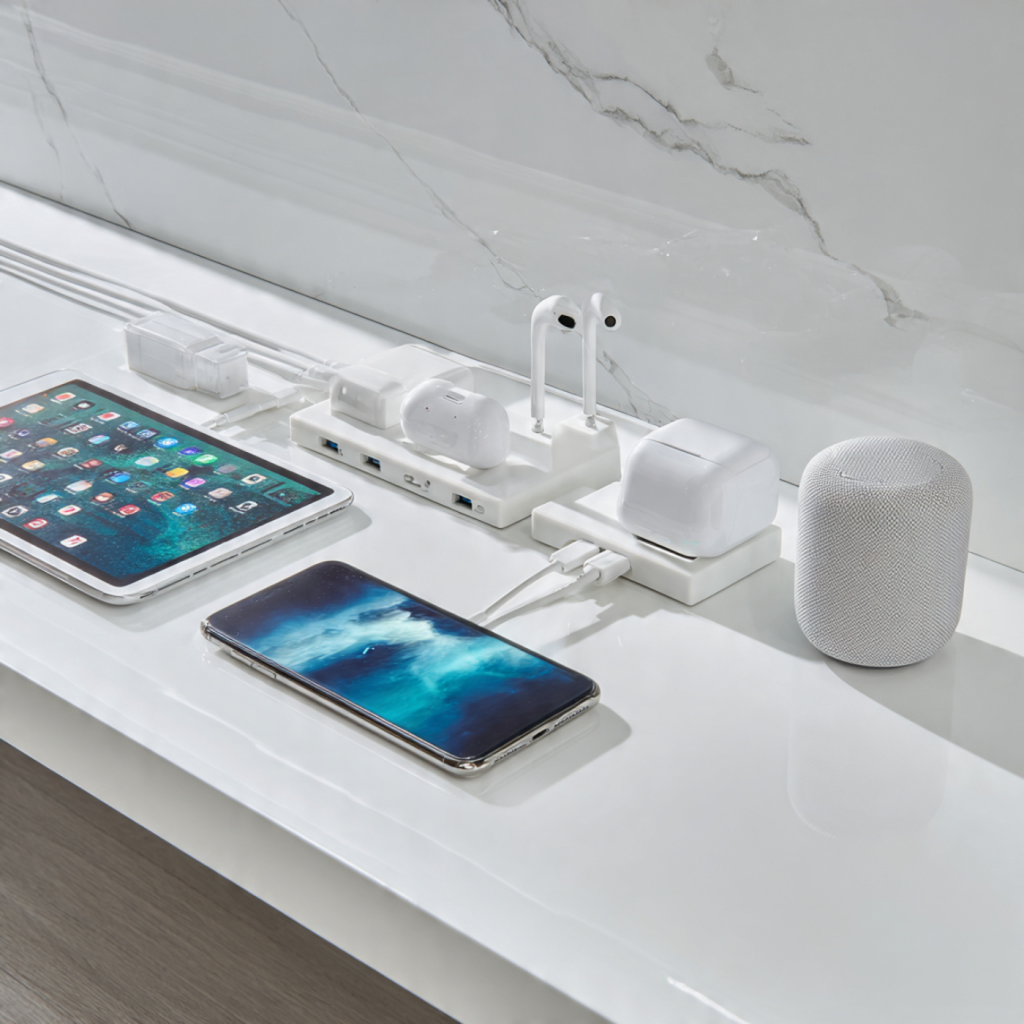
Charge Smarter, Live Cleaner: Why a Multi-Device Dock Belongs on Your Counter
Tired of cords, adapters, and devices sprawling across your kitchen workspace? A dedicated multi-device charging dock turns that chaos into a single, elegant station so you can charge phones, tablets, earbuds, and watches without hunting for outlets. Consolidating chargers reduces clutter, speeds up routines, and keeps devices visible and organized where you need them most.
This guide walks you through must-have features, LED indicator meanings, placement and cable management, power delivery and compatibility, safety and heat management, plus setup and smart-home integration. You’ll learn how to choose, position, and maintain a dock with confidence, so your counter stays tidy and your devices charge efficiently. Ready to power up?
Benefits of a Multi-Device Charging Dock for Your Kitchen Countertop
Declutter and streamline
A single dock replaces a nest of mismatched bricks and cables. Instead of three power bricks and a tangle of cords, you get one unit that sits neatly on the counter. The immediate benefit is visual — and practical: no more unplugging lamps or fishing behind the oven for an outlet.
Faster access when you need it
When you’re following a recipe, timing dinner, or answering a quick family call, having your devices upright and visible saves time. A dock with a vertical phone stand (e.g., Belkin BoostCharge Pro 3‑in‑1) or multi‑port GaN charger (Anker PowerPort Atom PD 4) lets you glance, tap, and keep cooking without pausing to find a charger.
One spot for every device
Docks consolidate charging for phones, tablets, earbuds and wearables so everything finishes charging in a predictable place. Models like the Satechi Trio Wireless Pad or Nomad Base Station Pro support mixed device types — so you can drop AirPods beside an iPhone and a smartwatch and know they’ll be ready.
Family organization and fewer mix‑ups
Make your counter the family charging hub and reduce lost or incompatible chargers. Assign a slot to each person, add a small initial sticker, or use color‑coded cables to avoid mix-ups. This predictable routine cuts small daily frictions—no more last‑minute morning scrambles because someone took the wrong charger.
Countertop aesthetics and value
A well‑designed dock improves your kitchen’s look: minimal lines, matching finishes, and a single cable feeding one outlet. For households that care about design, a matte black Nomad unit or a slim Satechi pad can blend into modern counters while keeping things tidy.
Quick, actionable setup tips
Must-Have Features: What to Look for When Choosing a Dock
Port variety, count, and combined power
Start by matching ports to your daily devices. Look for a mix of:
Practical tip: prioritize combined power output over raw port count. A dock with four low‑watt ports won’t charge a tablet quickly; a 65W total budget shared across ports (like the Anker PowerPort Atom PD 4) is more flexible.
Wireless pads vs wired ports
Choose a dock type that matches habits:
Modular cradles, cable routing, and anti‑slip bases
Usability matters more than aesthetics. Check for:
Materials and kitchen durability
Pick materials that handle humidity and spills: matte ABS plastic, anodized aluminum, and food‑grade silicone resist stains and are easy to wipe. Avoid fabrics that trap grease.
Form factor, footprint, and clearance
Measure your counter space and under‑cabinet clearance. Vertical stands save surface area but need headroom; flat pads take more footprint but let you stack devices side‑by‑side. Think about whether the dock will live near prep zones or off to the side.
Charging speed priorities and LED placement
Decide what matters most — fastest phone charge, simultaneous tablet + phone charging, or quick grab‑and‑go wireless. Also evaluate LED placement:
Decoding LED Indicators: Read Your Dock’s Status at a Glance
Common colors and patterns — what they usually mean
LED conventions vary by brand, but these are the typical signals you’ll see so you can interpret status quickly:
Example: Anker docks often use per‑port blue/green LEDs, while Nomad’s Base Station Pro opts for a subtle center ring—different designs, same logic.
Troubleshooting by LED behavior — quick fixes
Visibility and design tips for kitchen life
Clear LED design protects your devices and gives you instant confidence—next, you’ll learn practical placement and cable strategies to keep that clarity on a clutter‑free countertop.
Placement and Cable Management for a Clutter-Free Countertop
With LED visibility and safety in mind, the next step is where and how you place the dock so it becomes a practical, unobtrusive hub rather than countertop clutter.
Choose the right spot
Pick a location that balances accessibility, outlet proximity, and distance from water and heat sources. Ideal spots:
A centrally located dock works well in family kitchens; a single household I know moved a dock to the breakfast nook and cut morning device scramble dramatically by making everything reachable from both sides.
Cable-routing best practices
Keep cords organized and out of sight with simple hardware and habits:
Ergonomics & multiple users
Position the dock so screens and ports face the most common users. If two people share a counter, center the dock or use two smaller docks (e.g., Satechi 3‑Port + Nomad Base Station combo) to avoid crossing cords. Label cables or color‑code with heat‑shrink tubing for quick identification during busy mornings.
LED visibility and final tweaks
Angle the dock so LEDs are readable without glare—eye level for standing users, not reflected off shiny surfaces. Test placements for a few days, then finalize clips and hidden runs; small adjustments early save big clutter headaches later.
Power Delivery, Charging Protocols, and Device Compatibility
Core concepts: wattage and standards
Think of a dock’s power like a water main: total flow (watts) is limited and ports share that budget. Common PD tiers you’ll see:
USB Power Delivery (PD) is the modern, flexible standard — it negotiates voltage and amps so a device draws the fastest safe rate. Qualcomm Quick Charge is an older, phone-focused fast‑charge protocol that raises voltage for speed; PD is increasingly universal. Wireless charging uses Qi (5W/7.5W/10W/15W) — Apple’s MagSafe is a magnetic Qi variant that can push up to ~15W with alignment and authentication.
How simultaneous charging affects outputs
When you plug multiple devices, the dock balances power. If the combined demand exceeds the dock’s total, some ports down‑rate automatically. Real-world: if your dock advertises 100W total and you attach a 65W laptop plus two phones, the laptops stays near full speed but phones may drop from 18W to 7.5W until you unplug one device.
Compatibility checklist
Verify firmware/hardware limits & plan ahead
Safety, Heat Management, and Routine Maintenance
Electrical safety and certified gear
You protect devices — and your home — by starting with certified components. Use PSUs and surge protectors with recognized marks (UL, ETL, CE/FCC) and choose reputable models, e.g., Belkin 12‑Outlet Pivot Plug Surge Protector or APC SurgeArrest. For high‑watt PD charging, use e‑marked USB‑C cables and stick to chargers from Anker, Satechi, or the device maker.
Ventilation and kitchen heat best practices
Kitchens get warm and humid — keep the dock cool and dry. Give the dock 2–3 inches of clearance on top and sides, and never place it directly next to a stove, toaster, or sink. If you keep it in a cabinet, add passive vents or a small USB fan.
LED warnings, inspection, and maintenance rhythm
LEDs often indicate thermal or fault states: steady amber/red can mean high temp, rapid blinking may signal a short or overload. Consult the manual for patterns, but treat unusual colors or blinks as a prompt to power down.
Cleaning and troubleshooting steps
Keep contacts clean with a microfiber cloth and a cotton swab lightly moistened with 70% isopropyl alcohol. Use compressed air for debris in ports.
A little preventative care — timely inspections, clean contacts, and certified power — will significantly prolong both your dock and your devices.
Setup, Customization, and Integrating Your Dock with Smart Home Systems
Unboxing to first charge — a quick checklist
Start smart: inspect the dock, power adapter, and cables; read the quick-start guide; register the device (serial/QR) if required. Then:
Customize ports, priorities, and LEDs
If your dock/app supports per‑port settings, assign priorities (e.g., “Phone = High, Tablet = Low”) so the dock allocates wattage where it matters. If not, use physical labeling and a simple family rule.
Smart-home integrations and automation ideas
Integrate with voice assistants (Alexa/Google Assistant/Siri via HomeKit) or a hub (Home Assistant/IFTTT) for real convenience.
Use smart plugs like TP‑Link Kasa, Wemo Mini, or HomeKit‑compatible Eve Energy to add scheduling or energy monitoring without replacing the dock.
Accessories that complete the setup
With the dock behaving the way your household operates, you’re ready to move on to wrapping up the article.
Charge Confidently: Make Your Counter a Smart Power Hub
Match features to needs, prioritize clear LED indicators, and place the dock for accessibility and airflow. Choose fast, compatible PD and Qi standards, manage cables to reduce clutter, and follow safety and heat-management practices. Regular maintenance preserves performance and longevity, and decoding LEDs lets you monitor power flow and faults at a glance.
Use a simple checklist—features, LED clarity, placement, protocols, and safety—before buying. Integrate the dock into daily routines and your smart home. With the right dock, your counter becomes a tidy, reliable charging hub. Start smart; charge confidently today.