
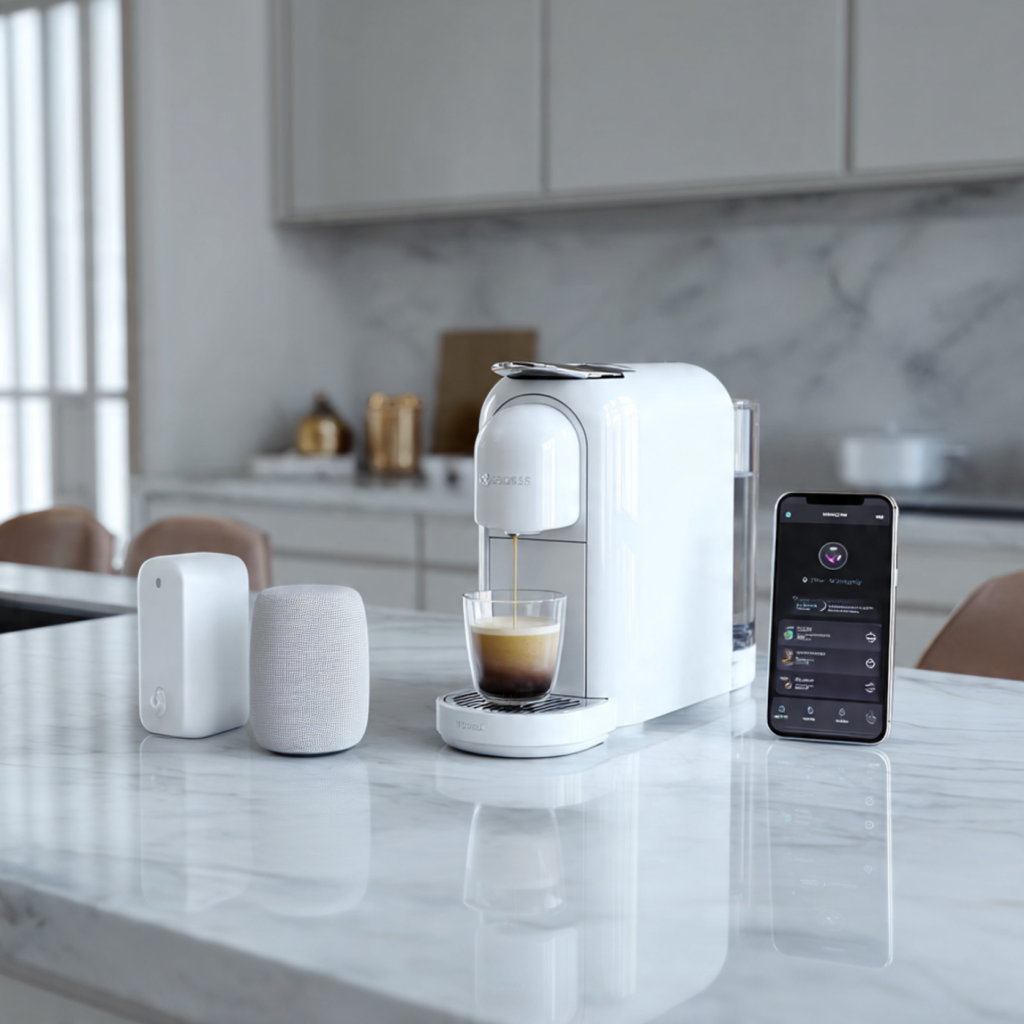
Get Ready to Command Your Coffee: Smart Machine Meets Voice Assistants
You’re about to make your mornings effortless: over 60% of U.S. households now use voice assistants, so connecting your smart coffee machine to Alexa and Google Home is a smart, stress-free step. This guide prepares you for reliable voice brewing.
What you need before starting
Prepare devices, accounts, and your network
Think one small setting is harmless? Miss it and pairing can fail — set the stage like a pro.Verify that your smart coffee machine, your Alexa or Google Home device, and your phone are on the same 2.4 GHz Wi‑Fi network and positioned close together for pairing. Ensure the machine is powered on and in pairing mode per the manufacturer’s instructions.
Ensure the coffee machine has the latest firmware and open its companion app to confirm the device appears in the app’s device list. Update or reinstall the app if the device is missing. Sign into your Amazon or Google account on the phone and confirm the Alexa or Google Home app is installed and updated.
Disable any VPNs, captive portals, or network isolation that can block local discovery. Note the following before pairing:
Select the 2.4 GHz SSID if your router separates bands. Consider temporarily disabling advanced firewall, guest network, or AP isolation features while pairing. Restart the router, phone, and coffee machine if you see connectivity issues; a fresh reboot often fixes transient problems. Label the machine in the companion app with a concise name to avoid voice-discovery confusion, and record any error messages observed.
Install and configure the coffee machine app
App installs unlock remote-brew powers — are you skipping steps that break things?Install the manufacturer’s official app from the App Store or Google Play and sign in or create an account. Grant necessary permissions such as Location and Local Network so the app can discover devices.
Link the coffee machine to Alexa or Google Home
Which assistant wins? Both — but linking wrong accounts is the silent killer of voice control.Open the Alexa or Google Home app on your phone. Navigate to Skills & Games (Alexa) or Add devices (Google Home) and search for your coffee machine’s brand.
Select the manufacturer’s skill/service, then tap Enable or Link. Sign in with the same account you used in the coffee machine app to authorize access.
Grant requested permissions when prompted.
Ask the voice assistant to discover devices: say “Alexa, discover devices” or “Hey Google, sync my devices”, or use the app’s device discovery tool.
Rename the discovered device to a short, vocal-friendly name like “Coffee Maker” or “Kitchen Coffee”. Assign the device to the correct room group (e.g., Kitchen) so routines and multi-device commands work reliably.
If discovery fails, verify that you’re signed into the same account in both apps, that the coffee machine is online, and that your phone’s permissions (Local Network, Bluetooth, Location) are allowed. For Google Home, check HomeGraph sync; for Alexa, verify the Smart Home skill status in the Alexa app.
Create voice commands, routines, and automations
Want coffee at ‘Good morning’? Automate like a pro and skip the sleepy fumbling.Define concise voice commands and build routines or automations that make brewing hands-free.
Create a Routine in Alexa: open Routines → + → When this happens → Spoken Phrase, add the phrase, set pre-brew preferences (cup size, strength), then add the Start Brew action for your coffee machine.
Create a Shortcut or Routine in Google Home: open Routines → + → add a custom phrase, select your coffee machine action, and save. Use short, natural phrasing; prefer “Start coffee” over “Brew” if you have other brewing devices.
Add triggers such as:
Test each routine step-by-step. Include delays if the machine needs preheat time. Combine lights and speakers to create a full wake-up scene (e.g., lights on → news → coffee). Document routine names and phrases for household consistency.
Secure automations by reviewing account authorizations, removing unused third-party integrations, considering voice-recognition locking, and requiring secondary confirmation for scheduled large-volume brews.
Troubleshoot common pairing and control issues
Wi‑Fi ghosts, token mismatches, and duplicate devices — solve them fast with this checklist.Reboot your router, phone, and coffee machine, then retry discovery — many failures clear after a cold start. For example, rebooting your phone and router often fixed discovery when the assistant previously timed out.
Confirm that the coffee machine app and Alexa/Google Home use the same manufacturer account; sign out and sign back in to refresh authentication tokens.
Grant your phone the required permissions: enable Local Network, Bluetooth, and Location while the app is installing and during setup.
Switch your phone’s Wi‑Fi to the 2.4 GHz band if the machine doesn’t support 5 GHz; many smart appliances only discover on 2.4 GHz.
Apply firmware updates from the machine’s companion app — updates often resolve compatibility bugs and discovery issues.
Inspect your router for QoS, parental controls, or AP isolation and disable rules that block local LAN traffic; these can cause intermittent control failures.
Remove duplicate devices shown in Alexa or Google Home, then run a fresh device discovery.
Capture logs, screenshots, error messages, and timestamps and contact manufacturer support for an expedited diagnosis.
Optimize daily use, privacy, and household workflows
Make your morning ritual smarter without sacrificing privacy, and teach the family the one right phrase.Calibrate brew schedules and strength profiles in the machine app and test one-week settings to confirm they match your morning routine.
Mirror those preferences in Alexa or Google Home routines so voice-triggered brews match the machine app (e.g., “Good morning — medium, double cup”).
Require voice confirmations for critical commands and scheduled or high-volume brews to avoid accidental 12-cup mornings; set a prompt like, “Confirm: start 12-cup brew?”.
Review and restrict third‑party skill/service permissions: revoke access you don’t need and keep only essential data sharing.
Enable activity history purging or limited retention in both the manufacturer app and voice assistant, and schedule periodic audits of linked accounts and permissions.
Use household voice profiles so the assistant applies individual preferences (cup size, strength) and limits access for guests or children.
Disable remote control by revoking cloud access or toggling remote features off in the manufacturer app while leaving local voice control active when available.
Finally, train family members on voice phrases and document routine names, command words, and manual controls to reduce accidental usage and ensure reliable mornings daily.
Brew confidently every morning
Following these steps, you’ll pair and optimize your smart coffee machine with Alexa and Google Home, test voice commands, refine routines, enforce privacy controls, document settings so daily voice brewing is reliable, consistent, and effortless—are you ready to brew tomorrow?