
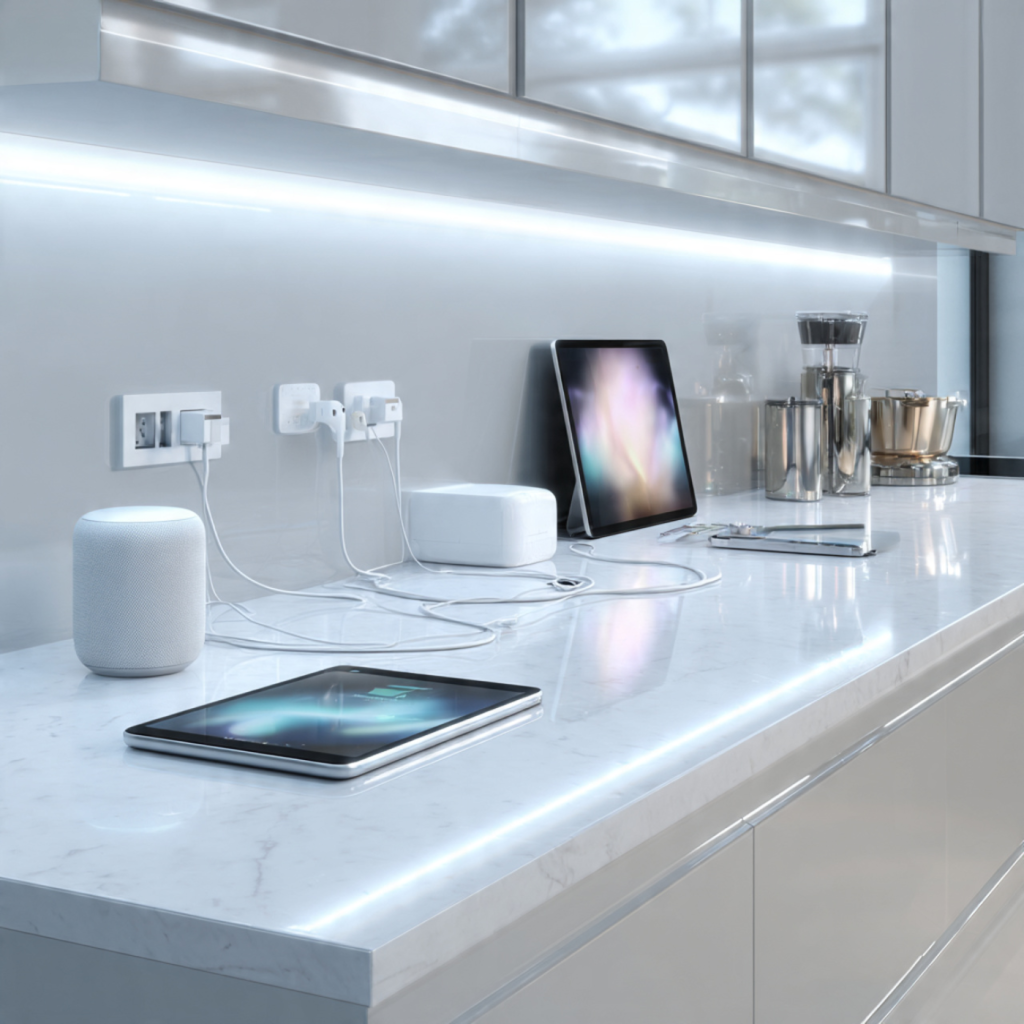
Why a USB-C Fast-Charging Hub Belongs in Your Kitchen
A surprising 68% of households now use their kitchen as a tech hub, charging phones, tablets, smart speakers, and appliances while cooking. You rely on quick power, clear counters, and safe outlets.
A dedicated USB-C fast-charging hub consolidates cables, speeds up charging, and keeps high-current lines away from spills and heat. It reduces clutter, replaces multiple wall chargers, and gives predictable power for devices that matter most during meal prep.
This guide shows how to match a hub to your devices, pick safe placement and wiring, and maintain reliable, future-ready charging. By the end you’ll know how to make your kitchen cleaner, safer, and faster for every device you use there. Start here to simplify power and protect your gear.
Assessing Your Kitchen Needs: Power, Devices, and Workflow
Map the devices you actually charge
Start by listing everything you plug in at the counter, not the theoretical devices in your house. Typical kitchen list items include:
Write each device down and note how often and how long you charge it in the kitchen.
Estimate total power draw (simple how-to)
Assign a typical wattage for each device (use device manuals or a quick web search for “device name USB-C charging wattage”). If you prefer a simple rule of thumb, use these conservative averages:
Add up the numbers for devices you’ll often charge at once, then add 20–30% headroom to cover simultaneous top-ups and inefficiencies. That total is the baseline for the hub’s maximum output you’ll need.
Decide which devices get priority
Not all devices deserve equal speed during short windows like 20–30 minutes of meal prep. Ask yourself:
Plan to assign at least one high-power PD port (30–65W) to high-priority devices and designate lower-power ports for background charging.
Consider peak-use scenarios and workflow
Think through real routines: breakfast rush (multiple phones), weeknight dinner with a streaming recipe (tablet + smart display), weekend food photos (camera + phone). Peak times dictate how many fast ports you need and whether a hub with intelligent load balancing or multiple high-watt ports is required.
Quick example
A family of four charging two phones, an iPad, Nest Hub, and earbuds concurrently:Estimated draw = 20 + 20 + 30 + 10 + 5 = 85 W → add 25% headroom → choose a hub with ~110 W total output and at least two 30–65 W PD ports.
With this inventory and simple math, you’ll match real needs to a hub’s specs. Next, you’ll learn which specific features make those power numbers practical in daily kitchen life.
Key Features to Look For in a Kitchen-Friendly USB-C Fast-Charging Hub
Power delivery: know the tiers and your total budget
When you shop, match hub specs to the baseline you calculated earlier. Key facts to keep in mind:
Tip: prefer a hub whose total power budget is ~20–30% above your peak simultaneous demand to avoid throttling.
Port mix and simultaneous behavior
Decide the right balance of high‑wattage vs. low‑wattage ports:
Look for clear manufacturer notes on per‑port behavior — many hubs intelligently allocate power but will reduce per‑port output under heavy load. Real-world: a 120 W hub often won’t deliver two simultaneous 100 W outputs; it will balance to the available budget.
Intelligent power allocation and usability features
Good hubs support:
Safety and kitchen-ready durability
Kitchens demand robust protection:
Form factor and integration
Choose a format that fits your workflow:
Every choice affects durability, safety, and convenience: more power and smart allocation mean fewer compromises during rush hour; rugged coatings and good thermal design reduce failure risk; and thoughtful form factors keep your cooking space tidy. Next, we’ll cover where to place and how to power these hubs safely in your kitchen.
Placement, Installation, and Power Source Considerations
You’ve picked a hub — now make sure it stays useful, safe, and out of harm’s way. Below are practical steps and decisions to site and install a USB‑C fast‑charging hub that works for real kitchen life.
Pick the right location
Think workflow, splash risk, and visibility. Good options:
Example: You might mount a slim under‑cabinet Satechi 108W PD unit above your prep counter, keeping cables tucked into a small groove.
Clearance and heat dissipation
Give chargers breathing room — don’t box them in:
Evaluate existing electrical infrastructure
A quick sanity check prevents trips and hazards:
Installation types and step‑by‑step notes
Typical mount styles:
Quick how‑to for under‑cabinet mount: measure, mark using a stud finder, pre‑drill pilot holes, secure with screws/anchors, route cable through a small grommet, test power.
Tools, materials, and safety tips
Have these on hand: drill, screwdriver, anchors, stud finder, cable clips, grommets, silicone sealant, voltage tester, fish tape for routing.
Cord routing and spill protection
Route cords along backsplashes or inside cable channels; use adhesive cable clips to keep cords off counters. Mount the hub slightly inset or behind a small lip so spills flow around rather than into it. For sink‑adjacent installs, use a GFCI‑protected outlet or GFCI breaker.
When to hire an electrician and code compliance
Call a licensed electrician if you need new outlets, hardwiring, circuit upgrades, or any changes to kitchen branch circuits. Local code often mandates GFCI protection and specific outlet spacing for countertops — don’t guess.
Next, we’ll look at how your chosen hub behaves under real‑world multi‑device loads and how to keep it performing safely over time.
Compatibility, Load Balancing, and Real-World Use Cases
How PD negotiation actually works (quick primer)
When you plug a device into a PD (Power Delivery) port, the charger and device perform a handshake: they agree on a voltage and current the device can accept. Phones typically negotiate 5–20V and draw 10–30W for fast charge; tablets often request 18–45W; laptops can request 45–140W depending on the model. If the hub can’t supply the requested wattage, it either offers a lower profile (slower charge) or caps current.
What happens when multiple devices connect
Hubs have a fixed power budget. There are two common behaviors:
In practice, expect one of these outcomes when demand exceeds supply: slower charging, one device receiving reduced voltage, or the hub throttling overall output to stay within thermal limits. High-quality GaN hubs (Anker 737, Satechi 108W, UGREEN 100W) manage heat better and provide more predictable allocation.
Practical scenarios and recommended setups
Practical tips to maximize performance
These choices help you predict how the hub behaves in daily kitchen life and make practical tradeoffs between speed, safety, and convenience.
Maintenance, Safety Best Practices, and Future-Proofing Your Setup
Routine cleaning and moisture control
Kitchens are greasy and humid—two enemies of electronics. Wipe your hub weekly with a lightly damp microfiber cloth (unplug first). For stubborn grease, use a 70% isopropyl wipe, then dry immediately. Never spray cleaners directly onto the device and avoid steam from kettles or dishwashers.
Ventilation, heat monitoring, and placement checks
Heat shortens electronics’ life. Position the hub where airflow isn’t blocked (no under‑cabinet sandwiching). Check the hub’s temperature after 30 minutes of heavy use: it should be warm, not hot.
Firmware, warranties, and vendor support
Treat the hub like any smart appliance—look for firmware updates and vendor support information at purchase.
Spotting wear and early electrical signs
Early detection prevents fires and failures. Watch for:
Safe operating practices
Adopt simple habits to reduce risk and improve longevity.
Surge protection and whole‑home options
Protect the hub and your devices from spikes.
Future‑proofing choices
Plan for growth so your hub stays useful.
Quick troubleshooting & repair vs replace
Repair if your vendor offers warranty service or a certified repair center. Replace the hub if there are burn marks, persistent overheating, or multiple failed ports—those are signs of irreversible damage.
Transitioning from these operational practices, you’ll be ready to consolidate benefits—safety, convenience, and longevity—as you finalize your kitchen charging setup.
Bringing It All Together: Make Your Kitchen a Safer, Smarter Charging Space
You’ve learned to assess power needs, device mix, and workflow so you can choose a hub with the right wattage, ports, and safety features. Prioritize fast charging, overcurrent protection, and practical placement to keep cords away from water and cooking zones.
Install with a reliable power source, follow manufacturer instructions, and balance loads to prevent throttling. Regularly inspect cables, vents, and firmware updates. By focusing on compatibility, safety, and convenience, you’ll create a durable, user-friendly charging center that fits your lifestyle. Take a moment today to map your devices and pick a hub that makes daily kitchen routines easier and safer. Start small and upgrade as needs evolve.